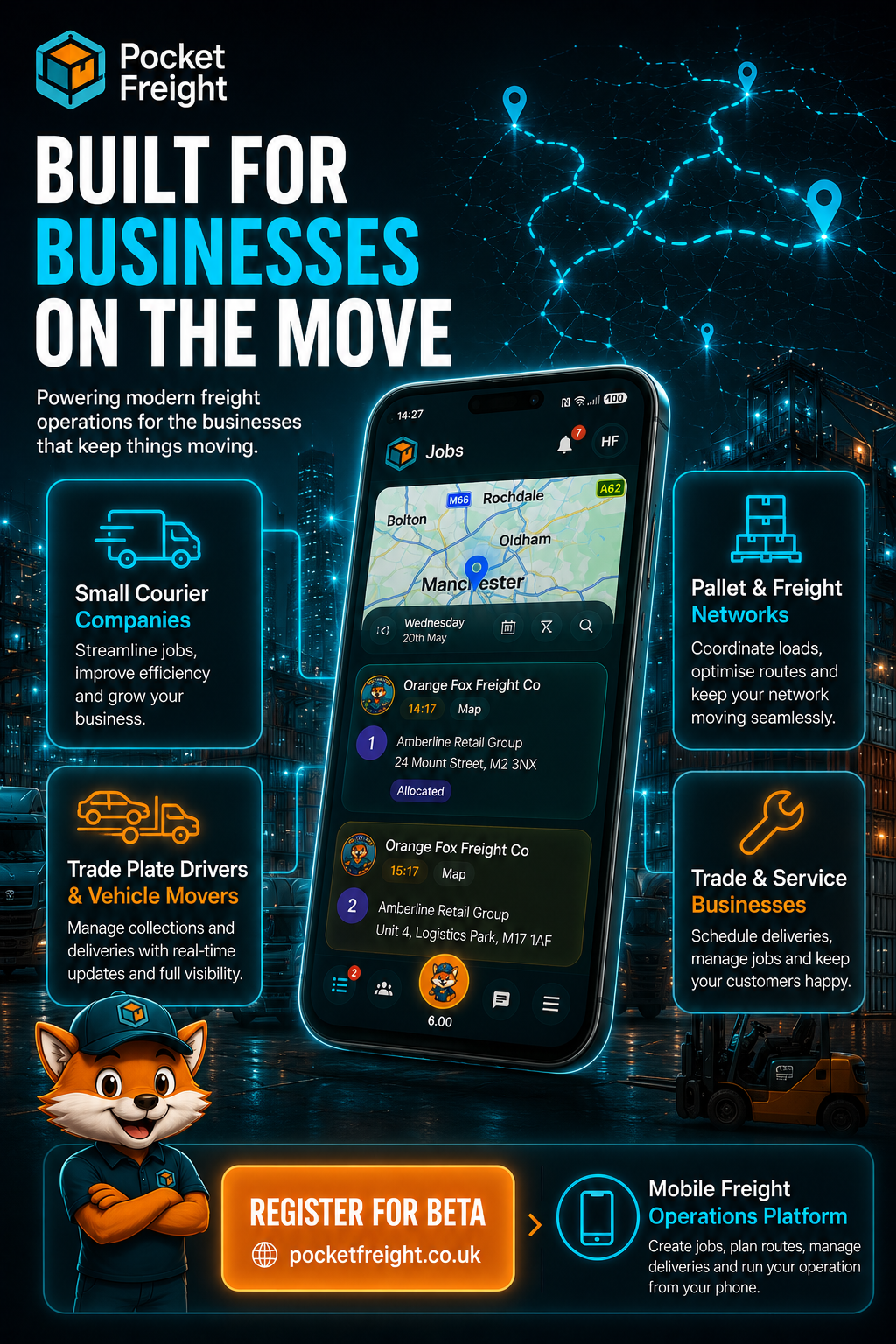
Built for businesses on the move.
Pocket Freight & Trade connects customers, office teams and drivers from enquiry and quote through planning, live tracking, proof, paperwork and invoice across Android, iOS and the web portal.



The Problem
The old way costs time, visibility and control.
Transport, logistics and field service teams still spend too much time managing work through paper notes, phone calls, spreadsheets, manual invoicing and disconnected customer communication.
Pocket Freight & Trade turns those everyday tasks into a connected workflow so teams can manage the full operation from one platform.
Complete Workflow
One Platform. Every Job.
Pocket Freight & Trade follows the natural order of real work. Customers submit enquiries, teams price and send quotes, accepted work becomes a live job, drivers complete it and everyone stays connected through tracking, paperwork and finance.
The same operation is available across Android, iOS and the web portal, with each person seeing the tools and data appropriate to their role.

Customer Workspace Journey
From first enquiry to final invoice.
Customers no longer need to chase updates across calls and emails. Add them to a workspace and Pocket Freight & Trade keeps the full commercial and operational conversation connected to the same job.
Workspaces & Roles
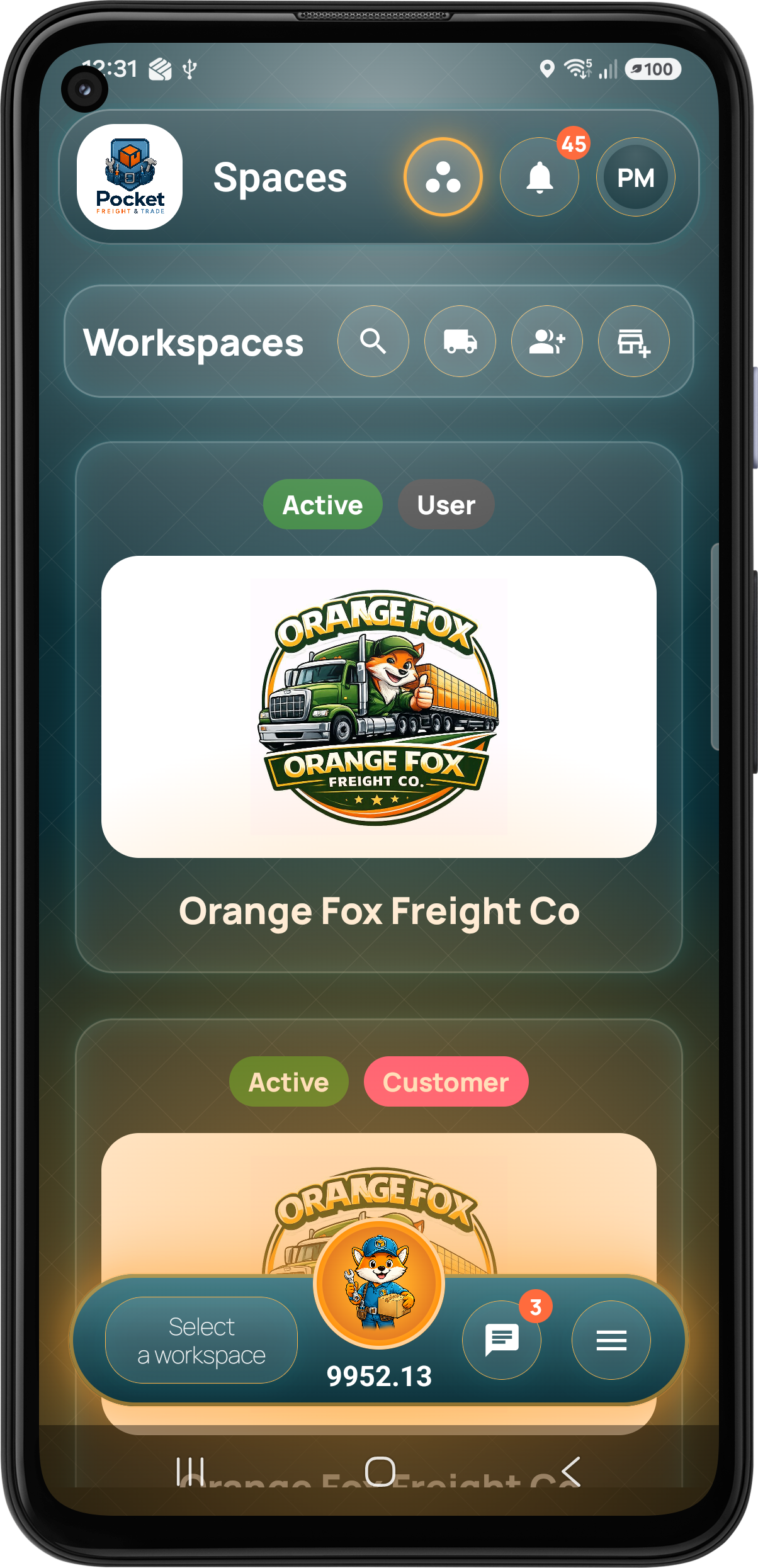
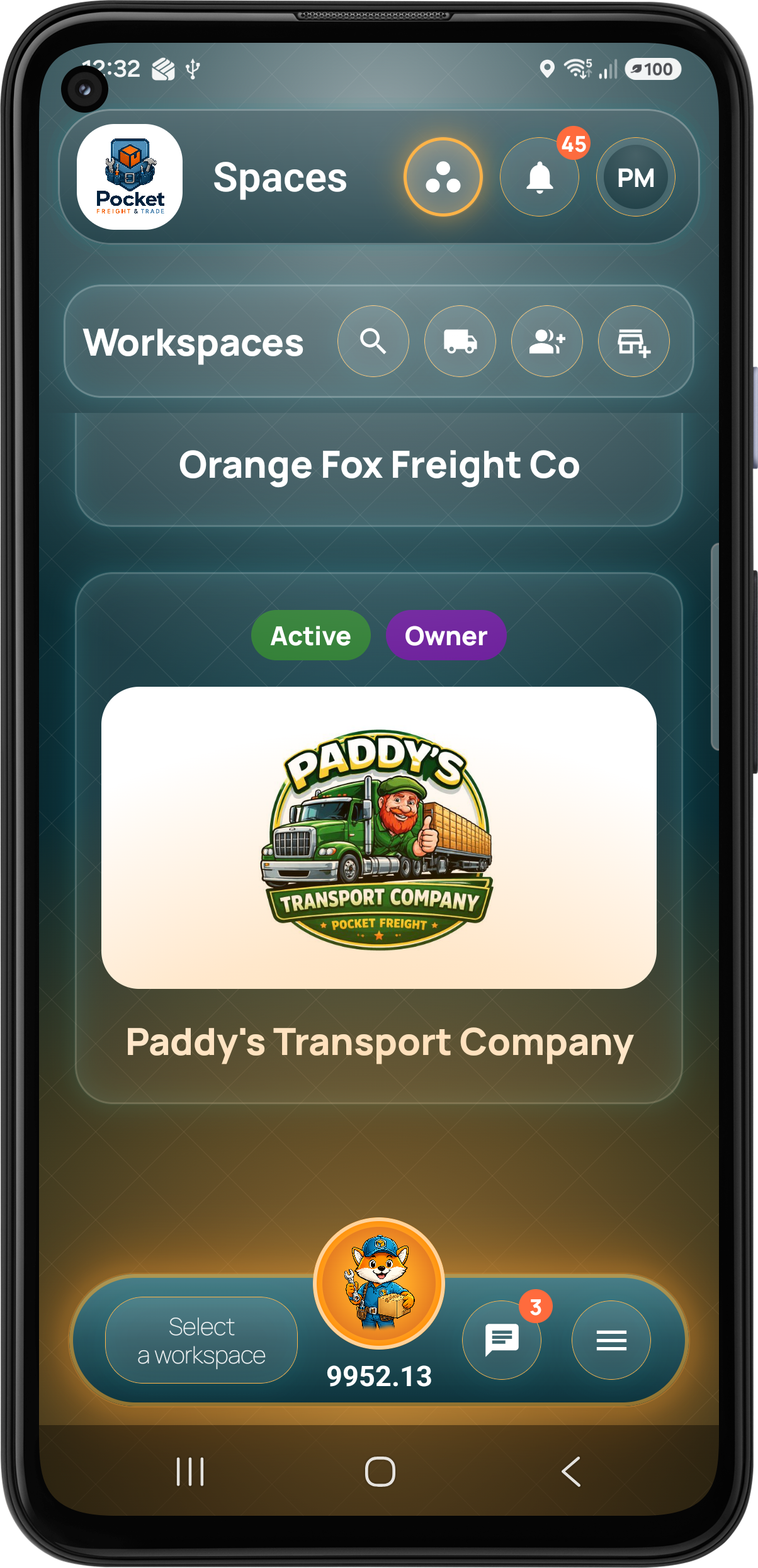
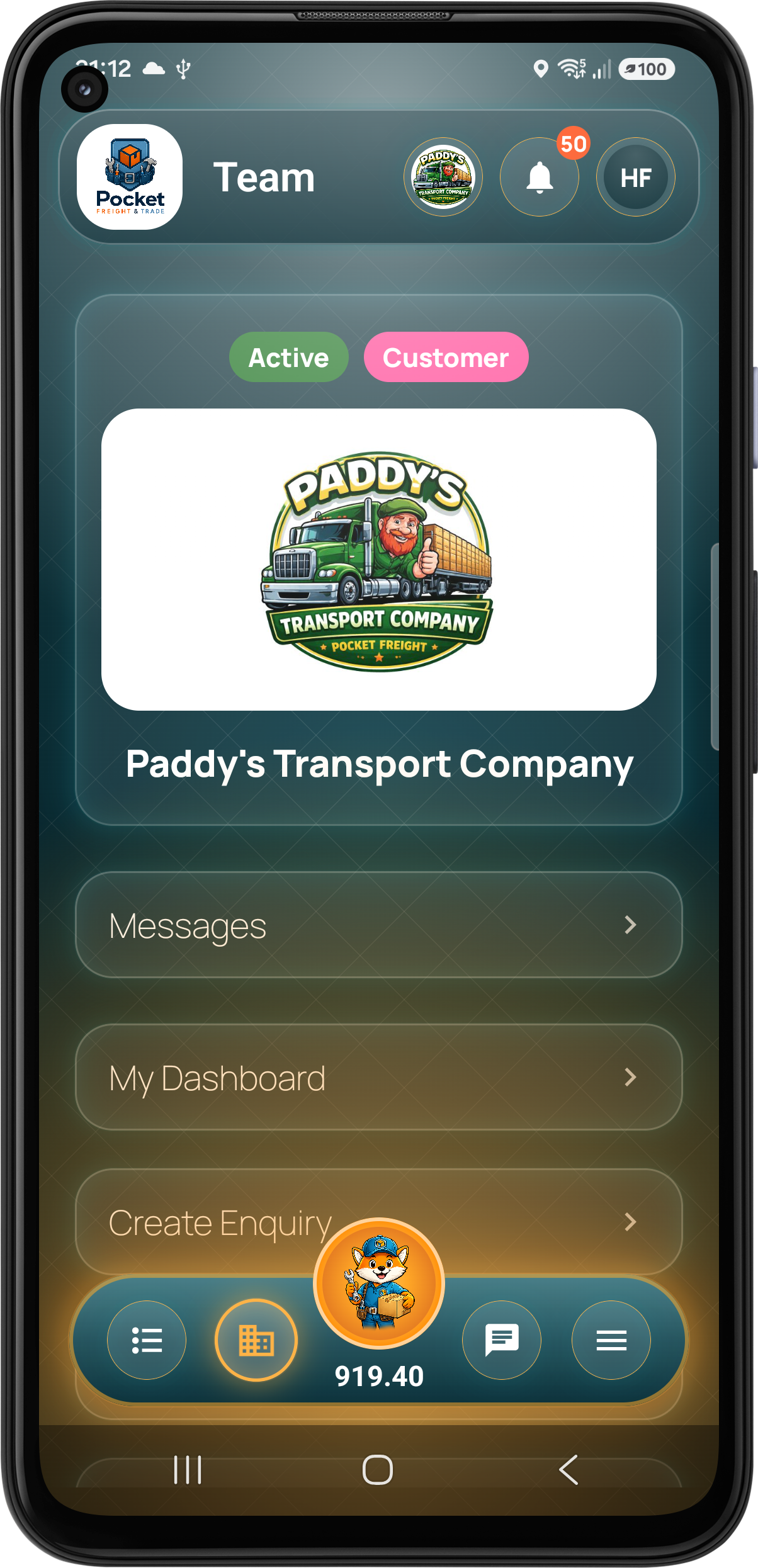
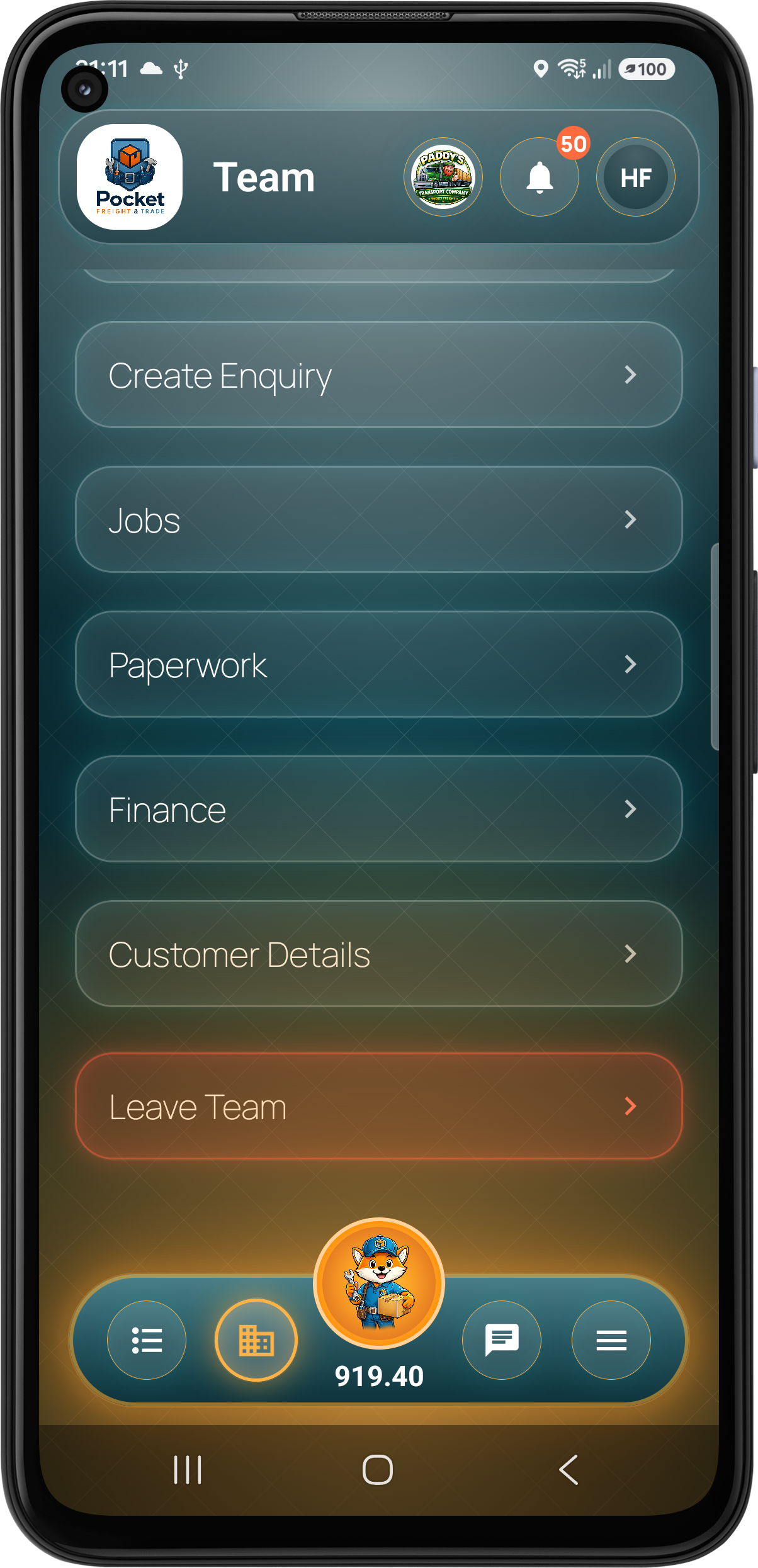
One account can open the right workspace for every relationship.
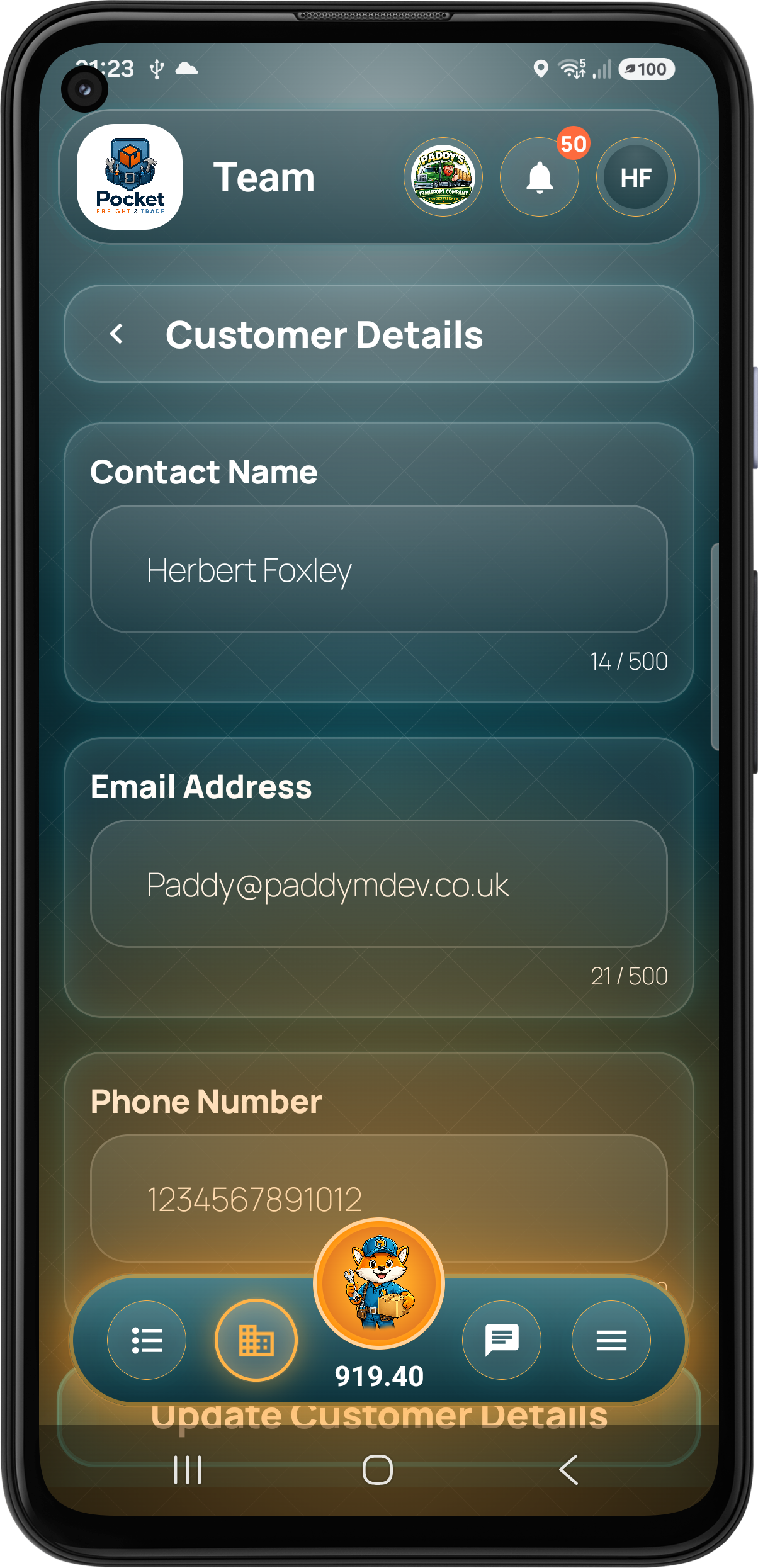
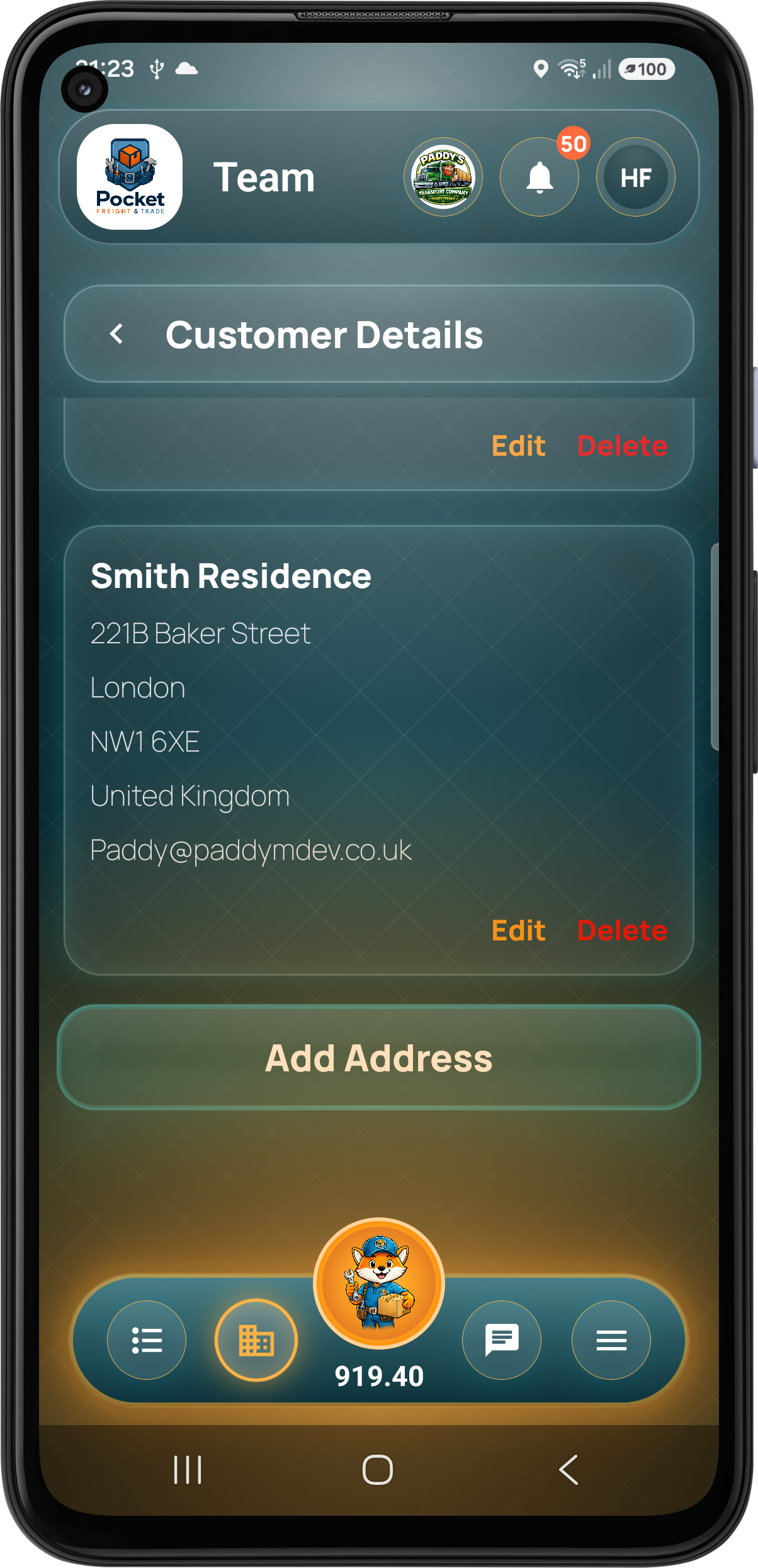
A person can belong to multiple companies and customer workspaces. Owner, Admin, User and Customer roles receive their own navigation, permissions and data, while the customer keeps their contact details and addresses up to date.
Step 01 · Customer Enquiry
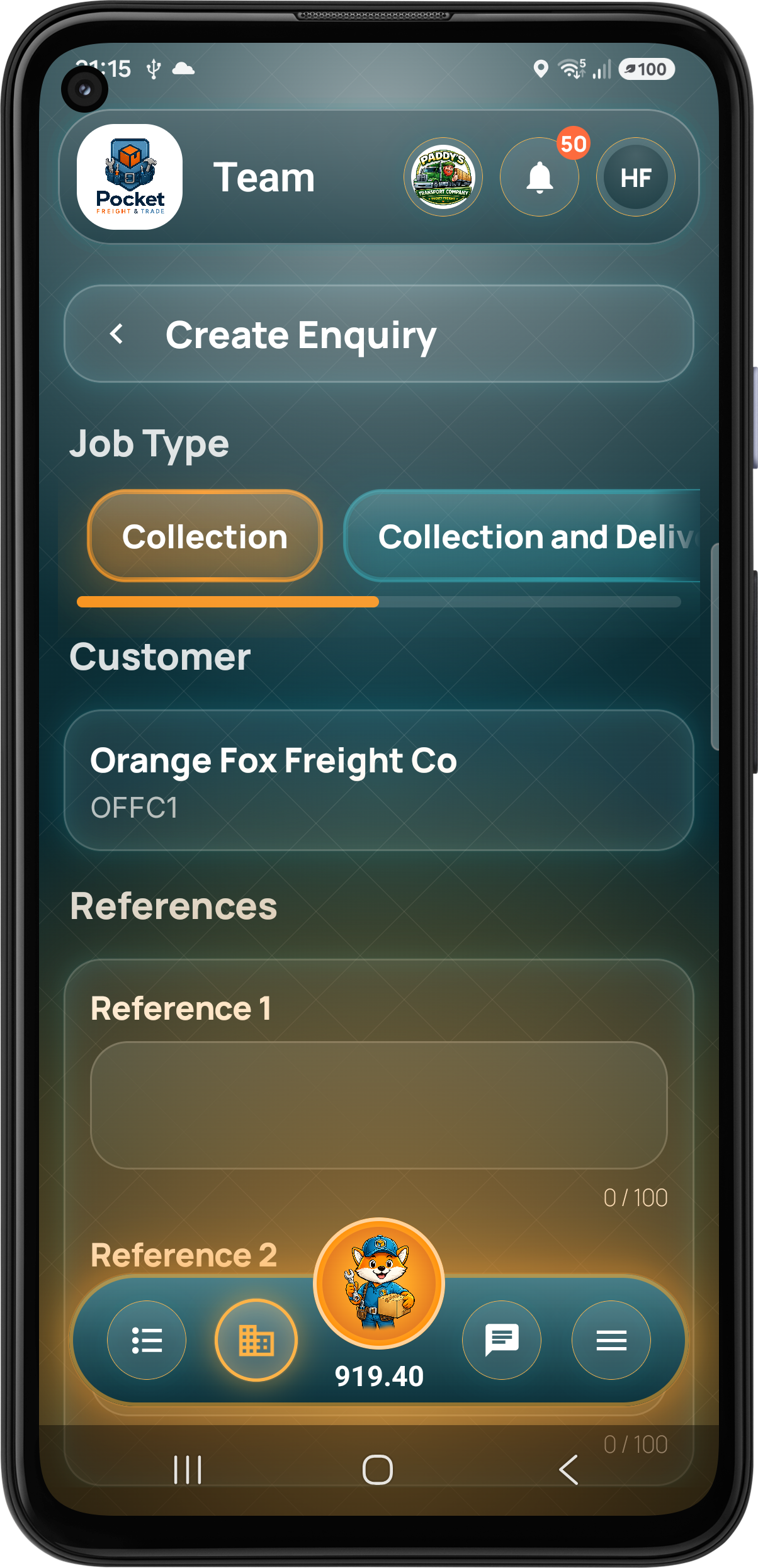
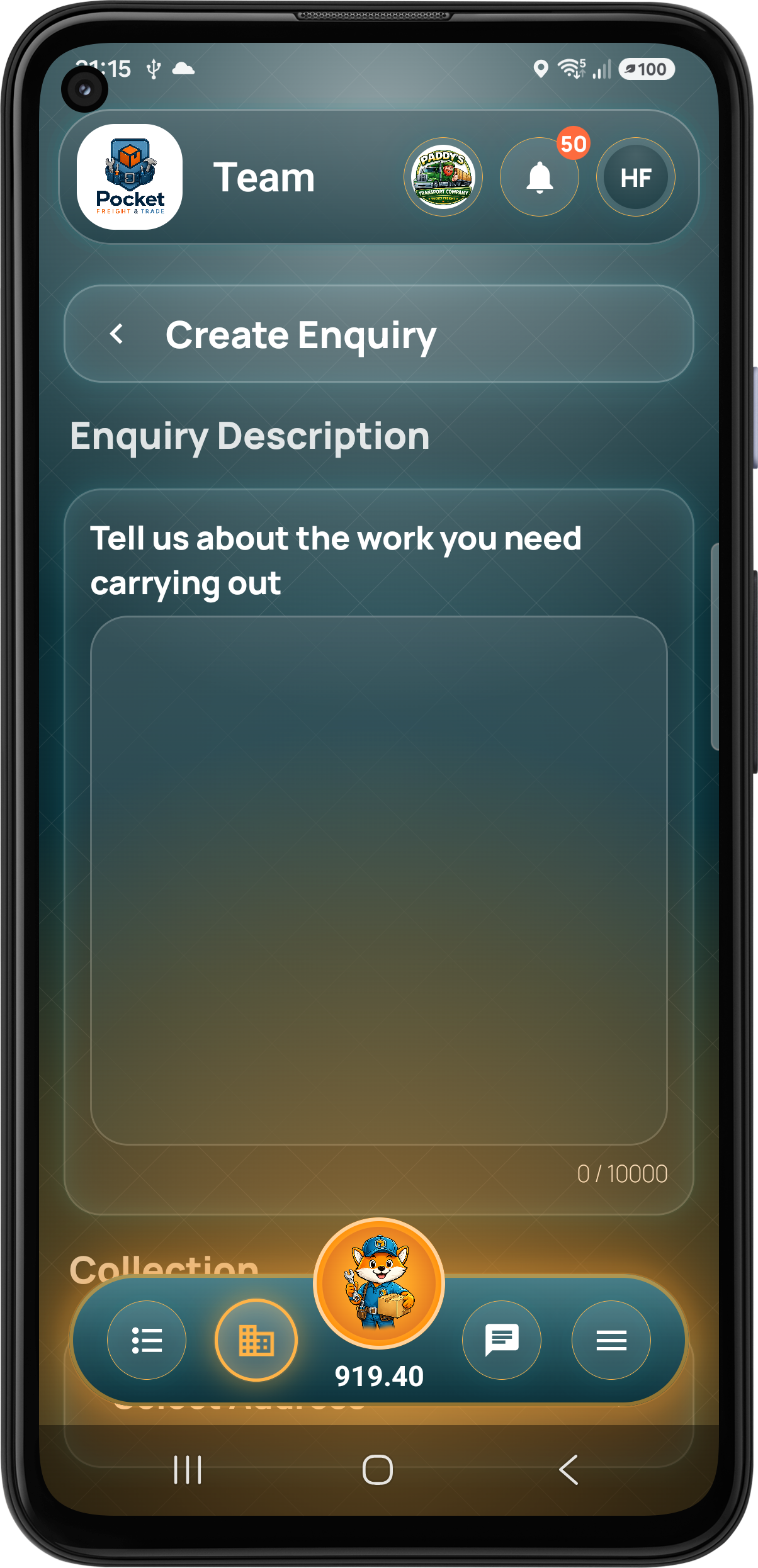
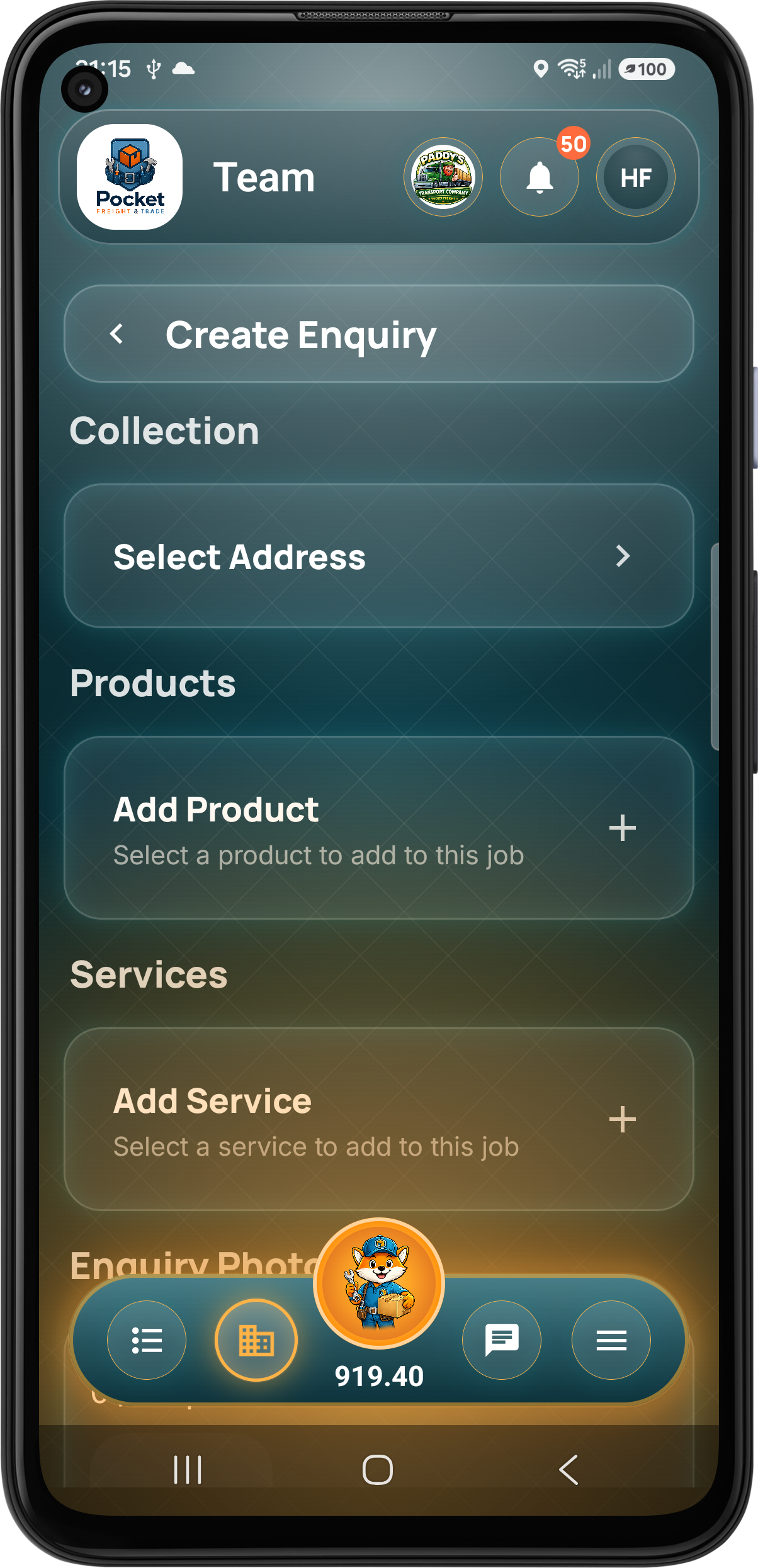
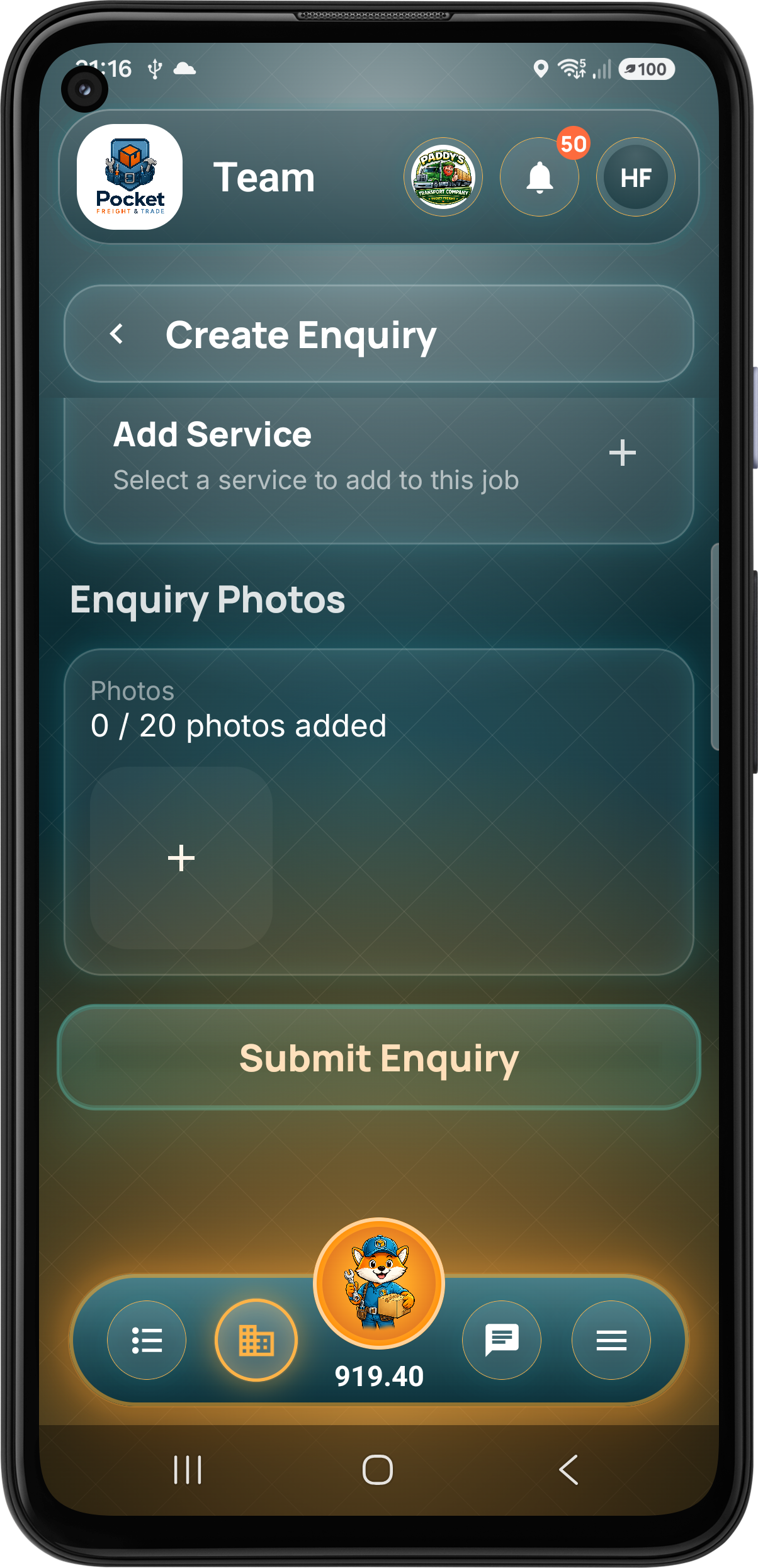
The customer submits the work directly into your operation.
They choose the job type, add references and an enquiry description, build the required collection and delivery stages, select products or services and attach supporting enquiry photos before submitting.
Step 02 · Admin Review
Owners and admins receive the enquiry with every detail attached.
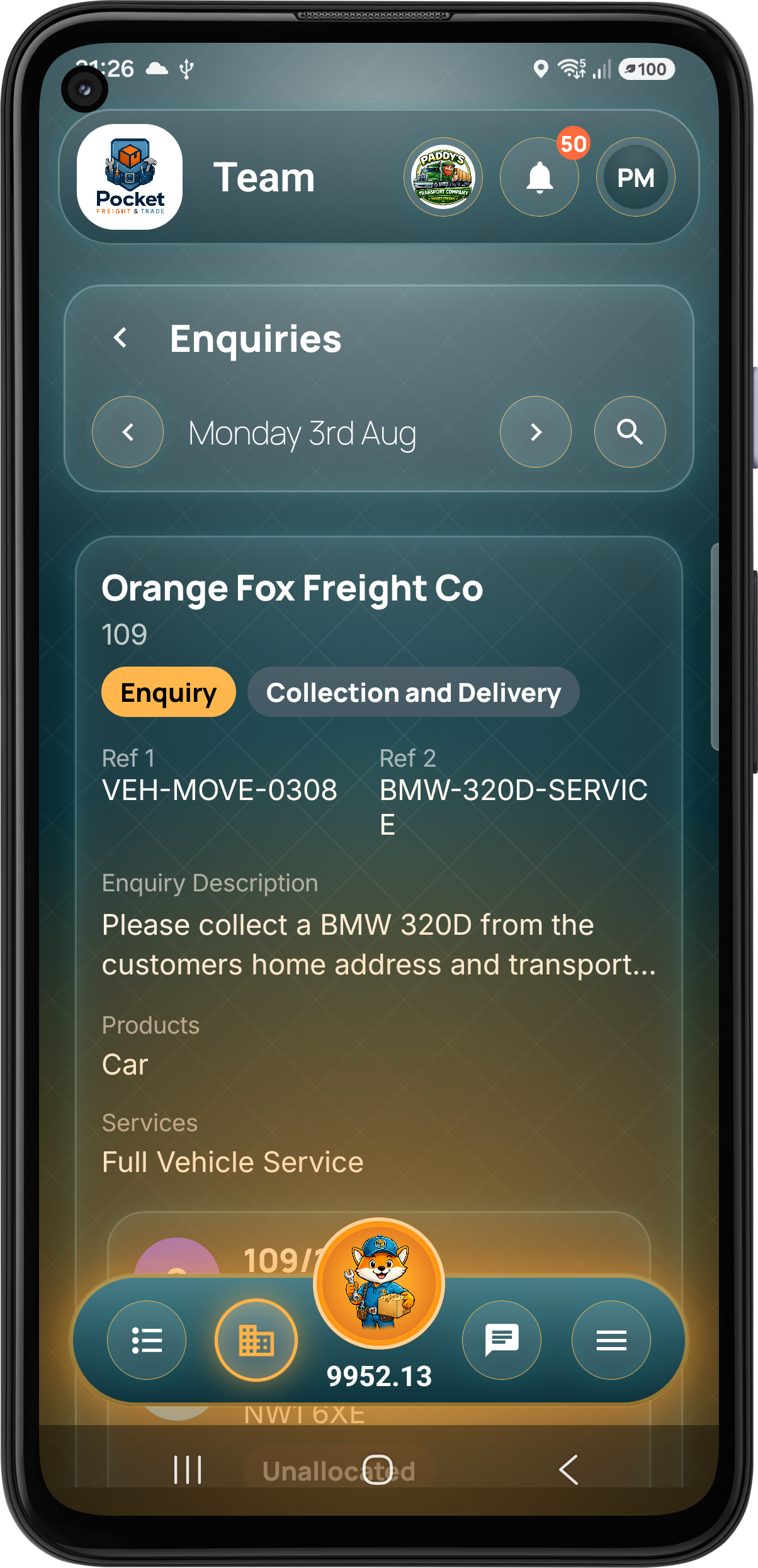
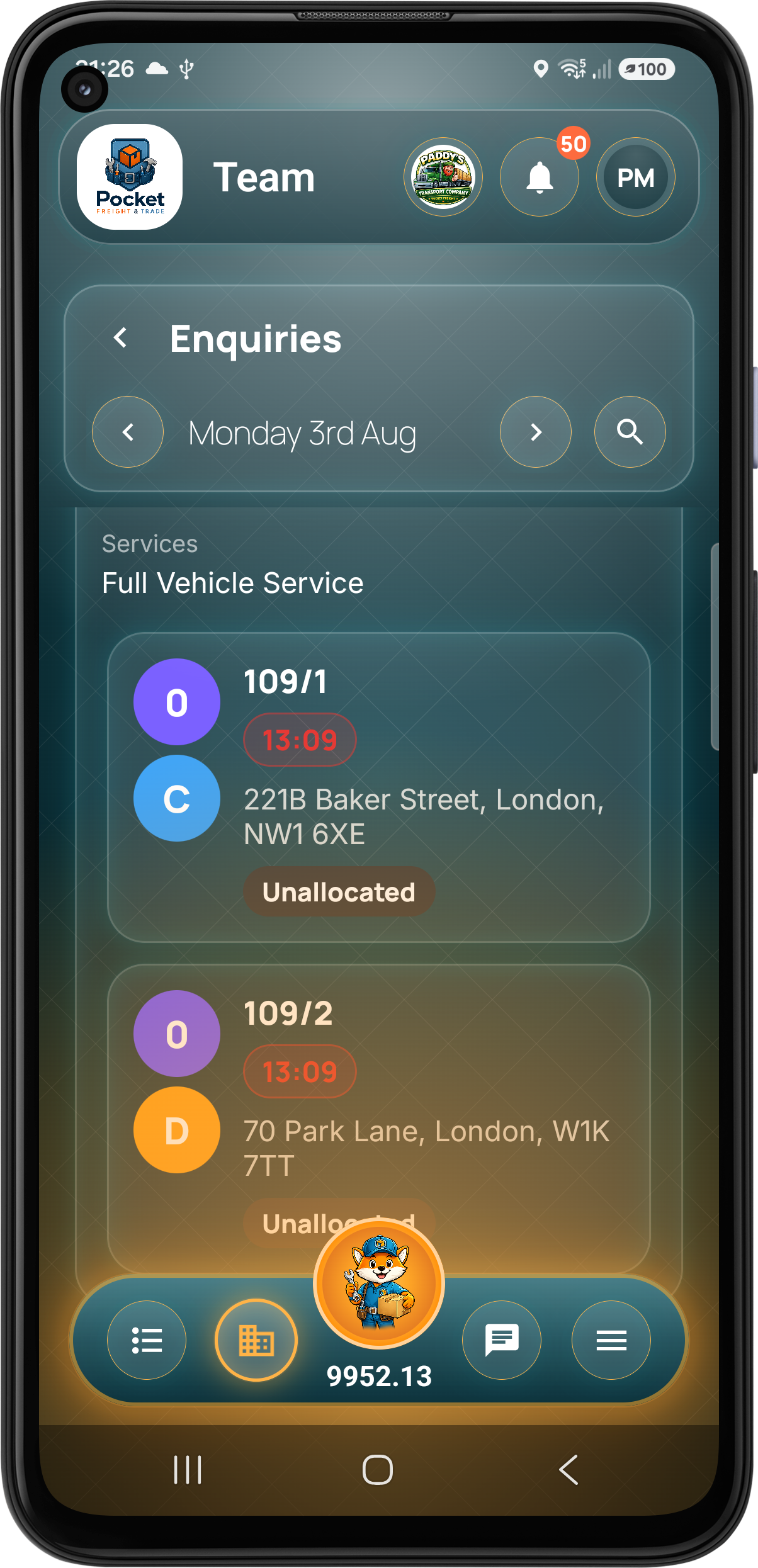
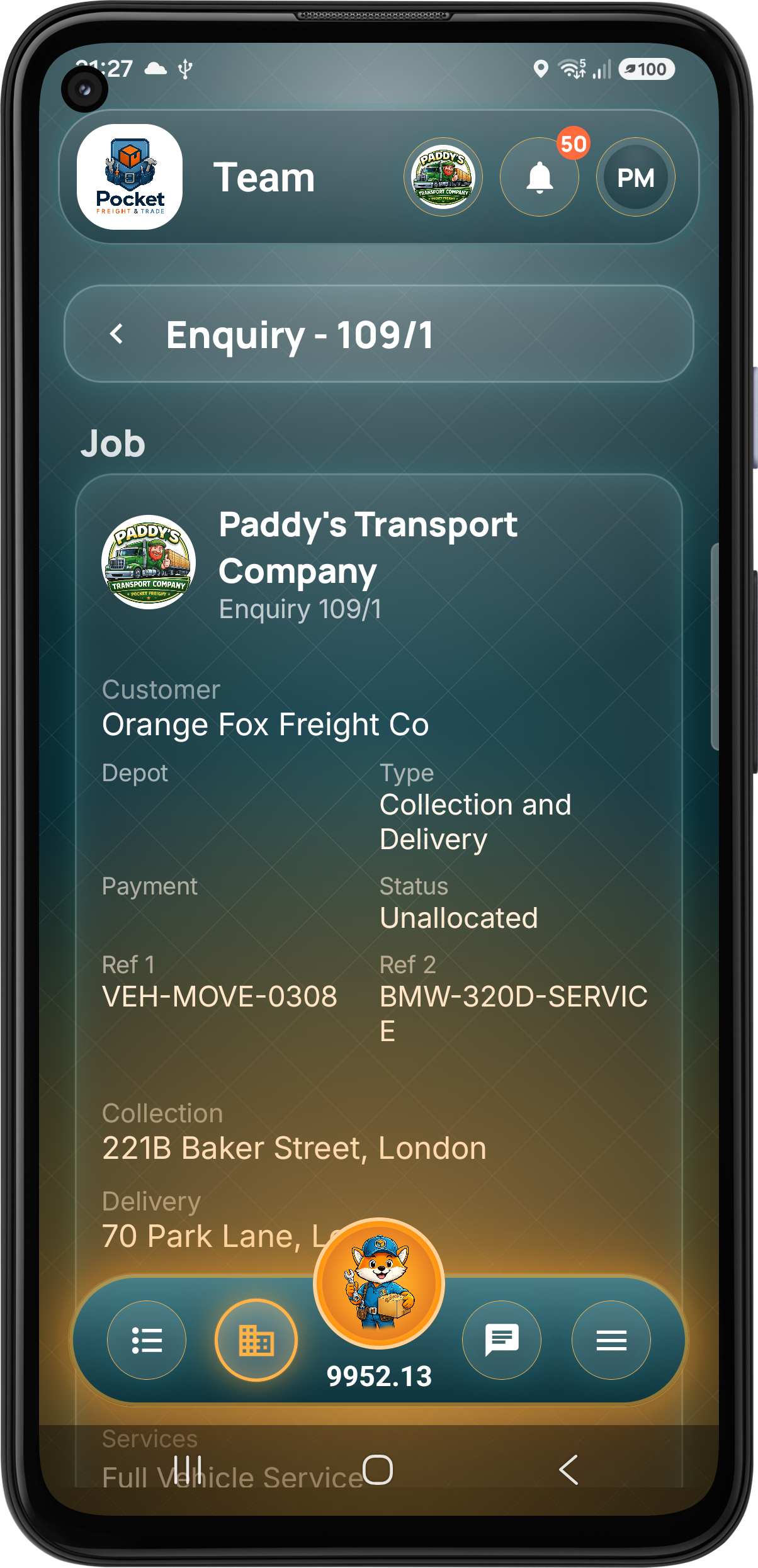
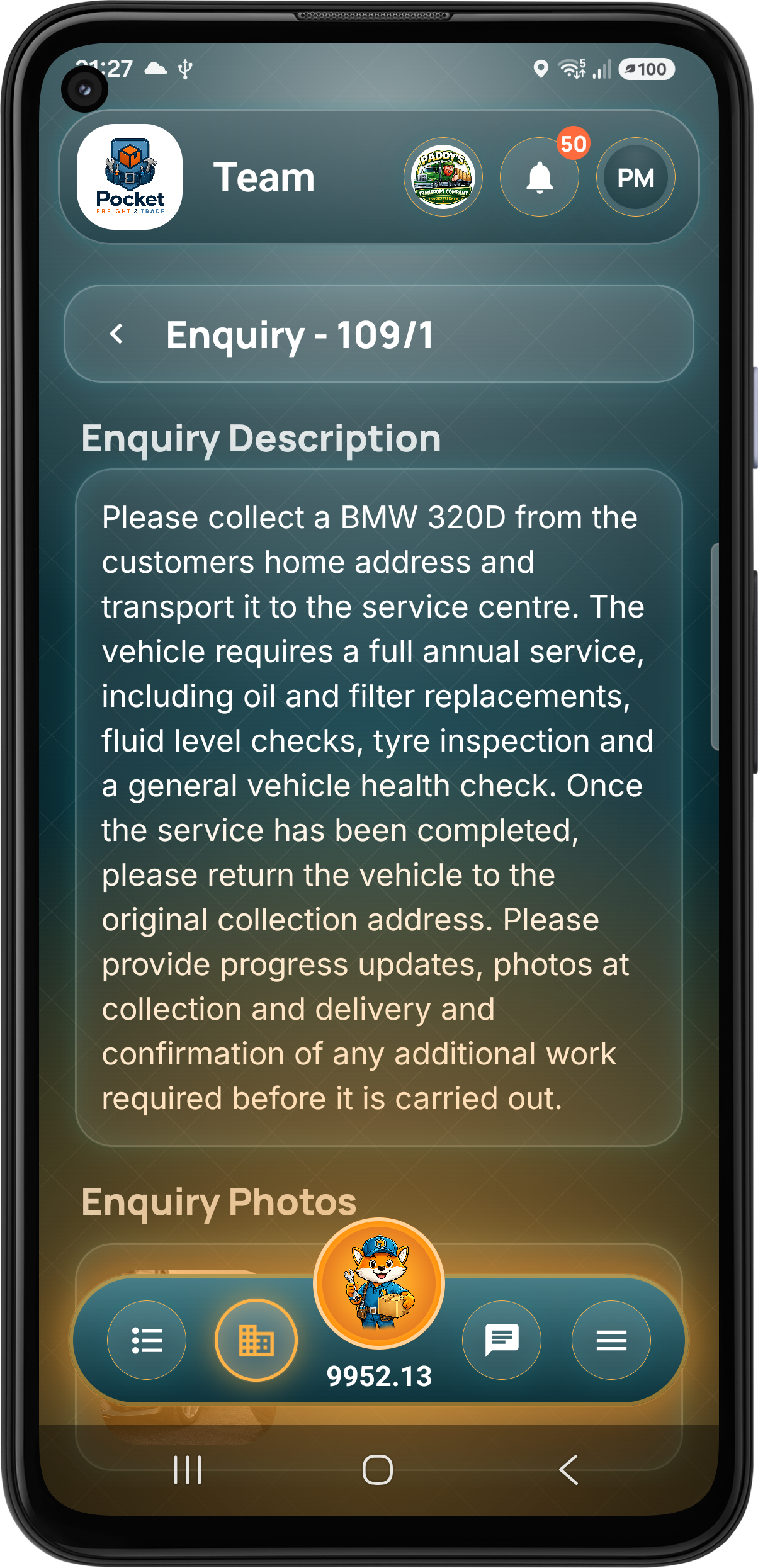
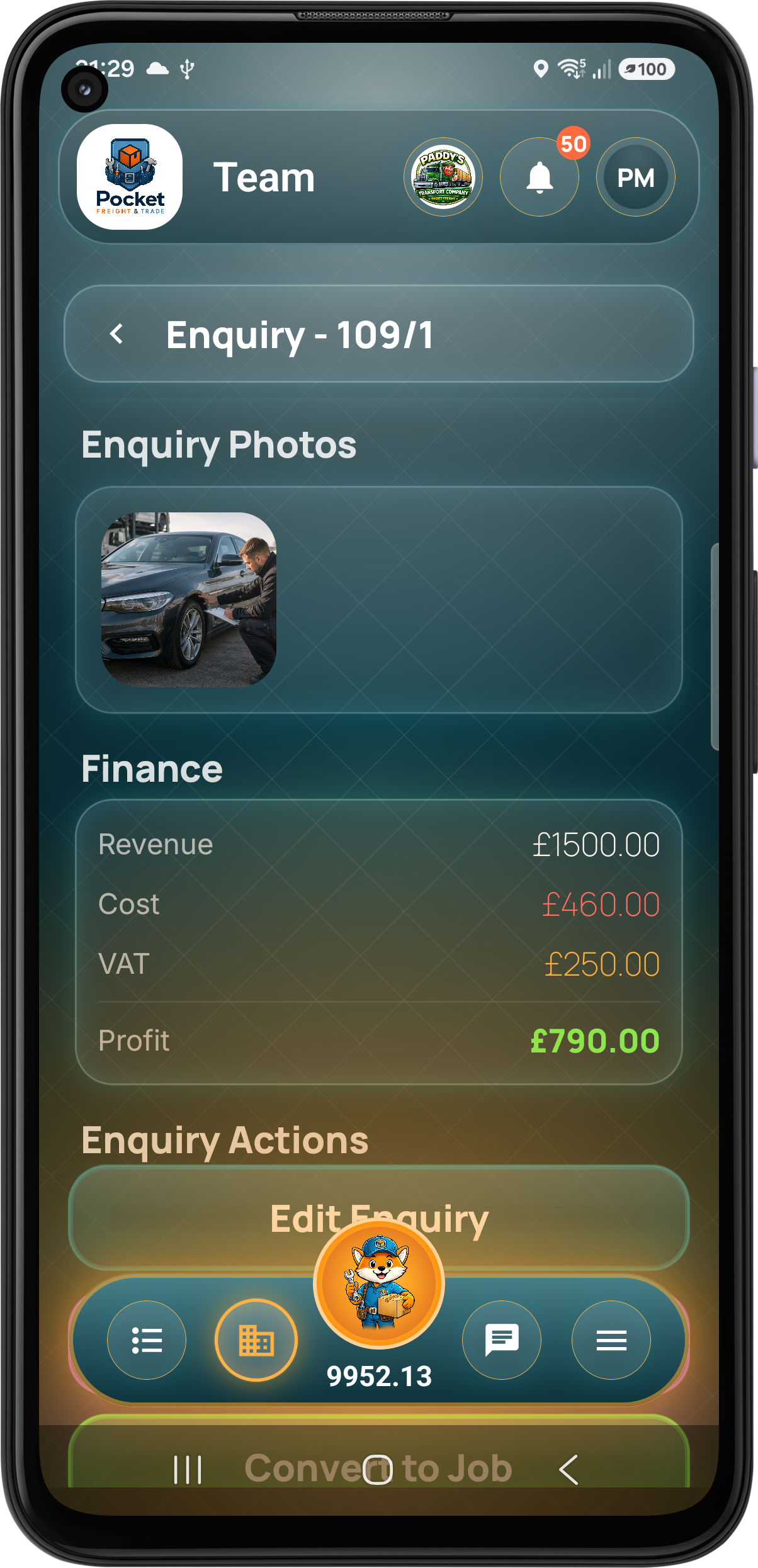
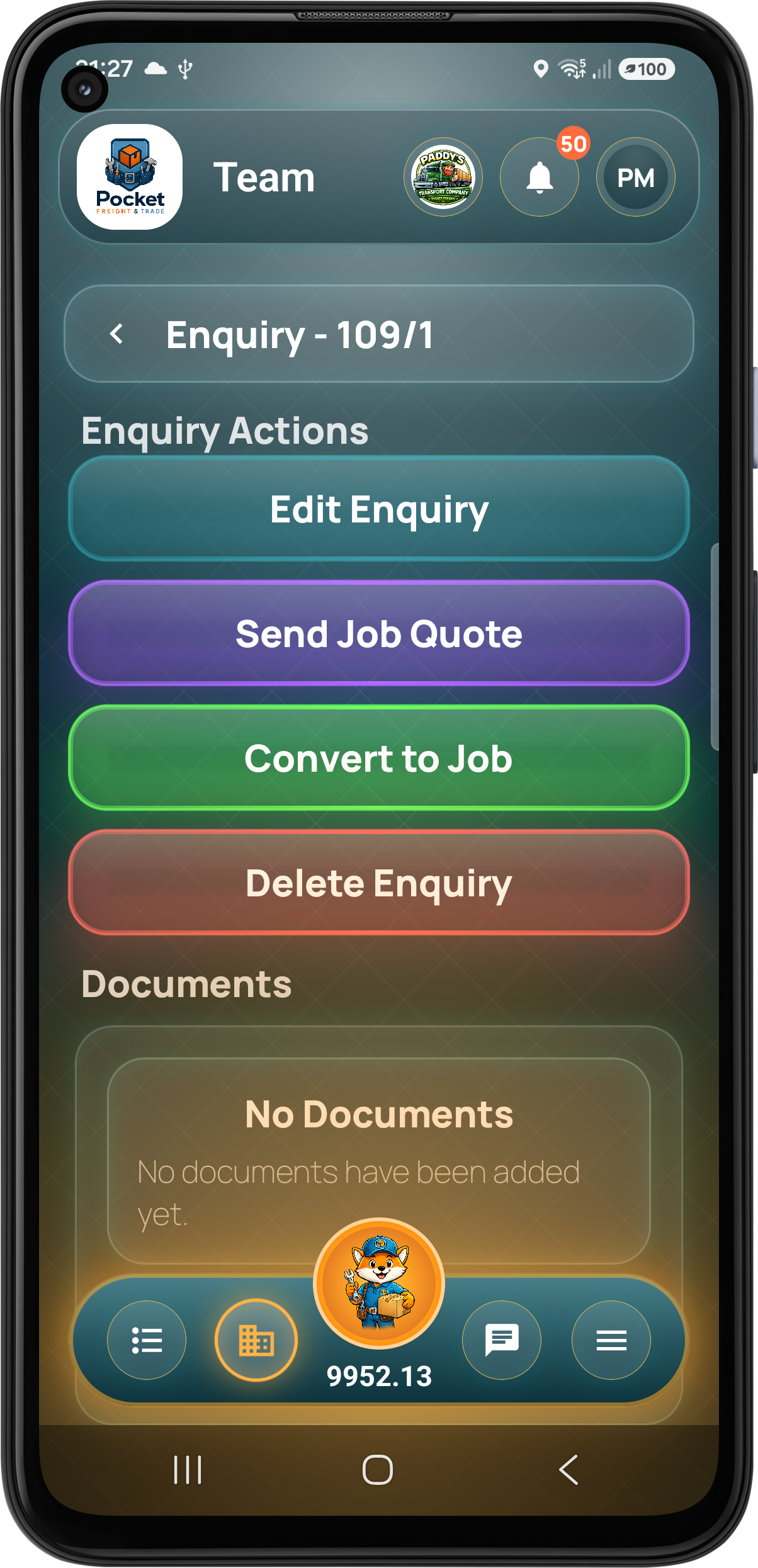
The company Enquiries screen keeps new enquiries and quotes separate from live jobs. The team can inspect both stages, the customer description, products, services, photos and finance before editing, quoting, converting or cancelling the enquiry.
Steps 03–05 · Quote, Response & Conversion
Pricing can go back and forth until both sides agree.
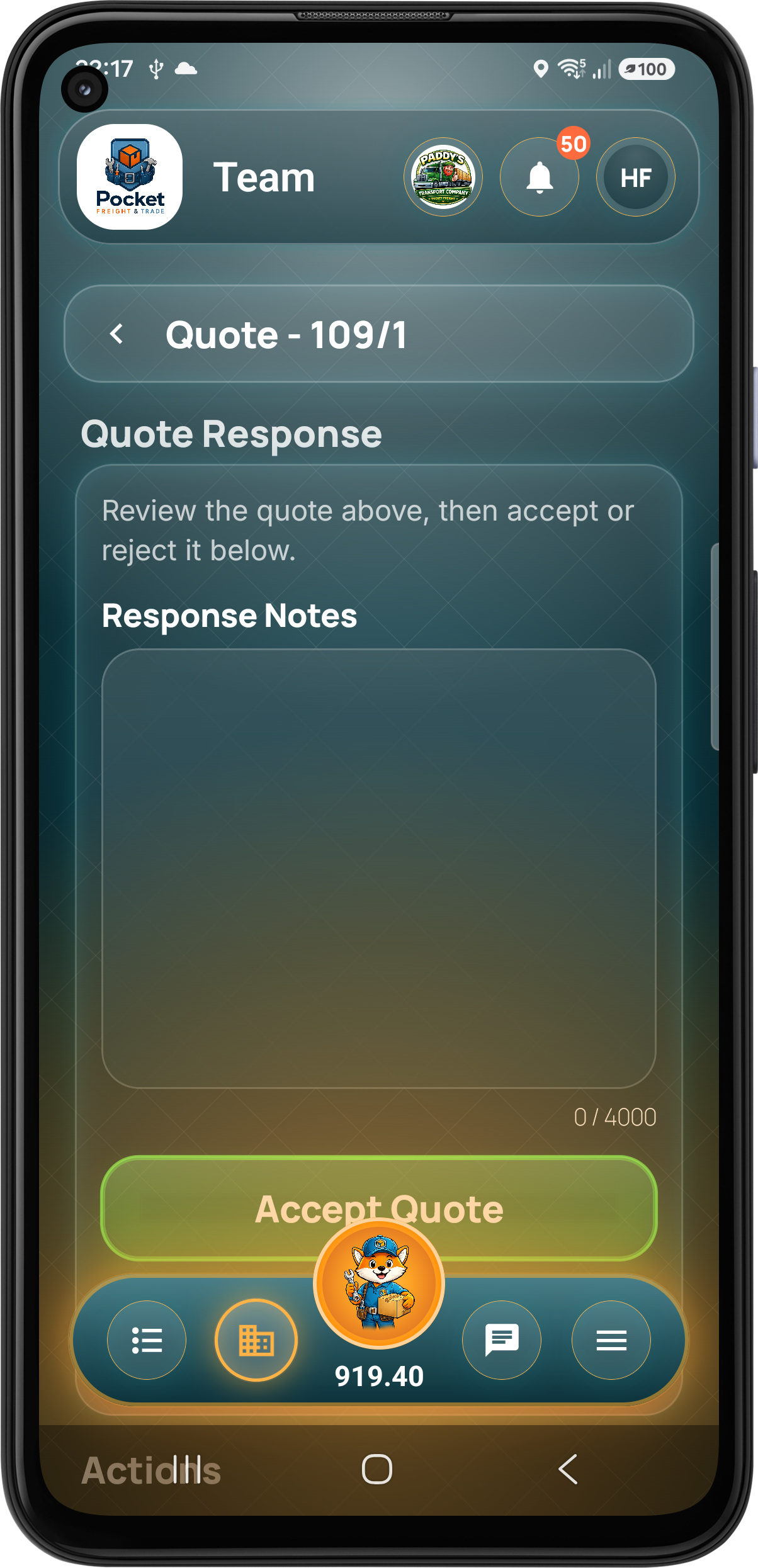
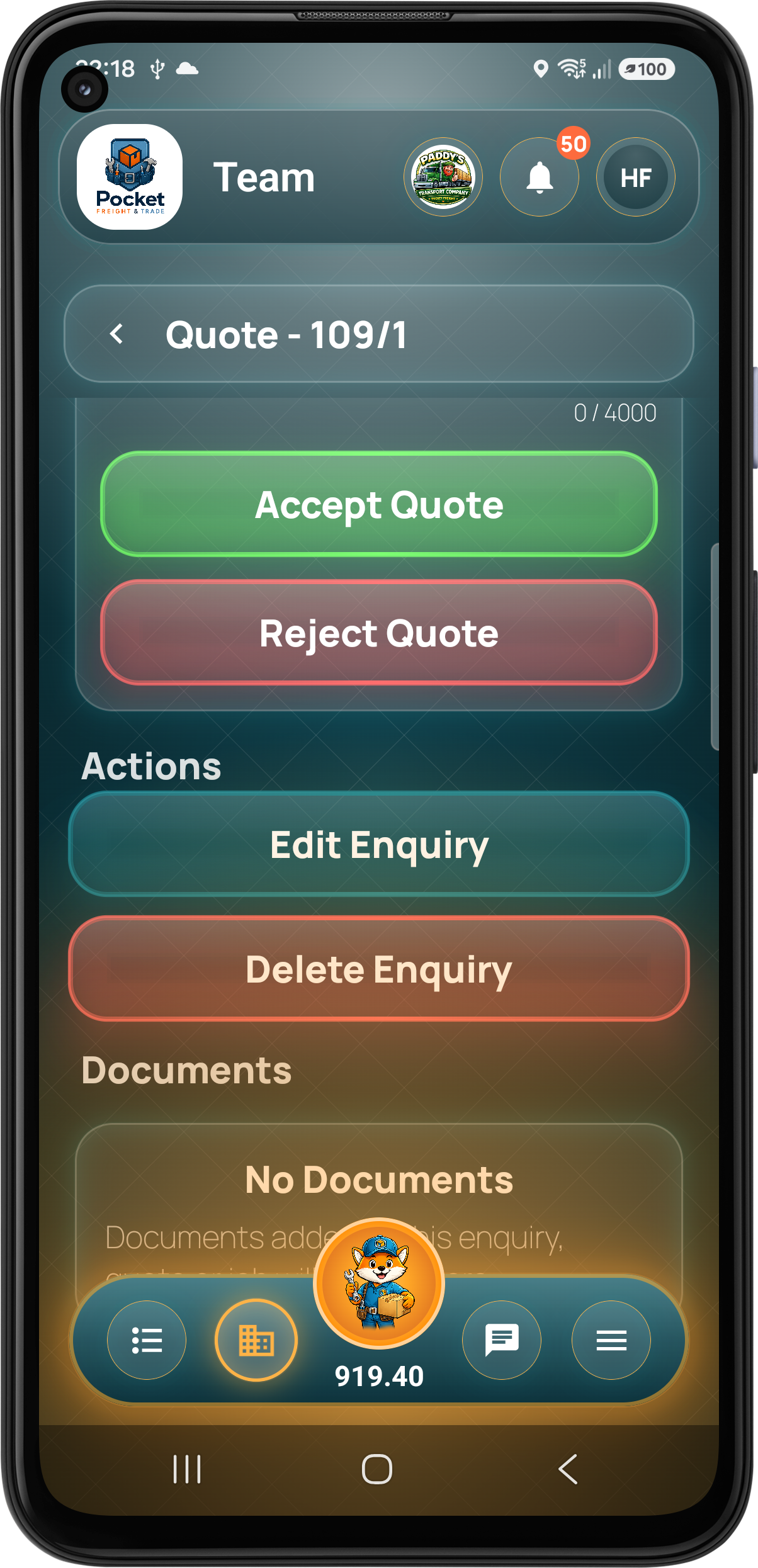
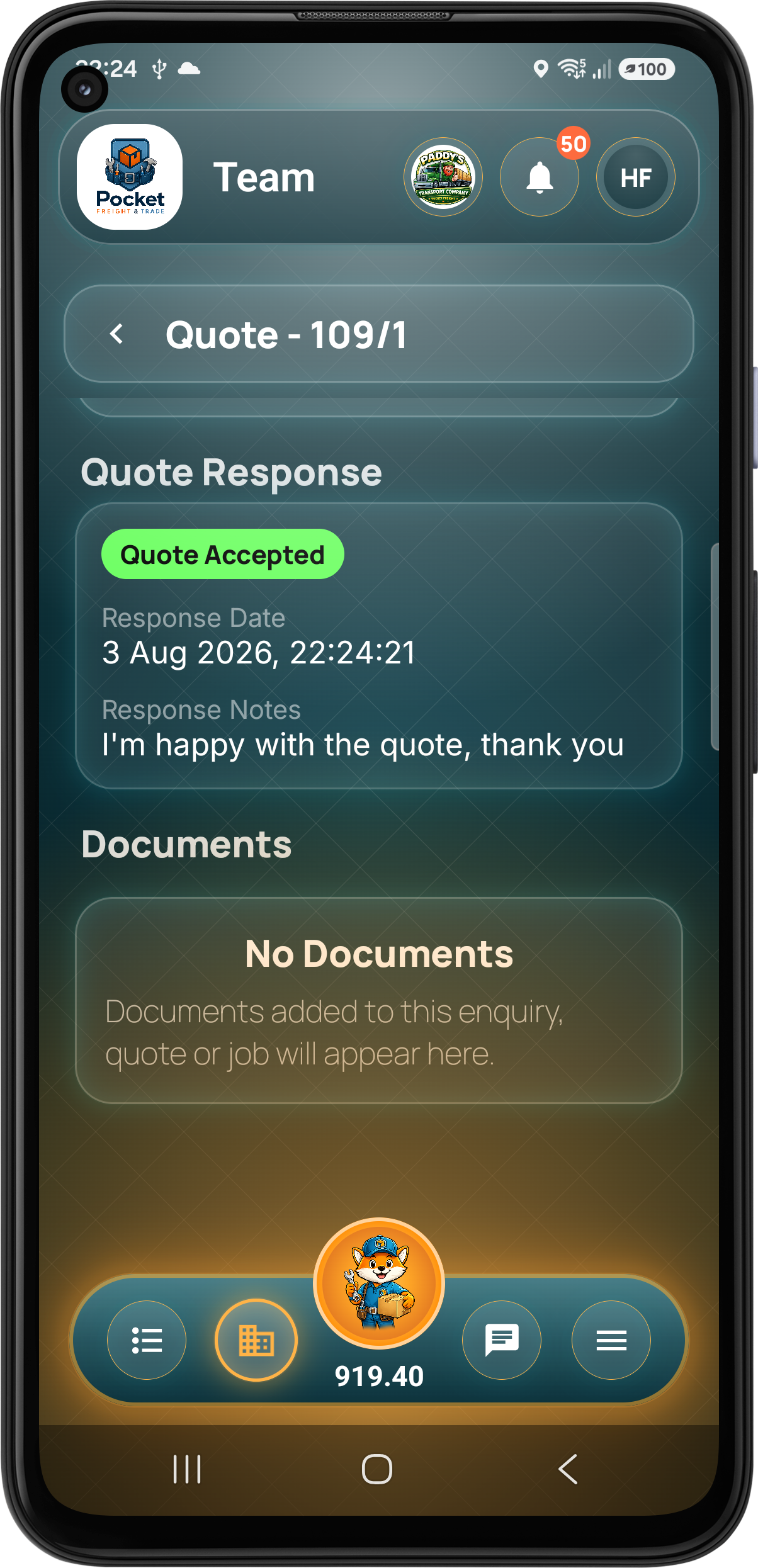
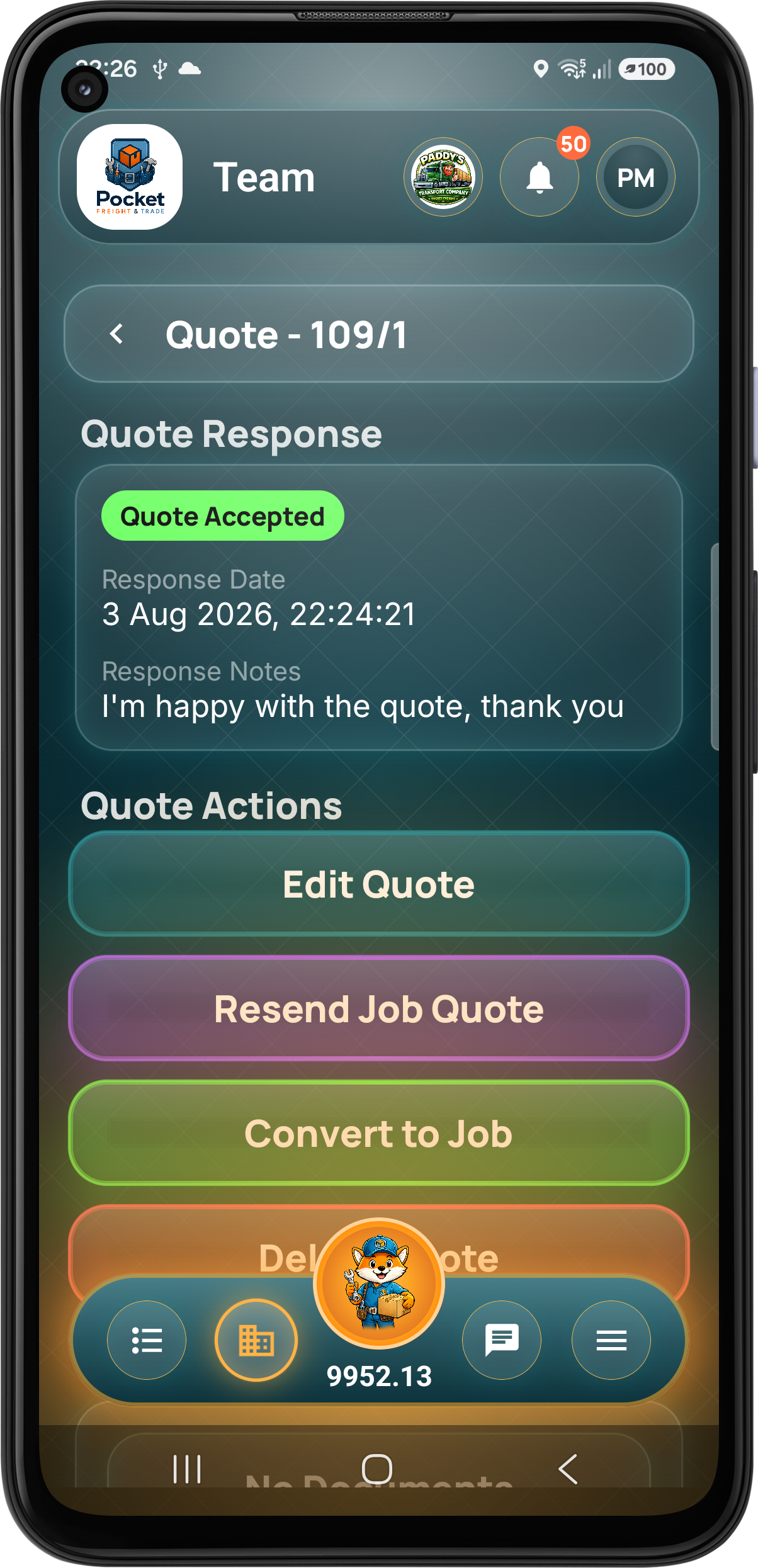
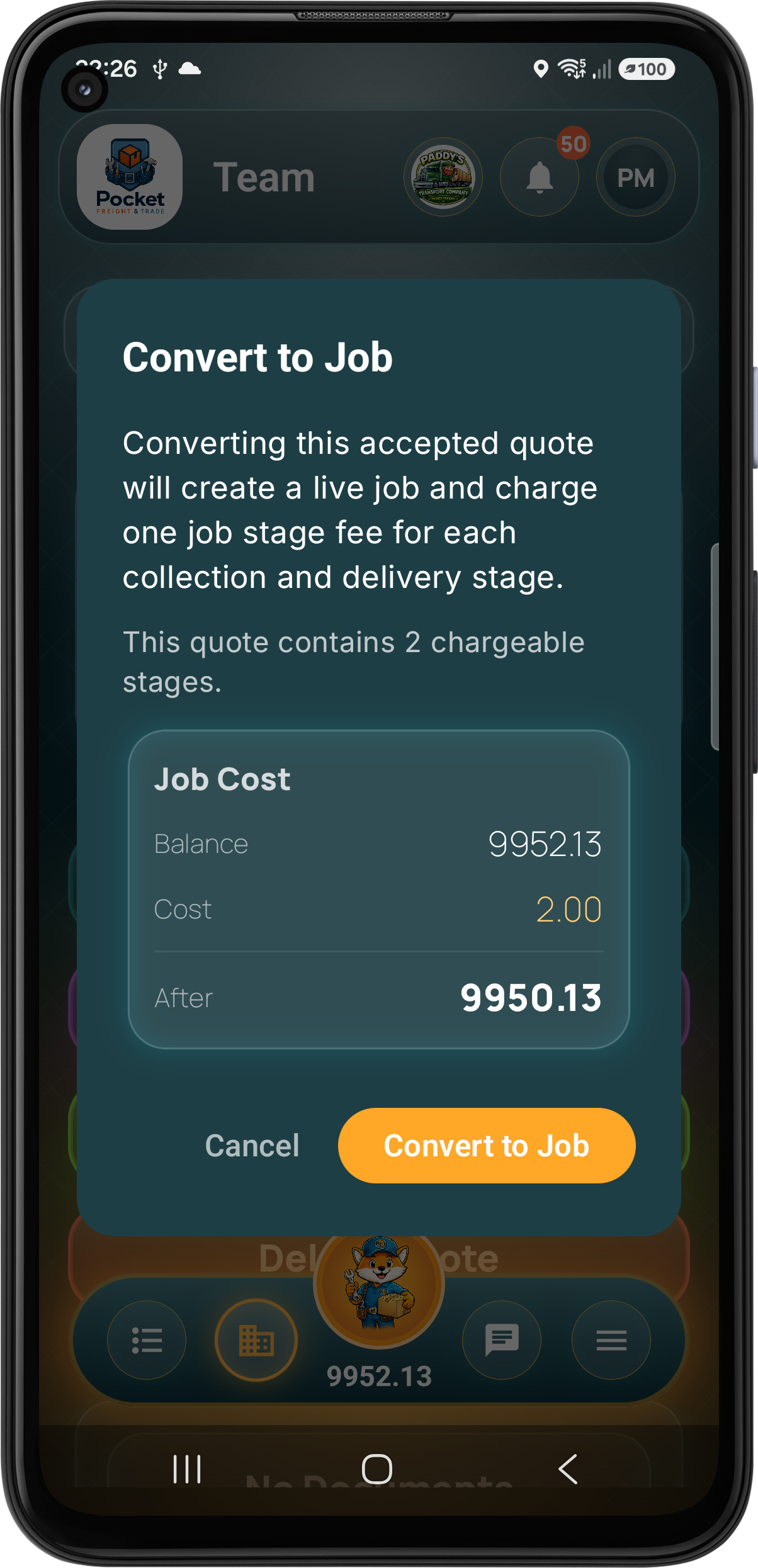
The team prices the work and sends a quote directly to the customer. The customer accepts or rejects it with notes. The company can revise and resend the quote, cancel it, or convert an accepted quote into a live job when the work is agreed.
Step 05 · Live Job
The agreed quote becomes operational work.
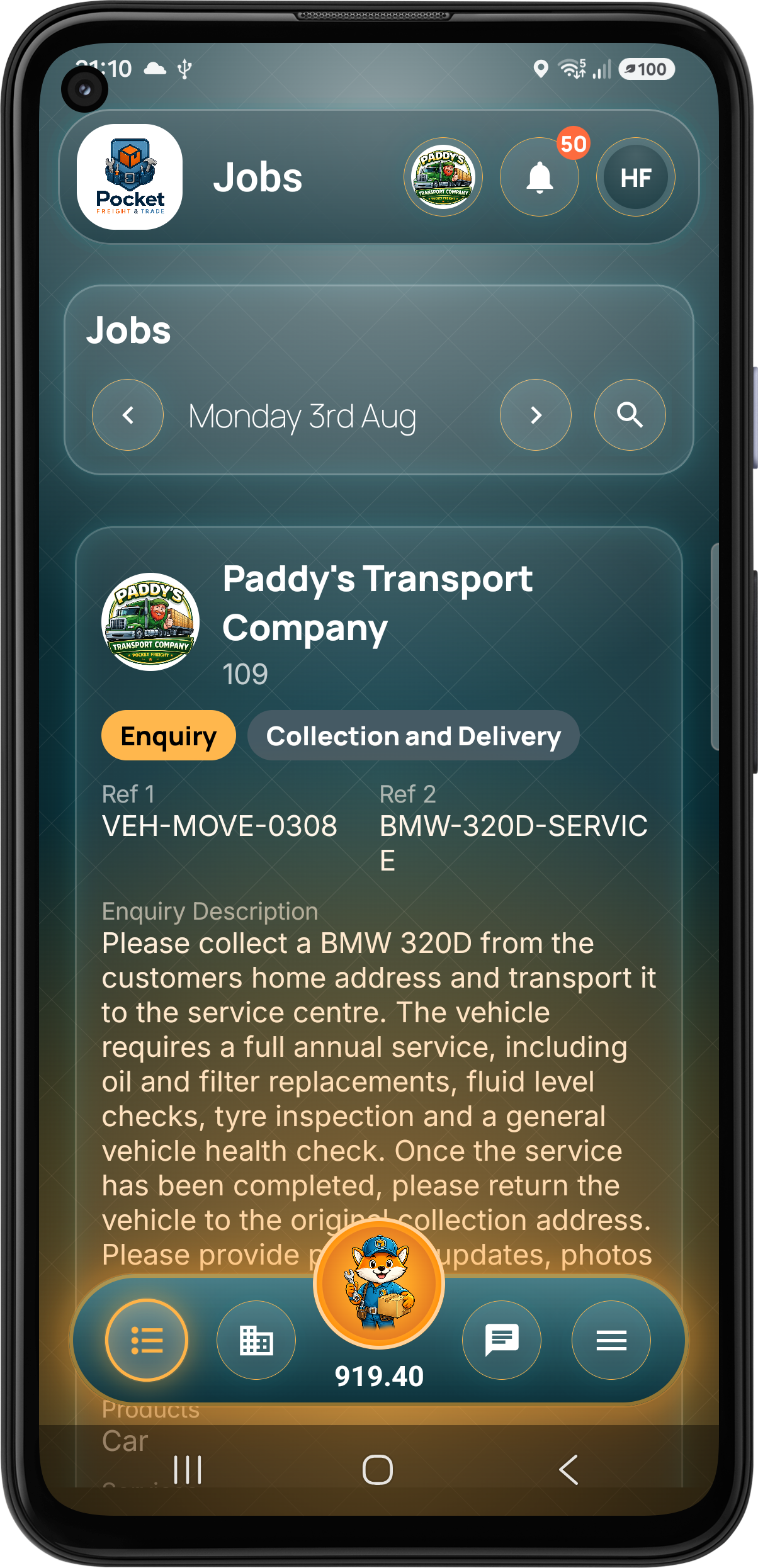
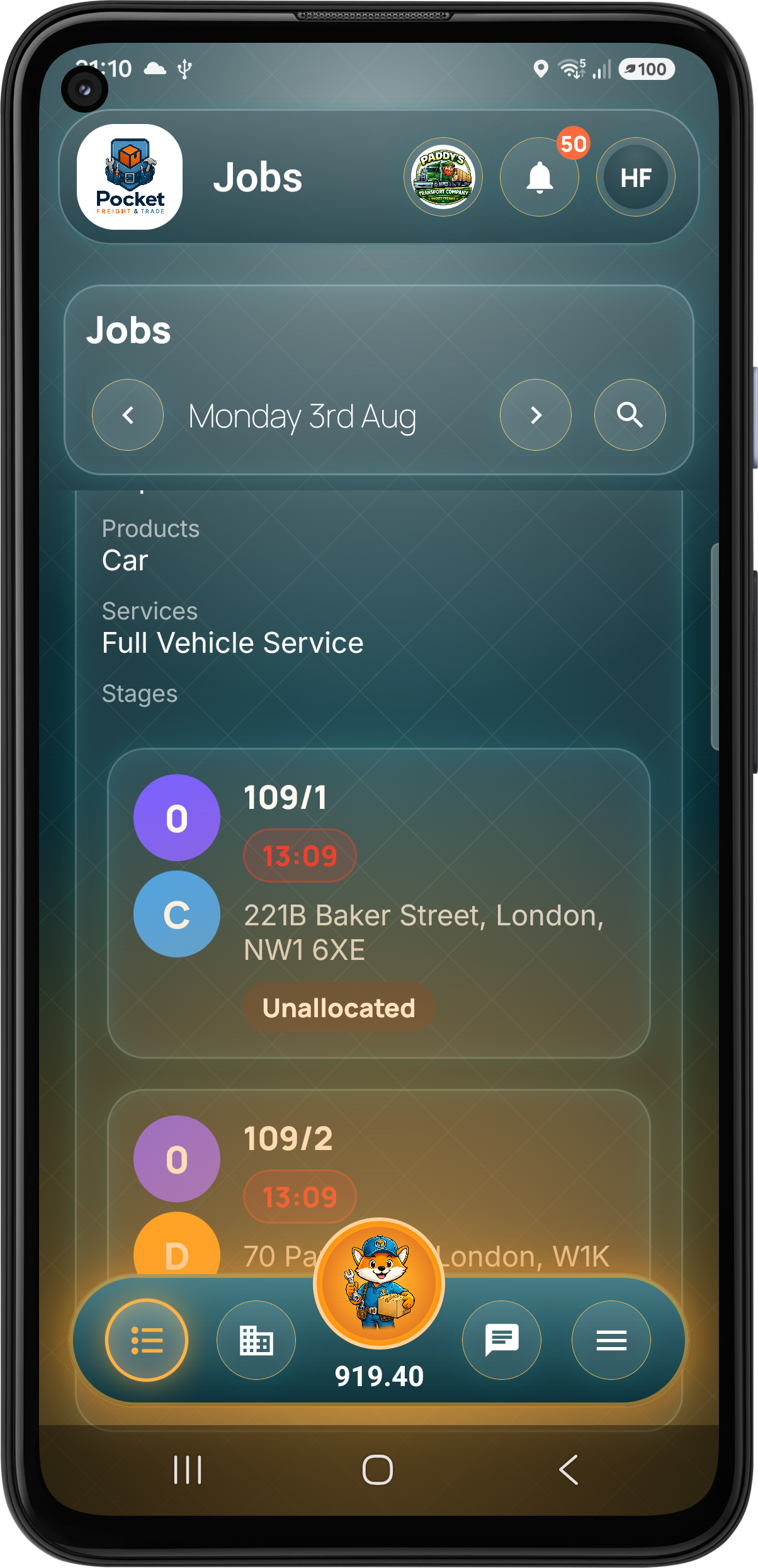
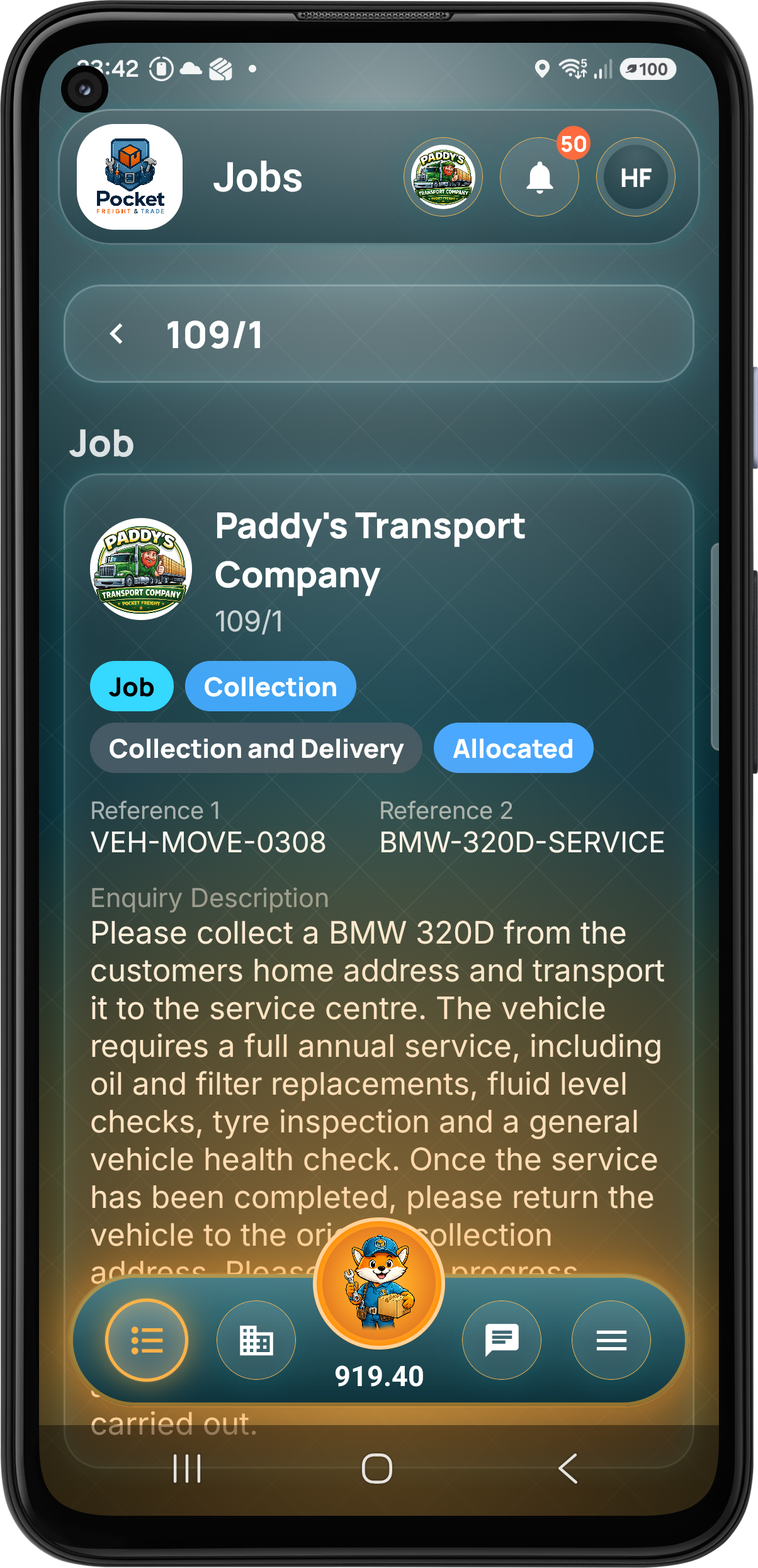
After conversion, the customer sees the job in their own job list with the agreed references, stages, products, services and status. The company can now plan, allocate and run it through the normal operational workflow.
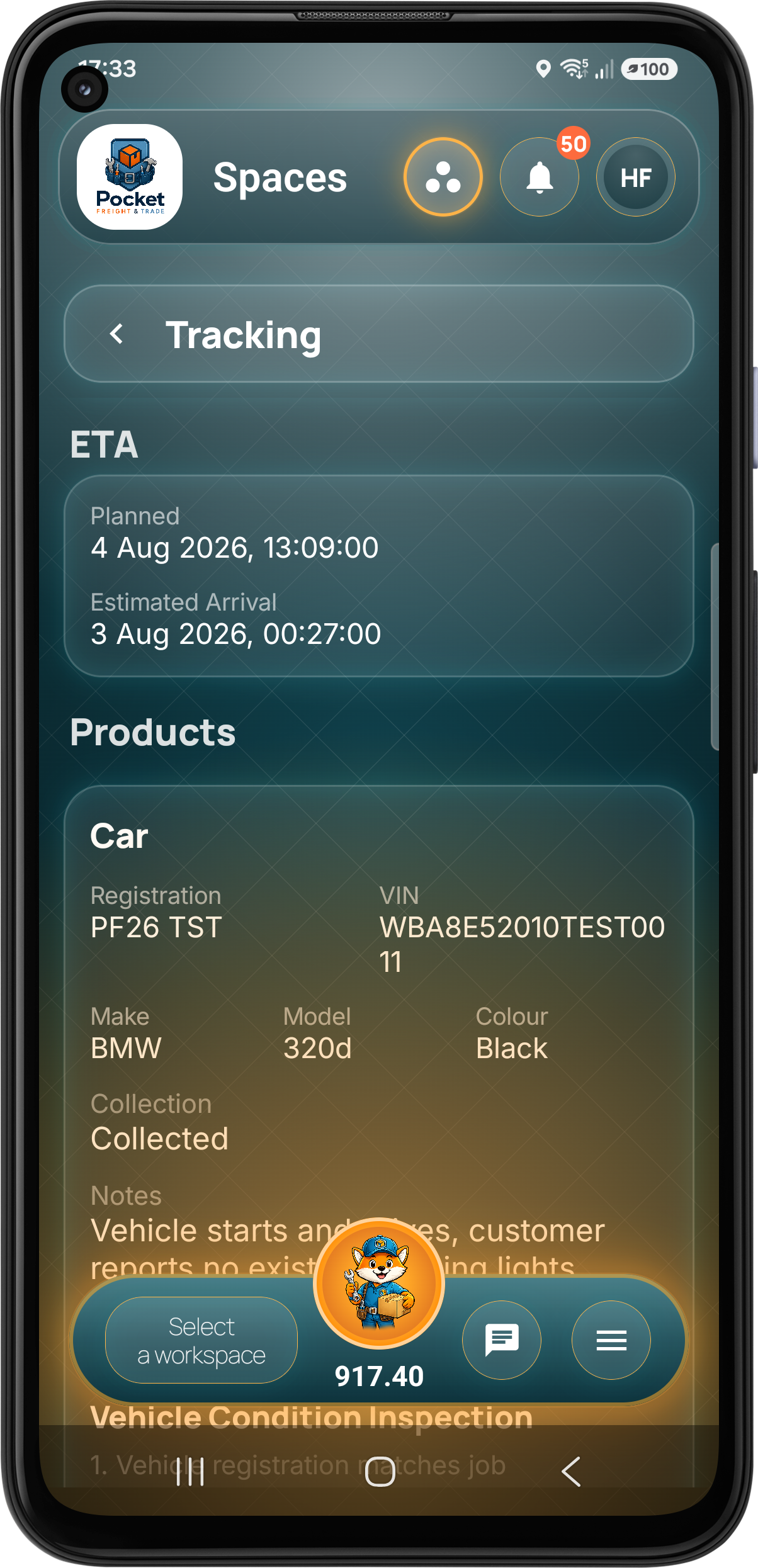
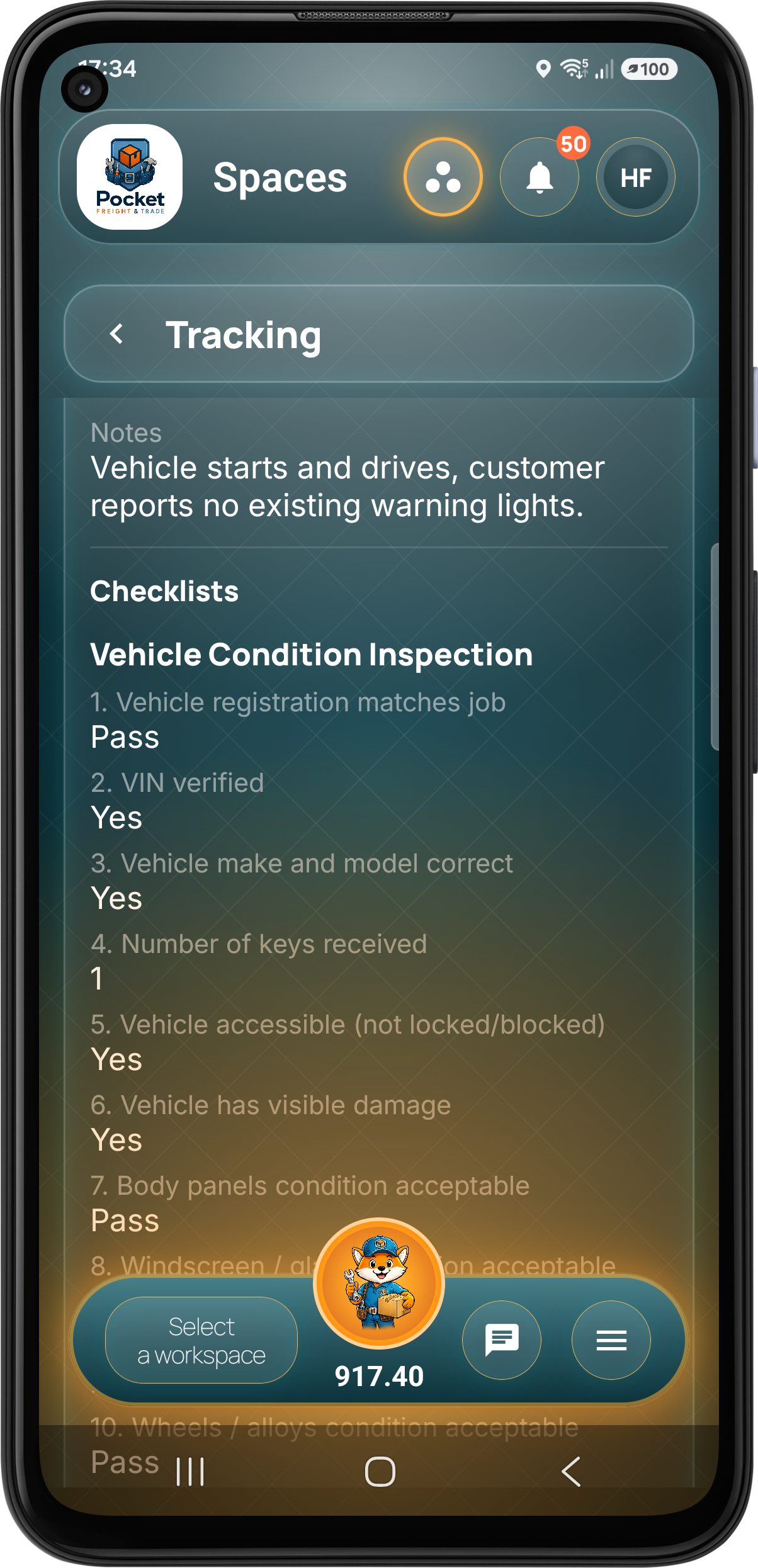
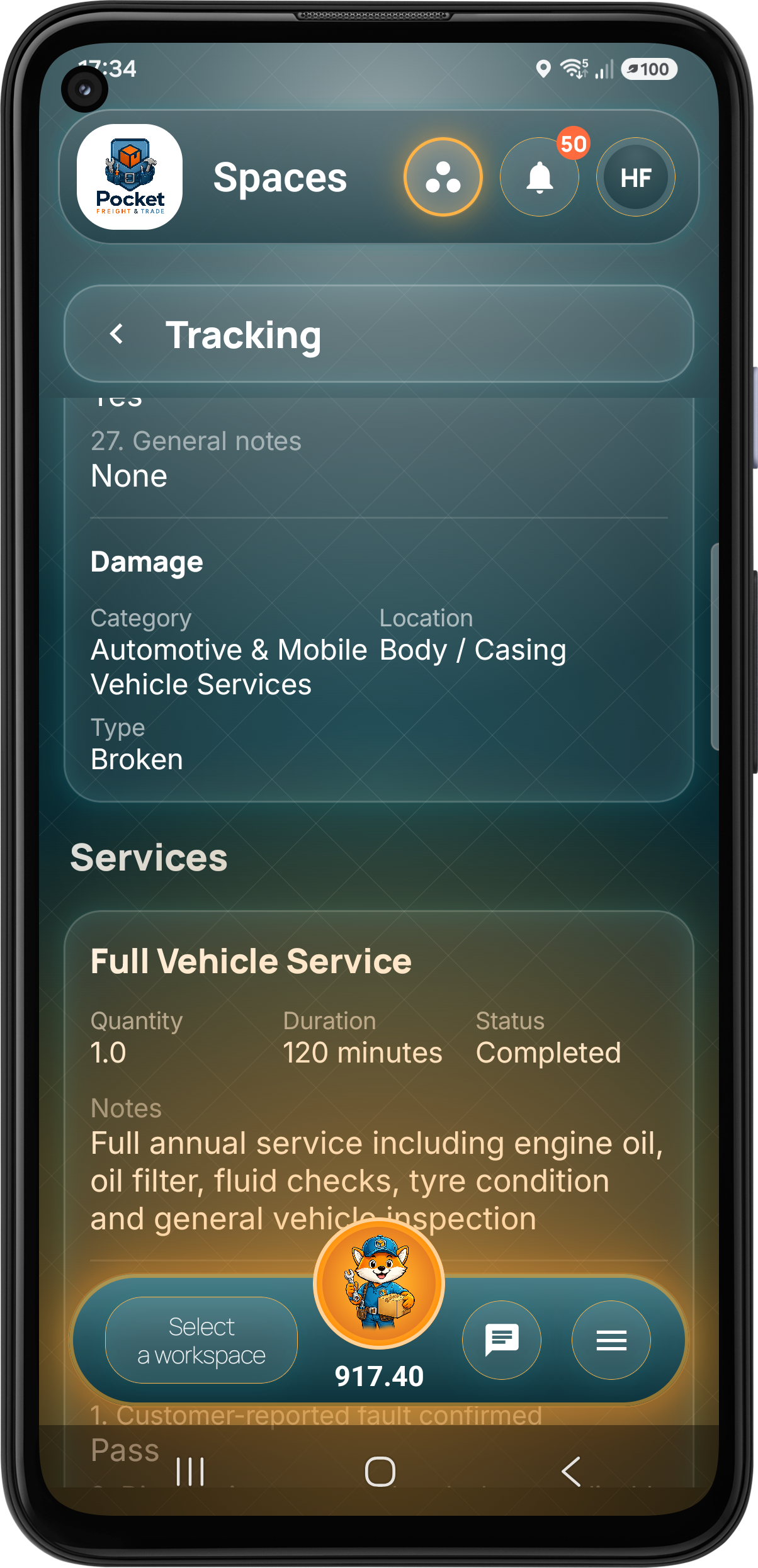
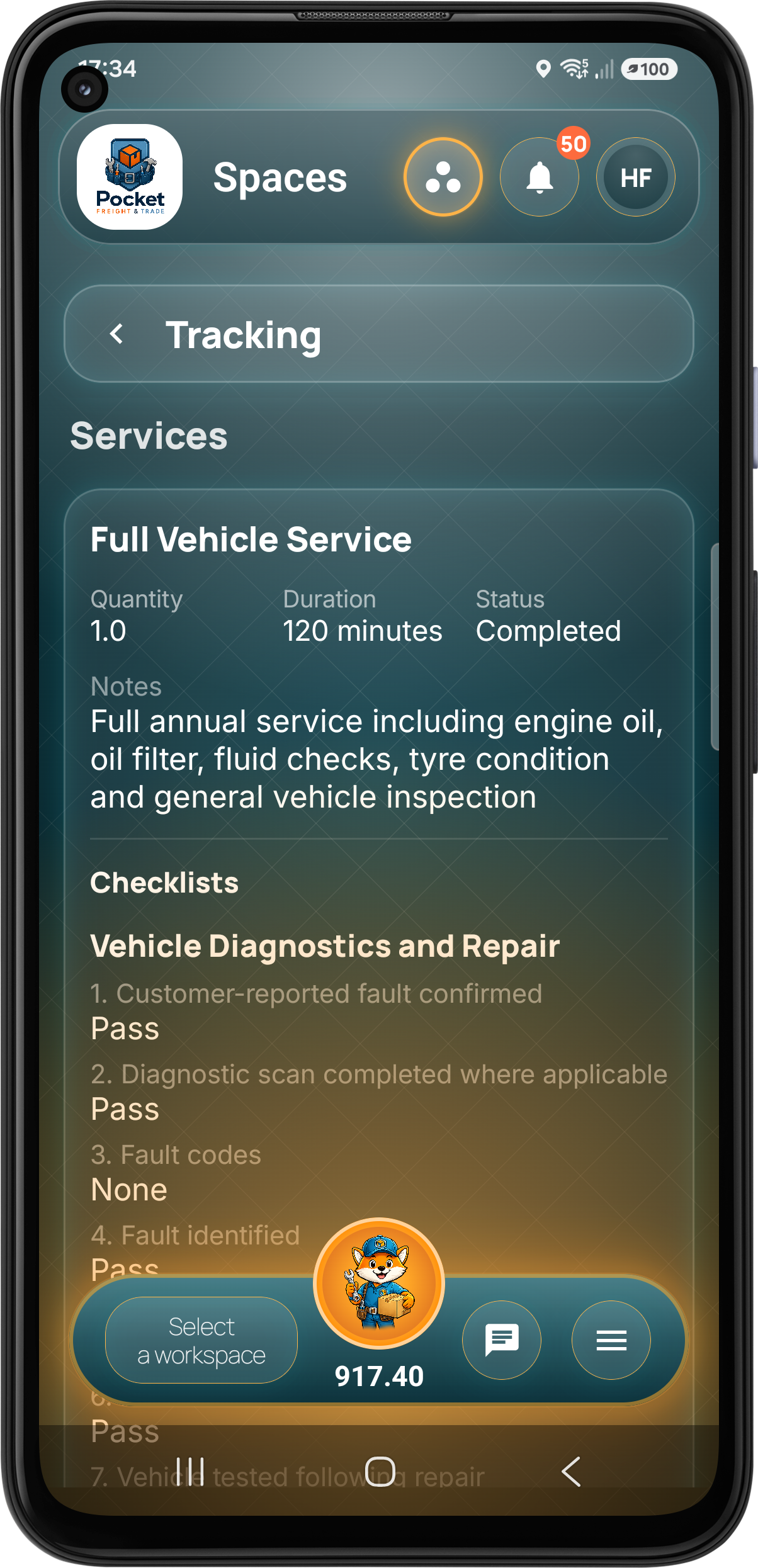
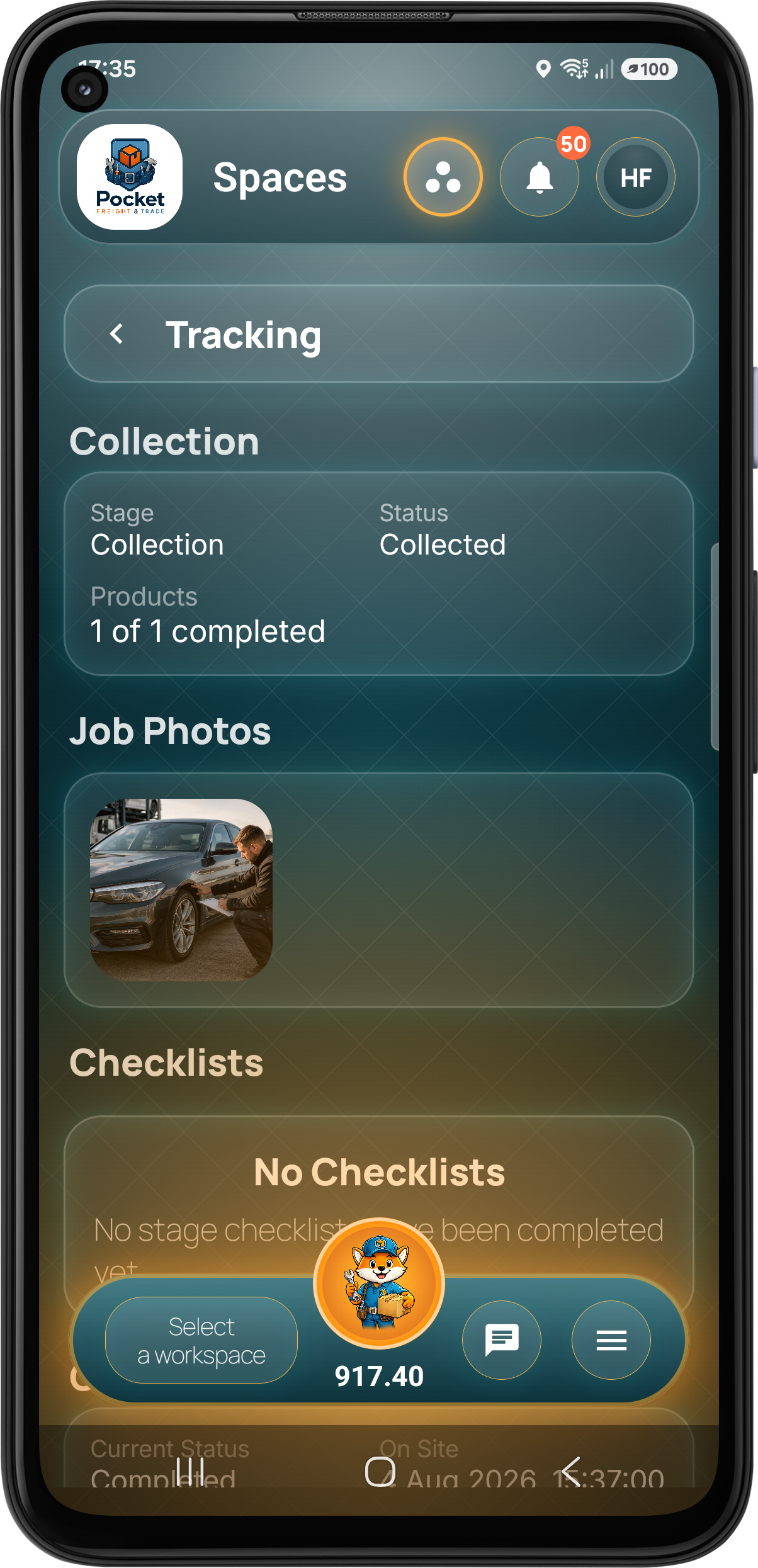
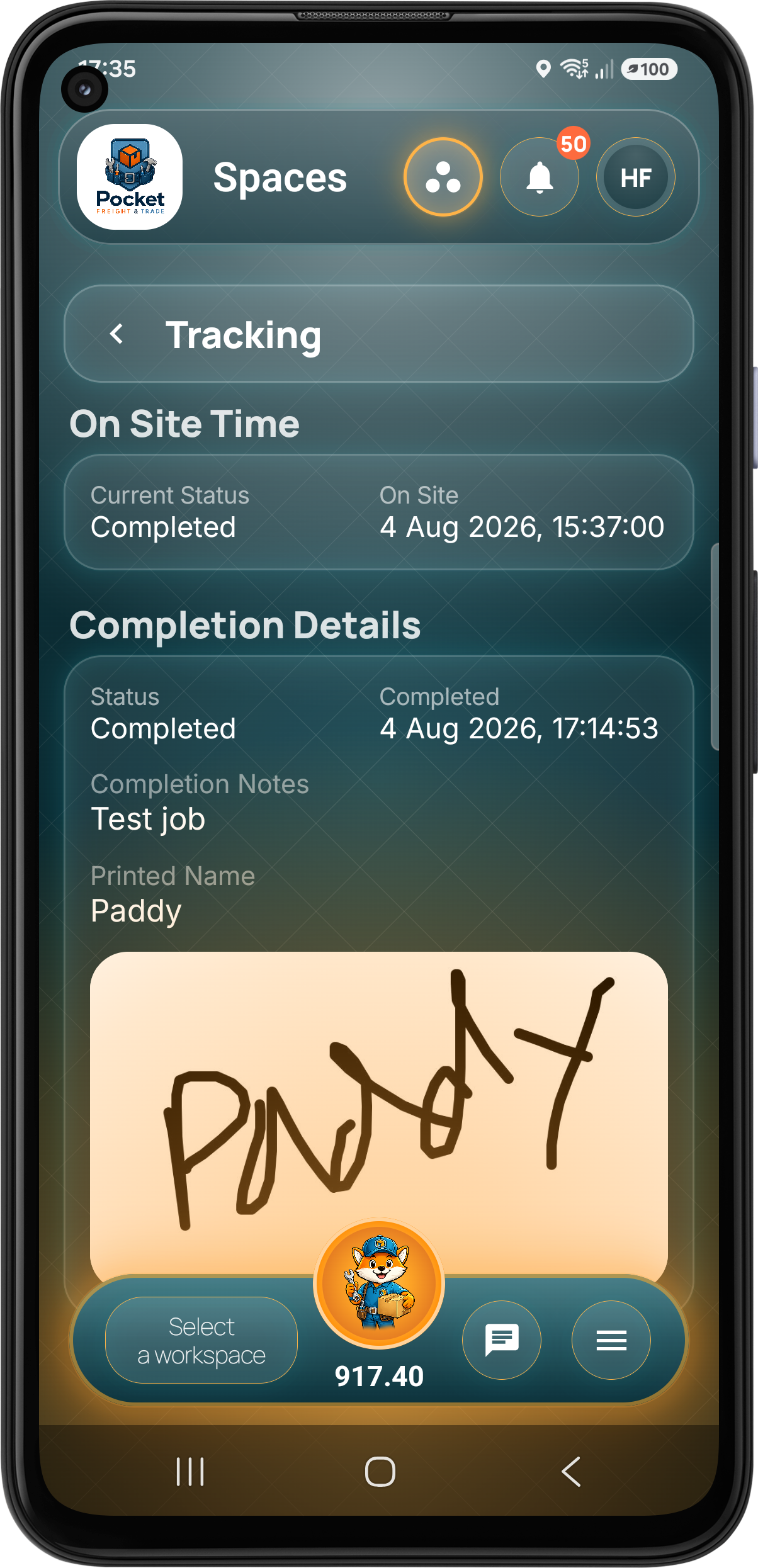
Step 06 · Live Customer Tracking
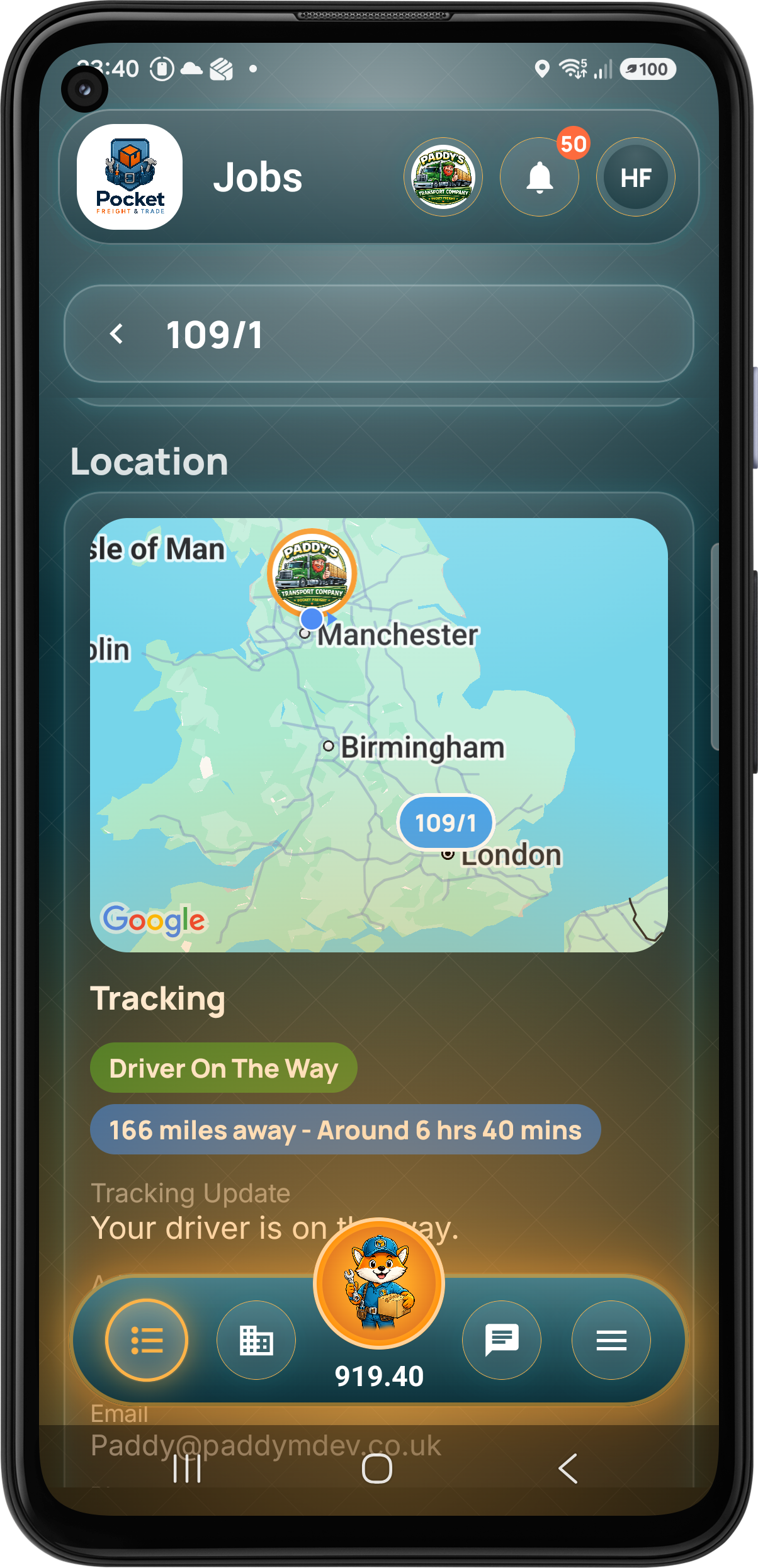
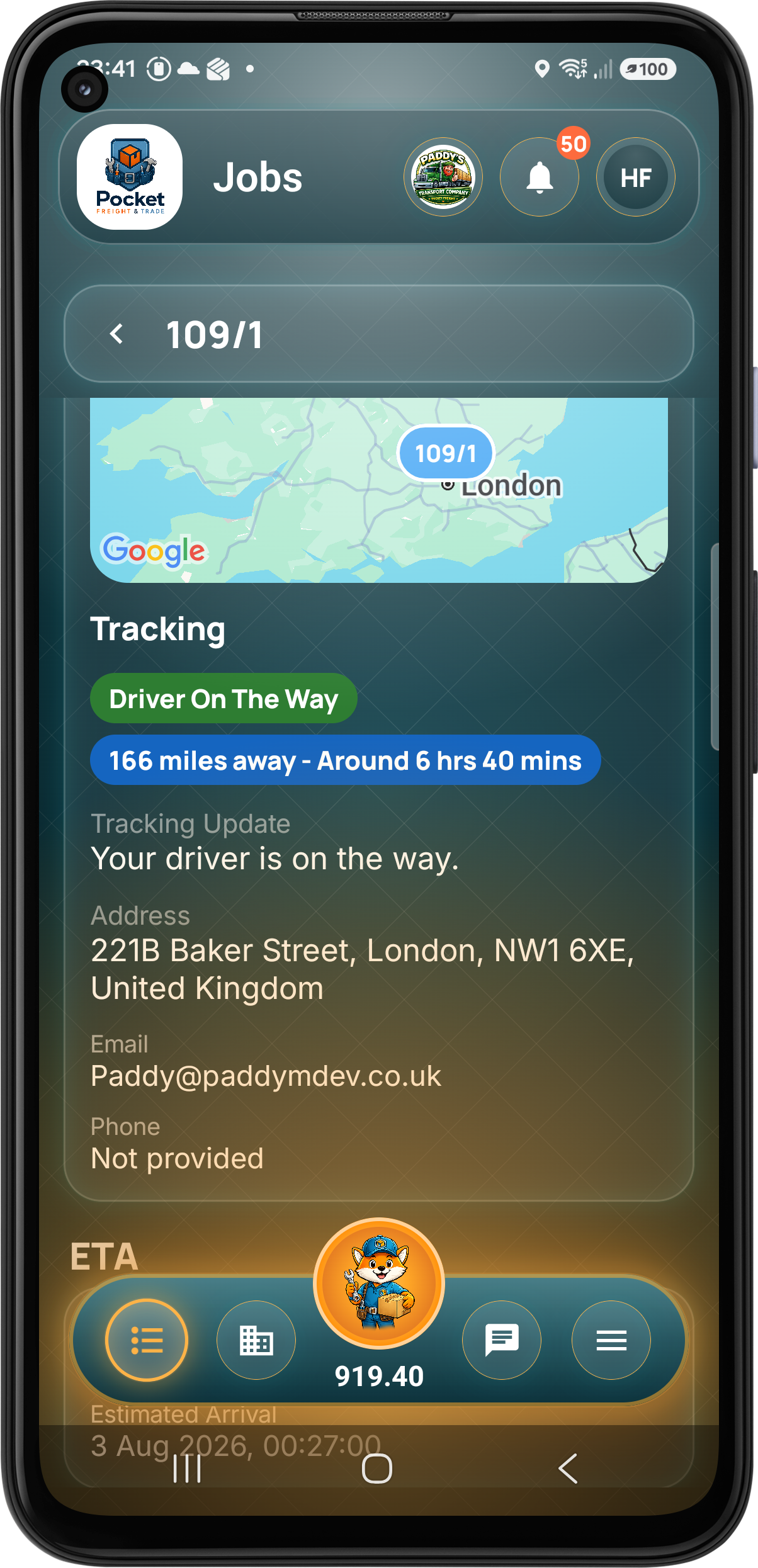
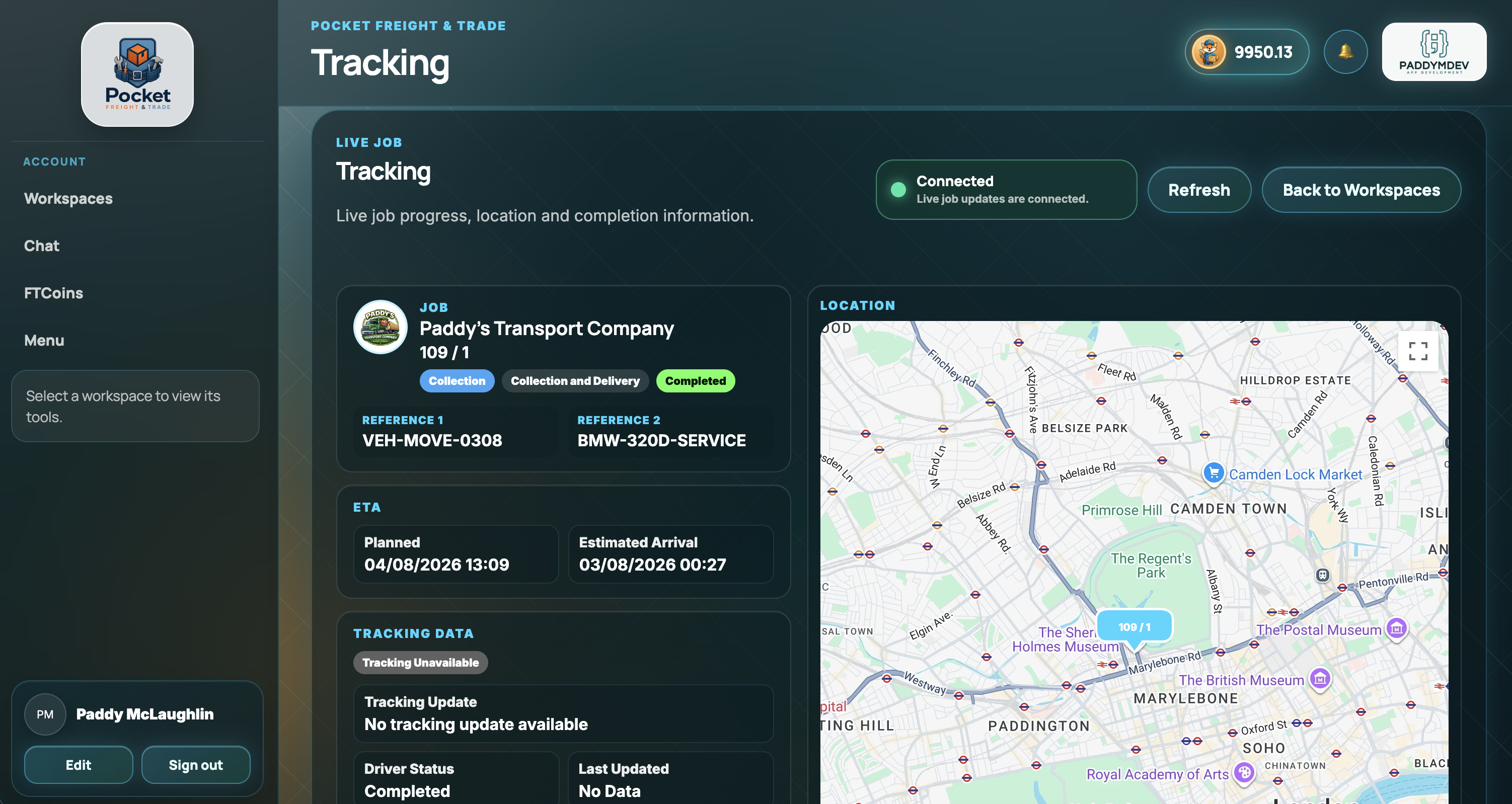
Customers can follow the job without chasing for updates.
Workspace customers open the job directly. Non-workspace customers can download the app, sign in and enter the tracking reference and postcode from the workspace screen. Tracking is securely limited to the relevant delivery window.
Dashboard, Paperwork & Finance
The customer relationship continues after delivery.
Customers retain a clear view of their enquiries, quotes, live and completed work, generated paperwork and invoice position inside the same workspace.
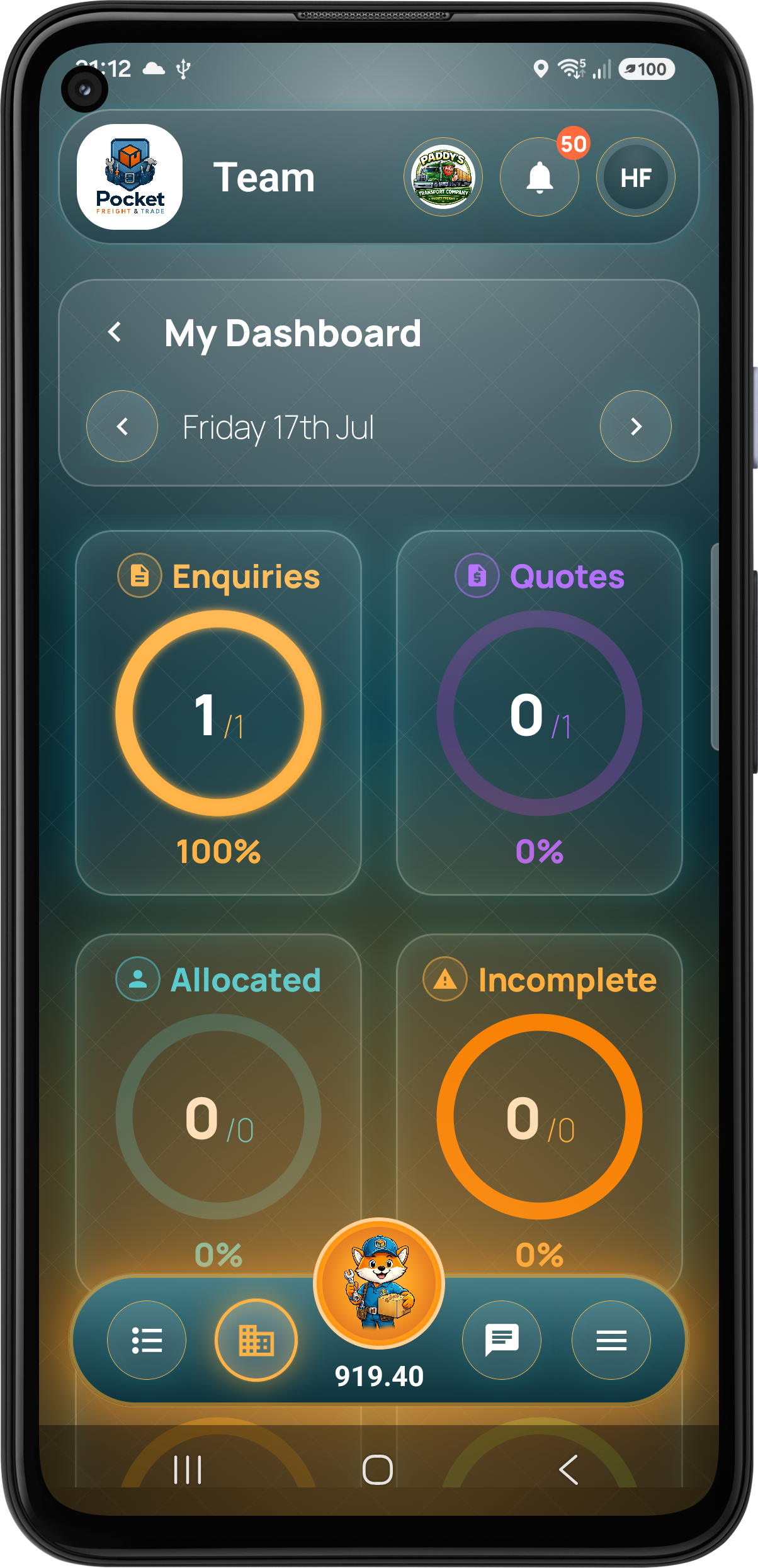
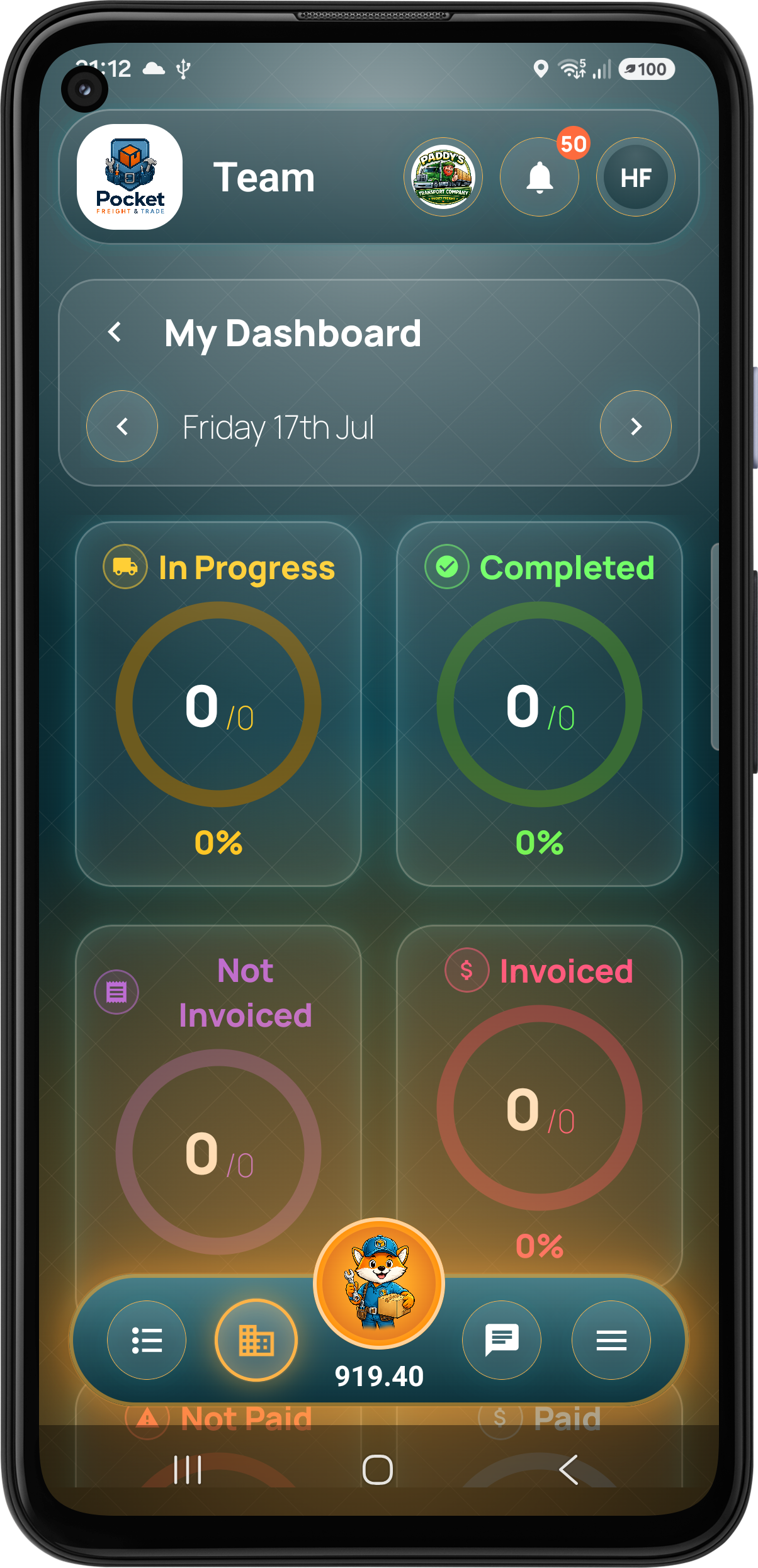
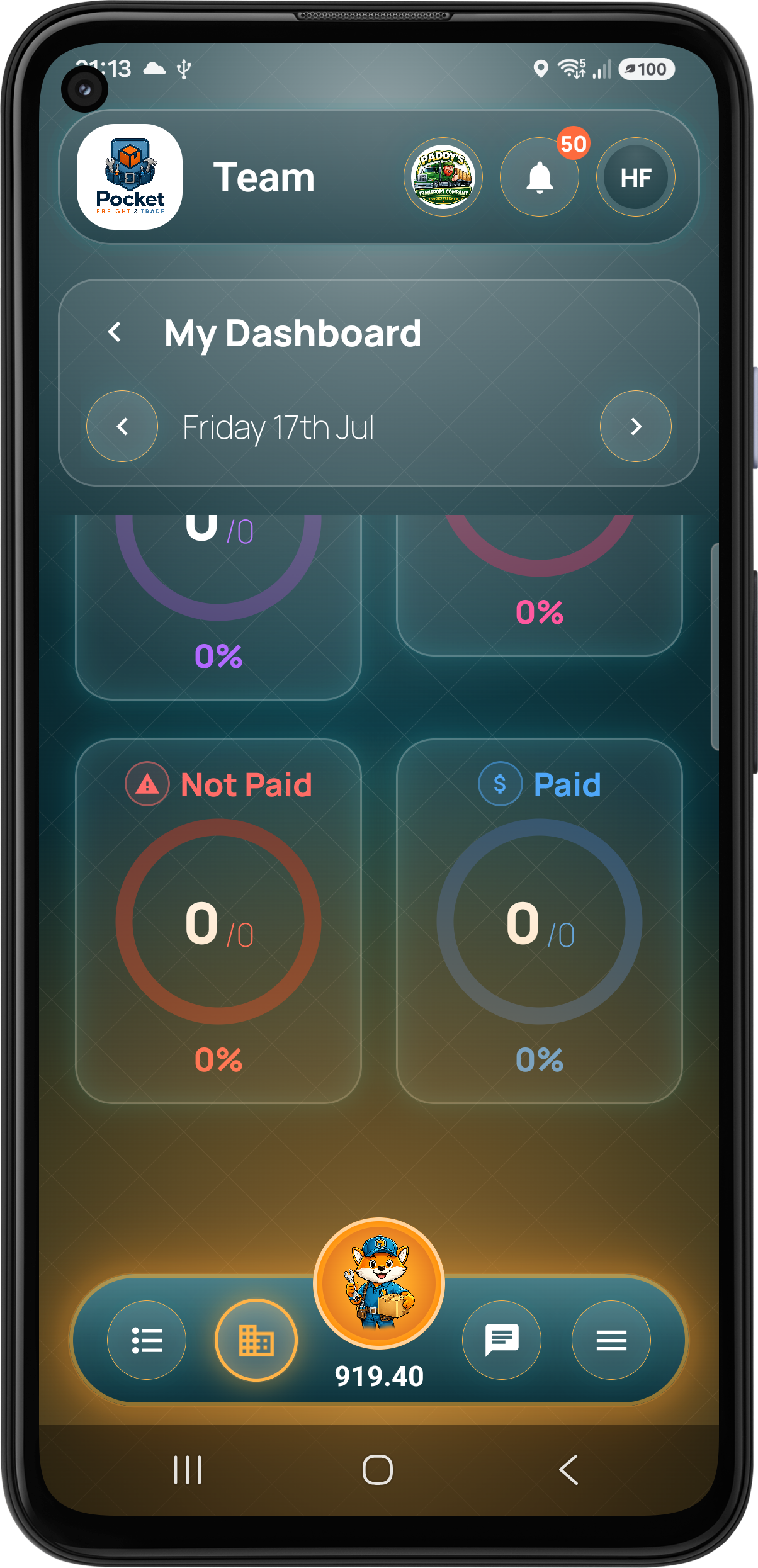
My Dashboard
Every important count at a glance.
Enquiries, quotes, allocated work, incomplete and completed jobs, paperwork and payment states all lead directly to the relevant filtered list.
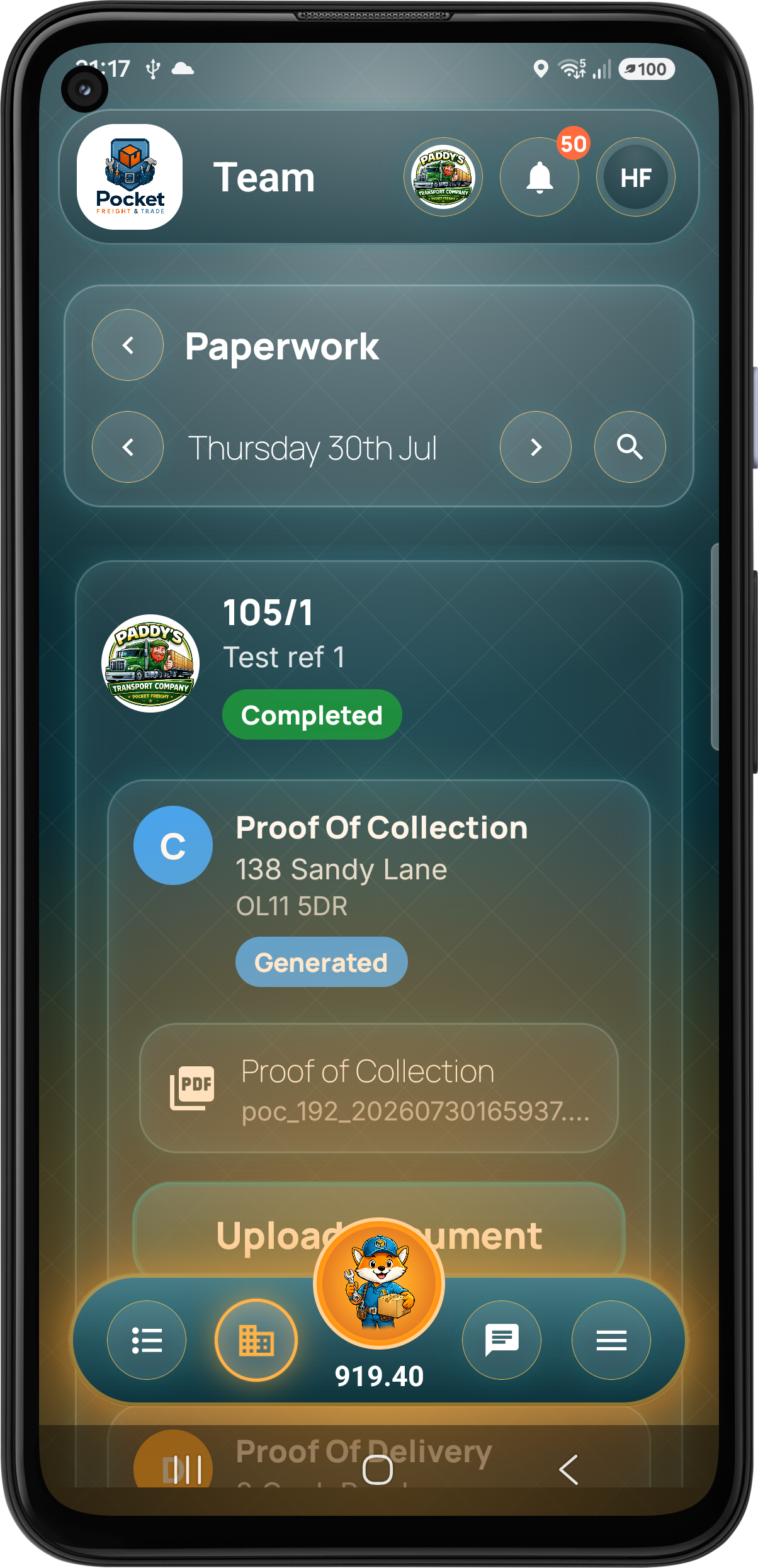
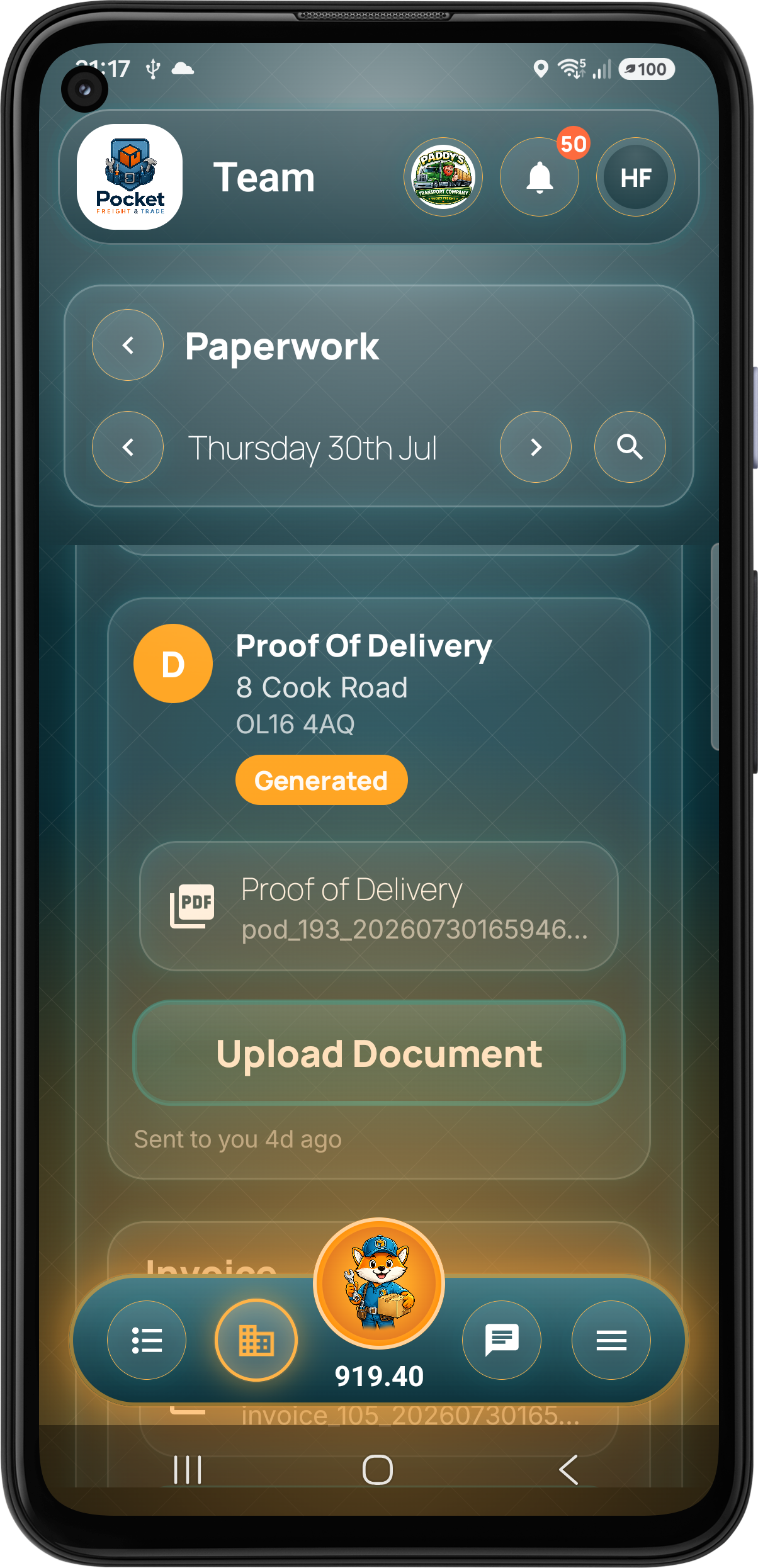
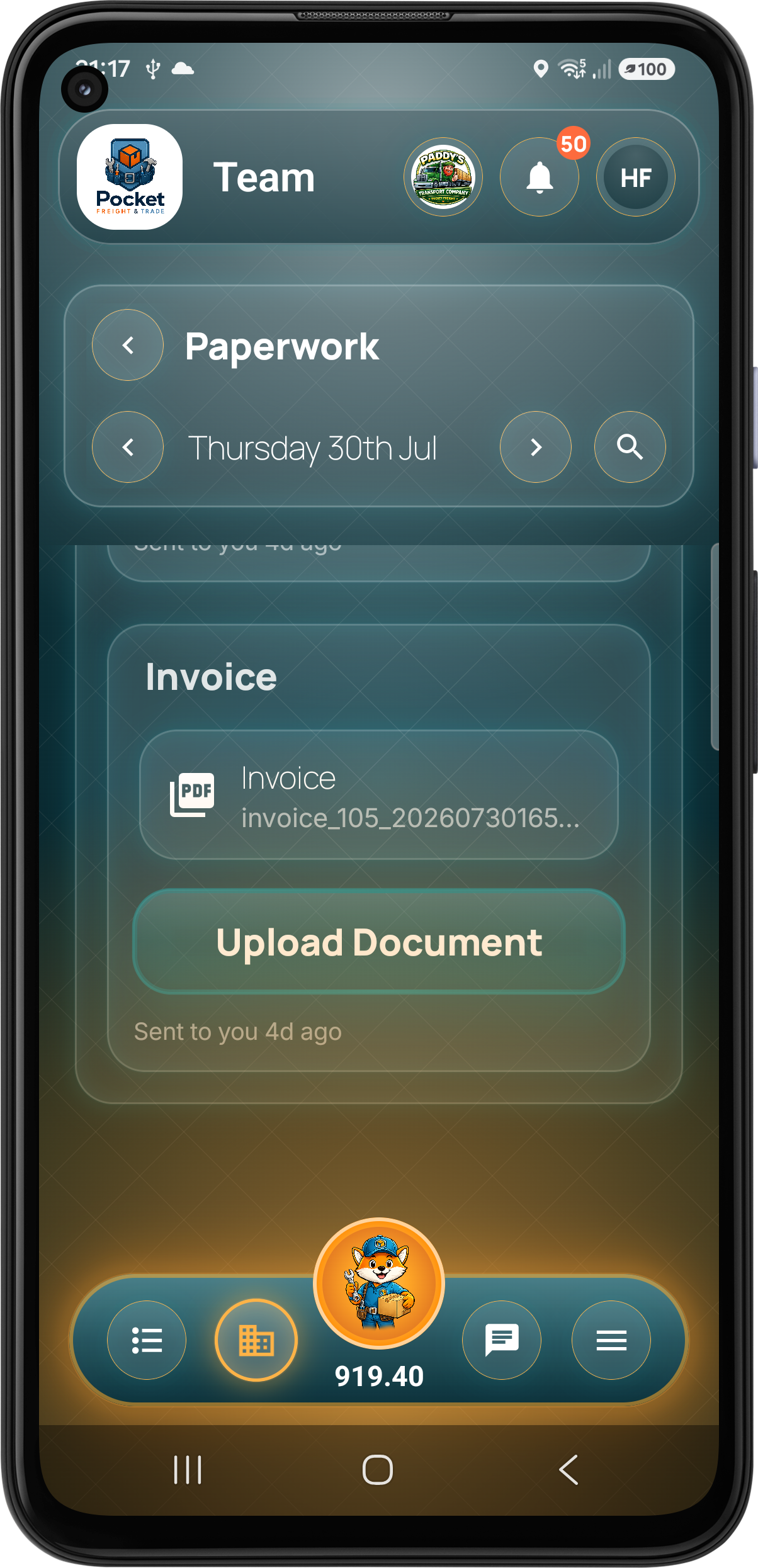
Paperwork
Proof and invoices remain attached to the right job.
Customers can search and open generated proof of collection, proof of delivery, invoices and other uploaded documents without waiting for someone to resend them.
Step 07 · Finance
Customers can see exactly what is outstanding and what has been paid.
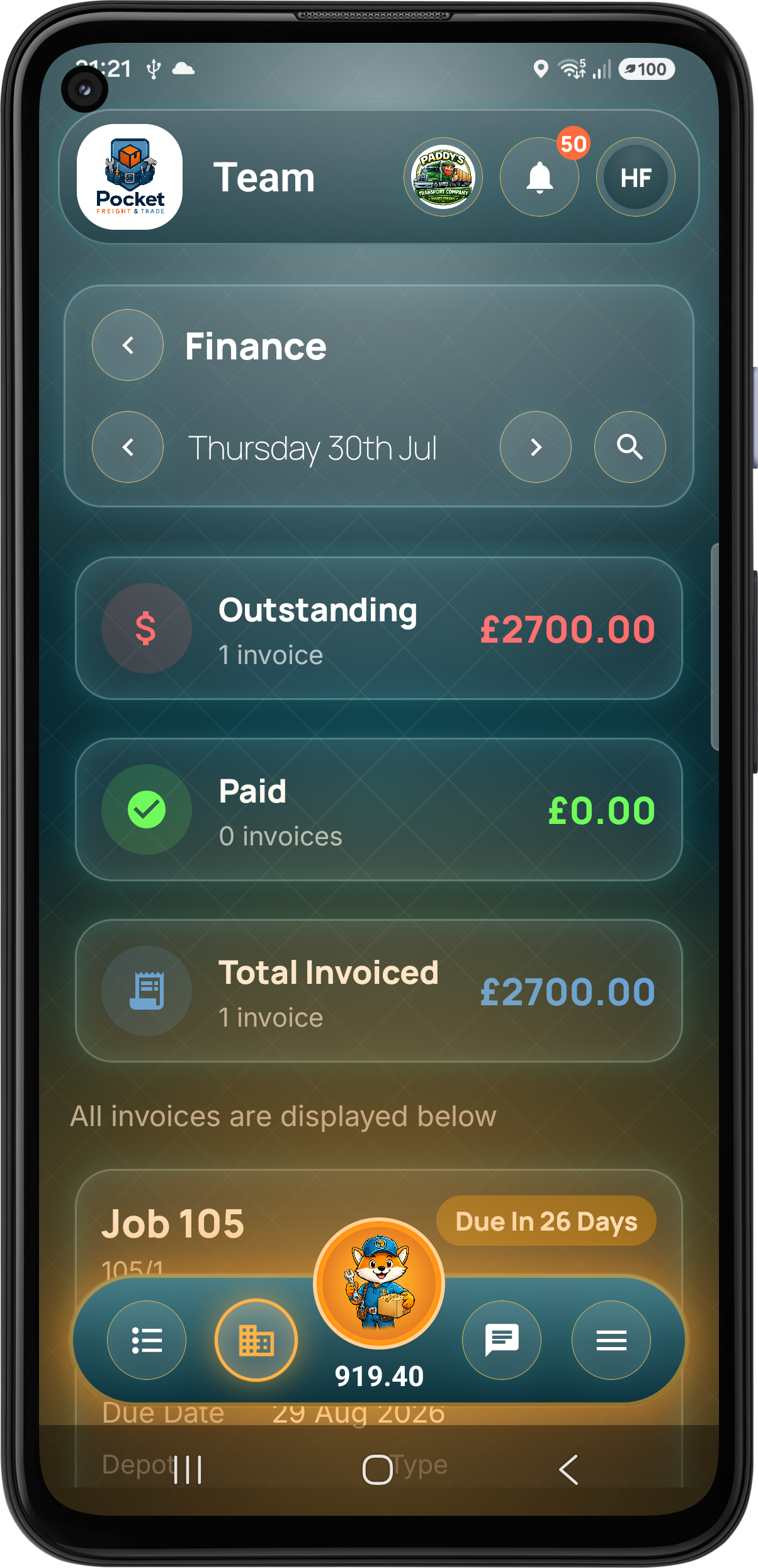
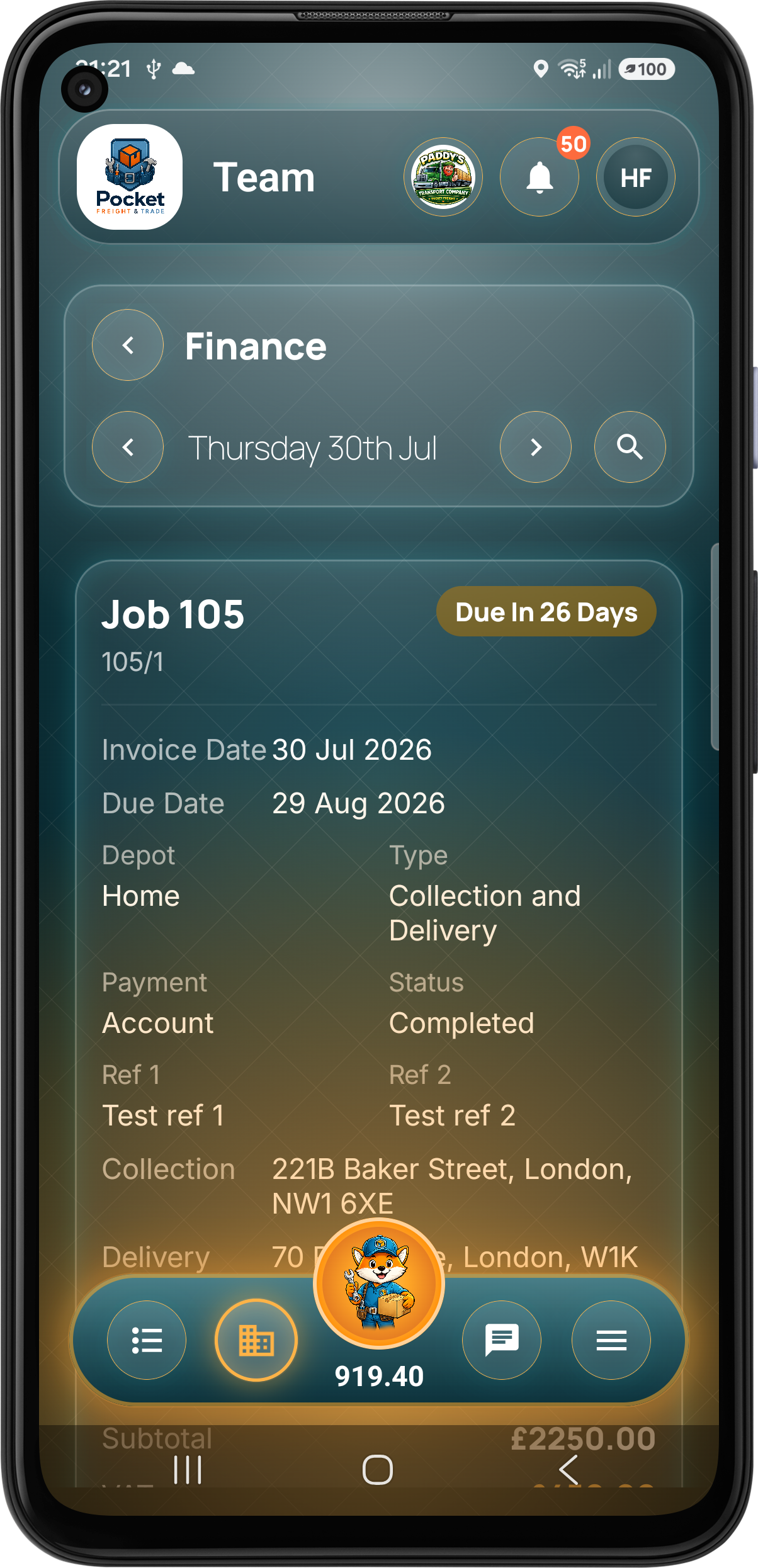
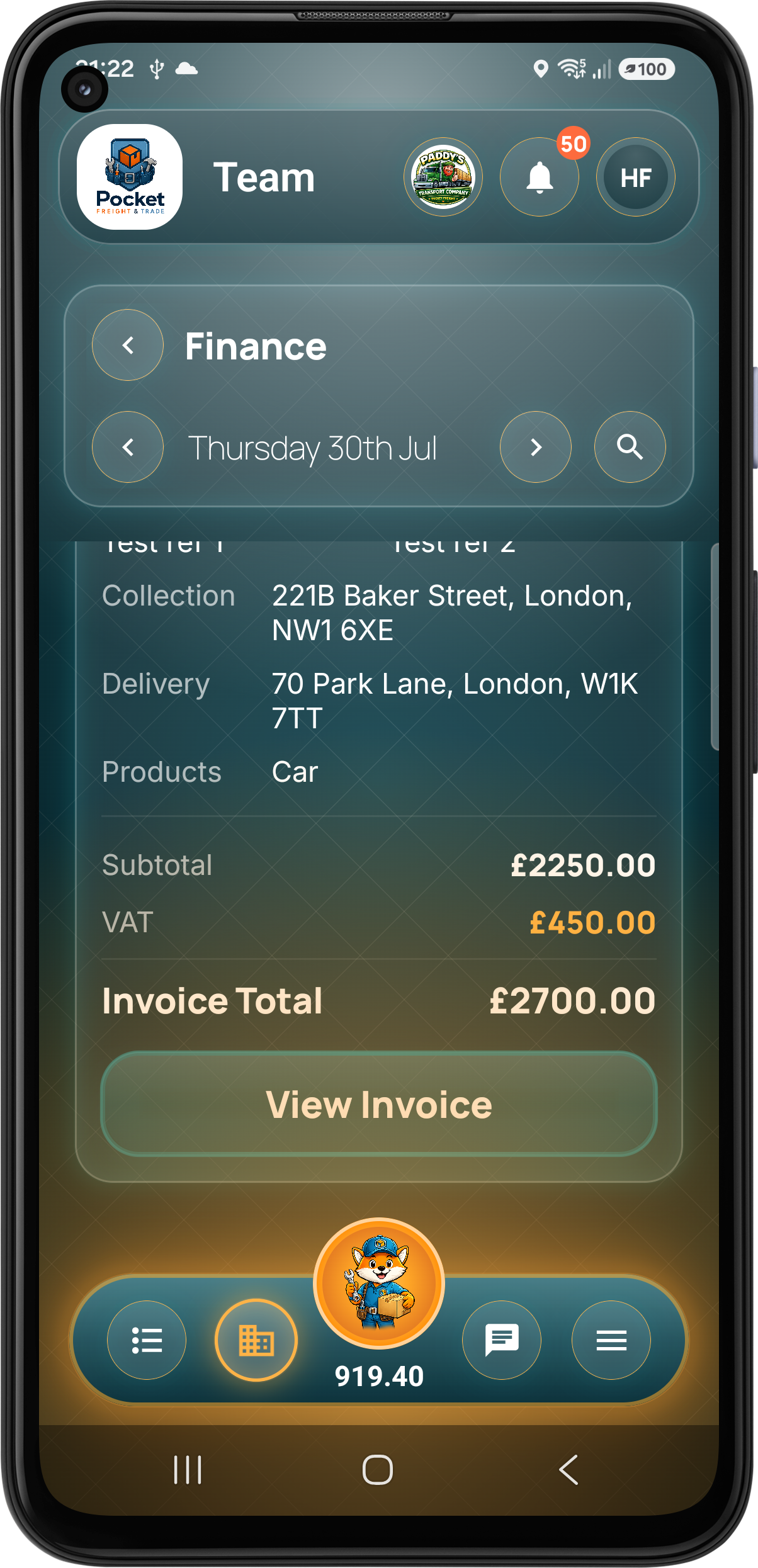
The customer finance view separates outstanding and paid invoices, shows due dates and opens the complete job and invoice breakdown from the same operational record.
Full Web Portal
The same connected operation from a desktop browser.
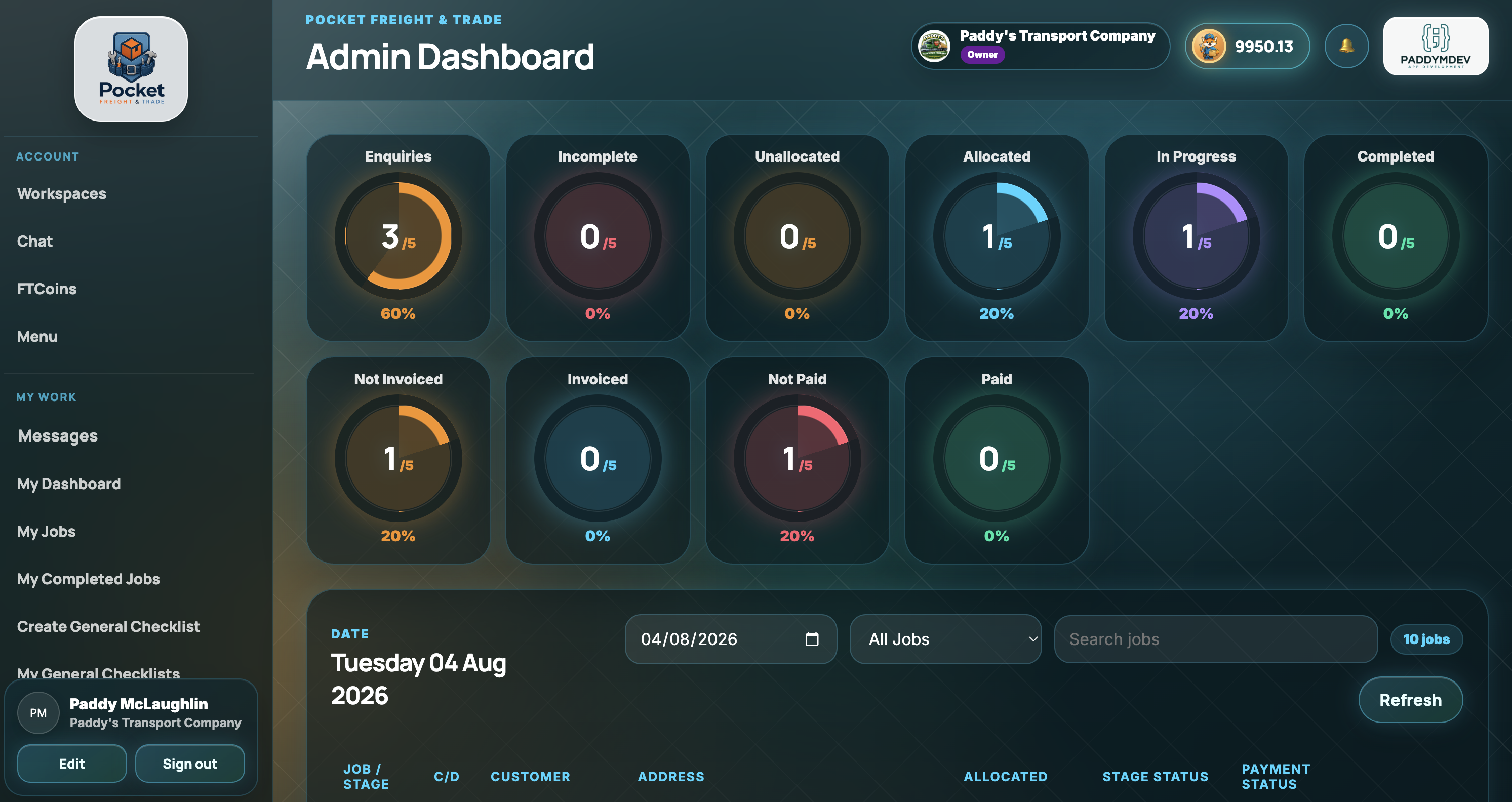
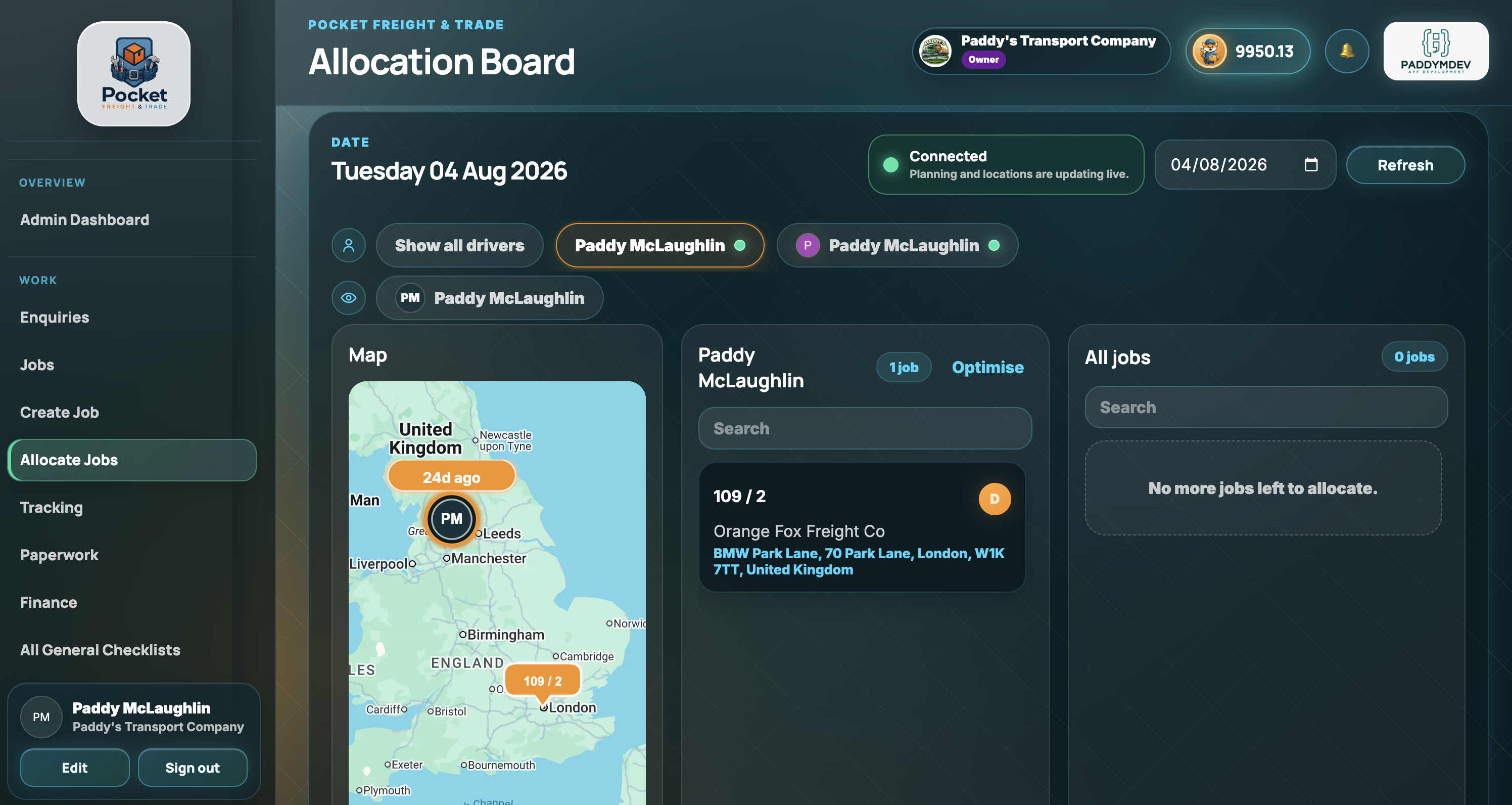
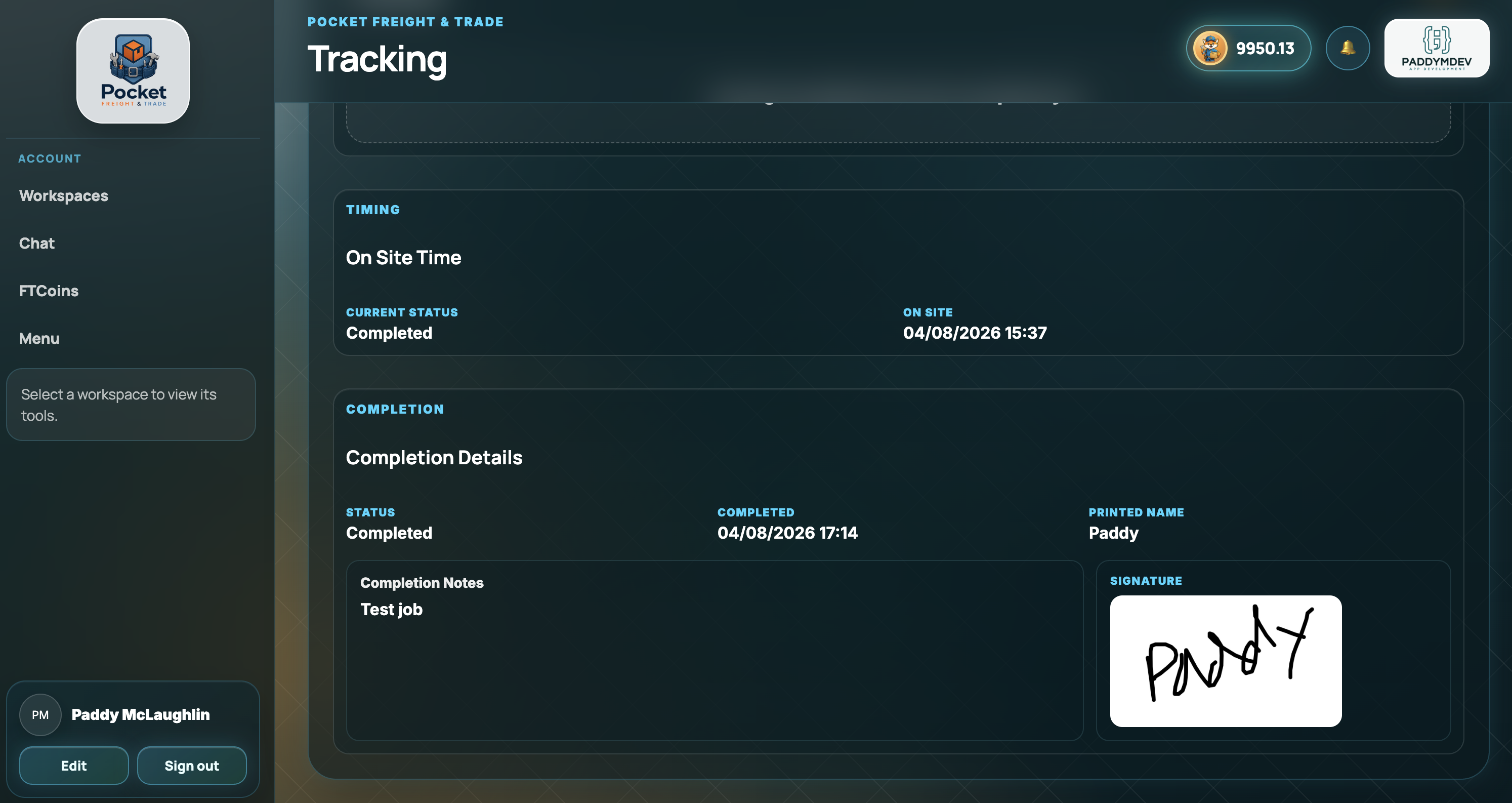
Office teams can manage dashboards, allocation and live customer tracking from the portal while drivers and customers use the mobile apps. It is one cross-platform system, not a separate desktop product.
Freight, Logistics & Field Services
One platform, built around the work you do.
Pocket Freight & Trade ships with configurable defaults for eleven service categories, while still letting every team tailor products, services, checklists and workflow options to match its own operation.
Moving goods
Freight & Logistics
For teams collecting, transporting and delivering vehicles, pallets, parcels and custom cargo.
Transport
Logistics
General Freight Transport
Pallet Transport
Courier & Parcel Transport
Loose Freight Transport
Vehicle Transport
Completing work
Trades & Field Services
For mobile teams carrying out repairs, maintenance, cleaning, installation, clearance and specialist services.
Plumbing, Heating & Drainage
Electrical & Energy
Building & Property Maintenance
Domestic & Commercial Cleaning
Window Cleaning
Landscaping & Exterior Maintenance
Automotive & Mobile Vehicle Services
Waste, Clearance & Removals
Installation & Assembly
Products
Track what is moved or used.
Vehicles, pallets, parcels, materials, parts and custom items stay connected to the job.
Services
Track the work being carried out.
Add service tasks, costs, durations, notes and service-specific checklist evidence.
Setup First
Start with the team and business configuration.
Before jobs are created, teams can configure the building blocks that make the rest of the workflow faster. Defaults are already loaded, but each business can adjust these to match how they operate.
01
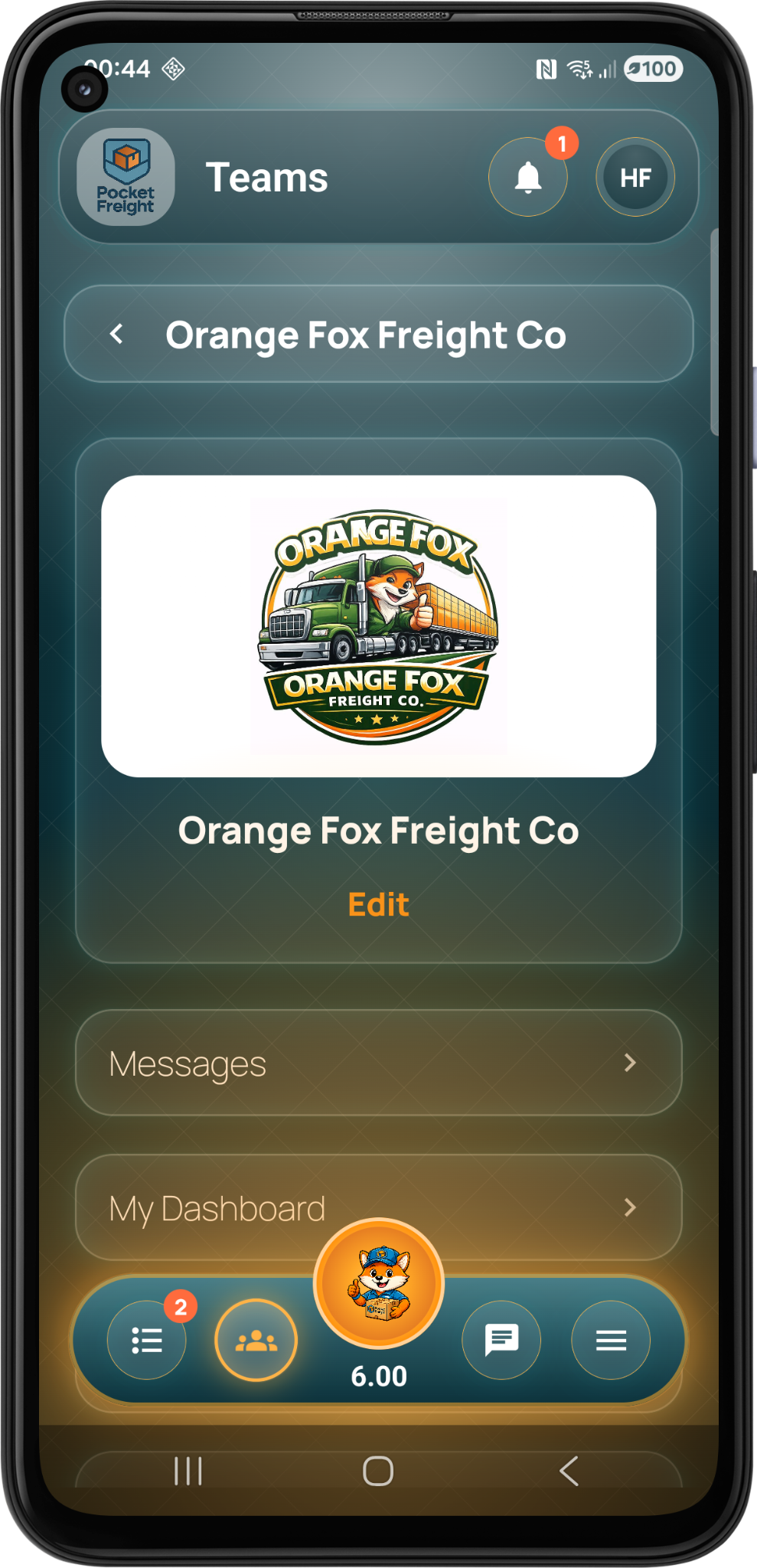
Create your team
The team is the main workspace for the business. Add the company profile, logo and team structure before moving into operational setup.
02
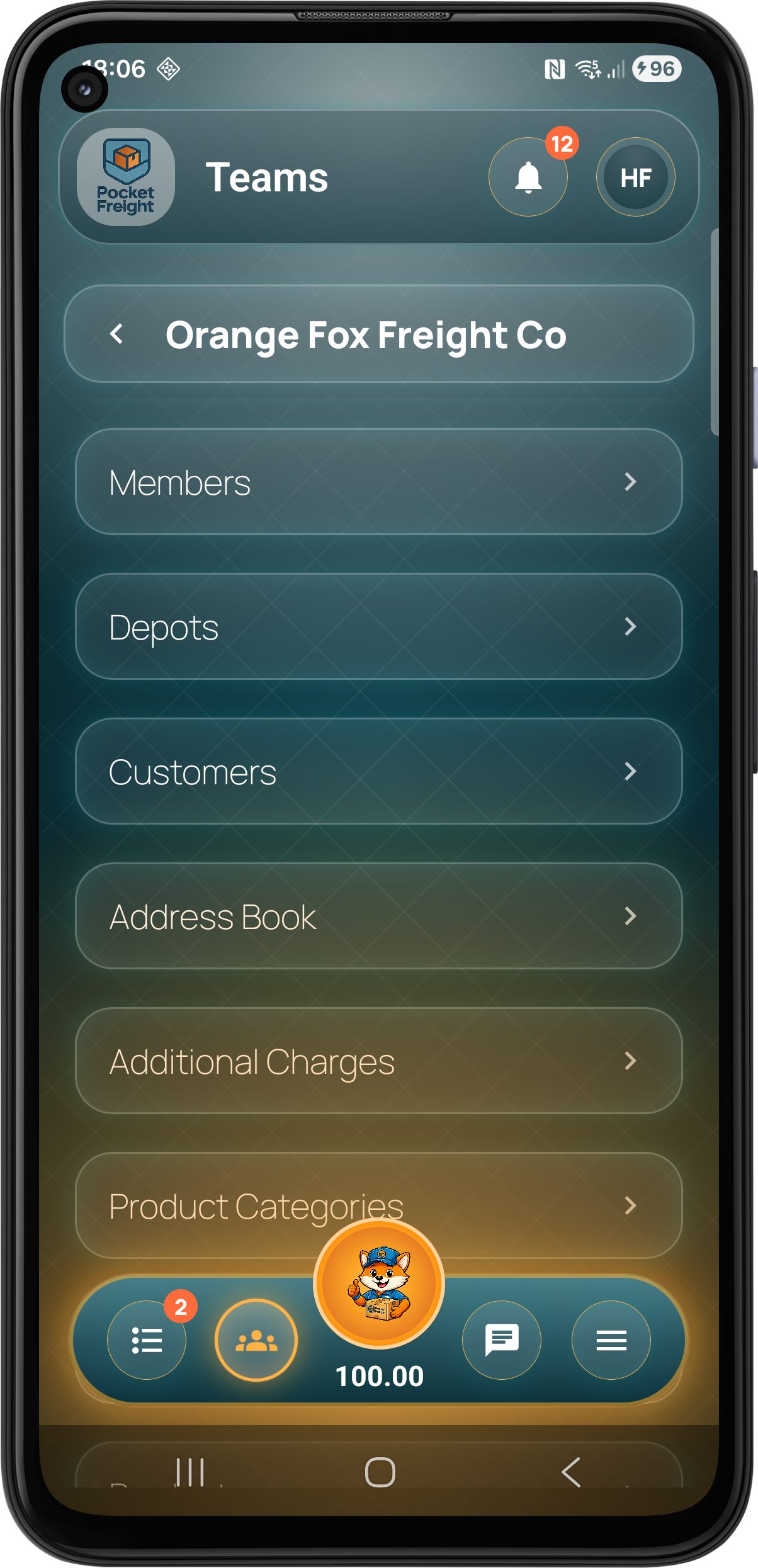
Configure operational options
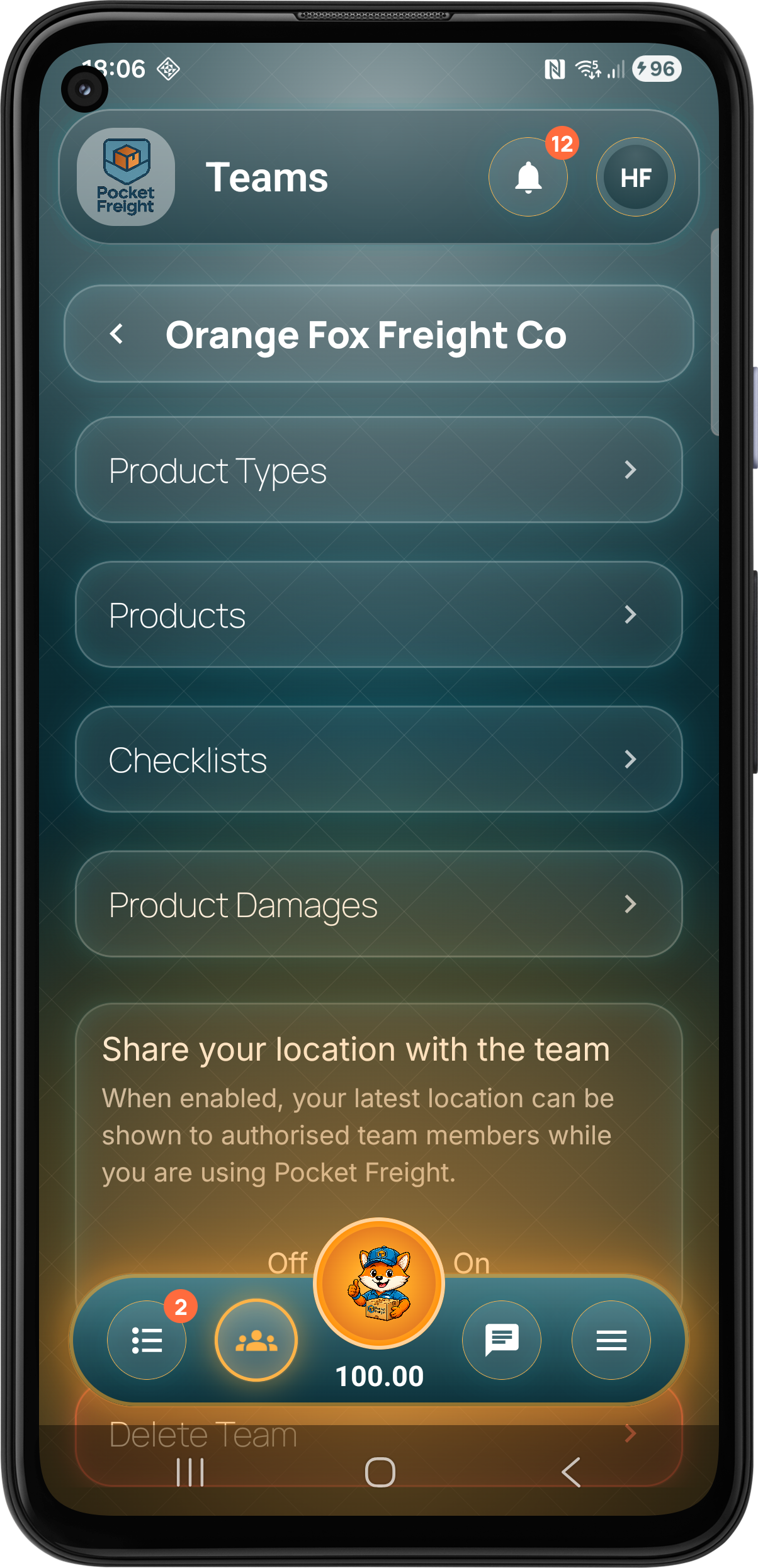
Teams can configure additional charges, product categories, product types, products, service categories, service types, services, damages and checklists so the app reflects the work they actually carry out.
03
Add members, depots, customers and addresses
Set up drivers and staff, create depots, add customers and build an address book so job creation is faster and more consistent.
Operational Flow
Create, allocate, run and optimise jobs.
Once the team is configured, Pocket Freight & Trade moves into the daily job workflow. Create the work, allocate it, run the route and optimise where needed.
04
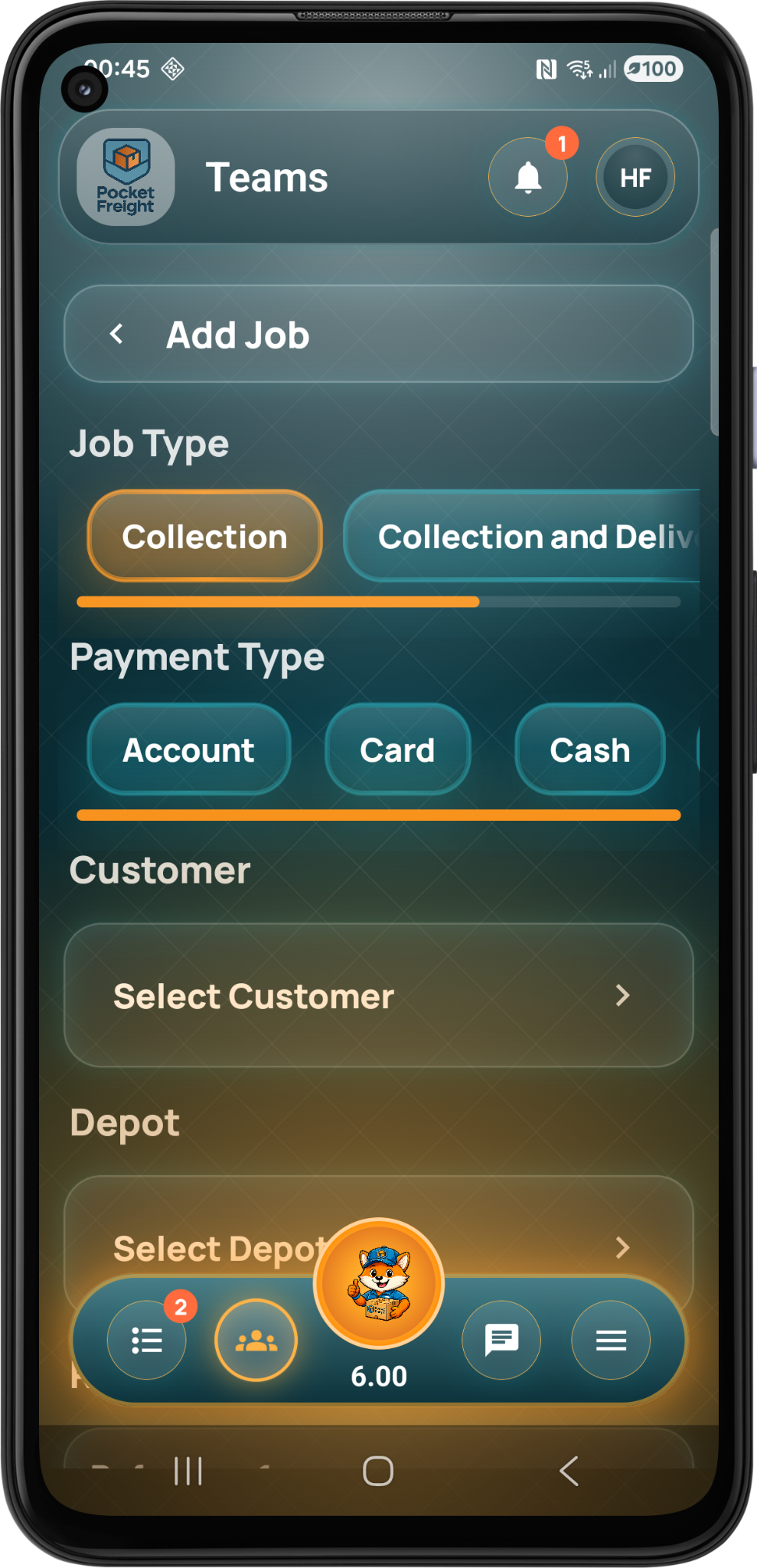
Create jobs
Create transport, logistics or service jobs using configured customers, depots, products, services, payment types and operational details.
05
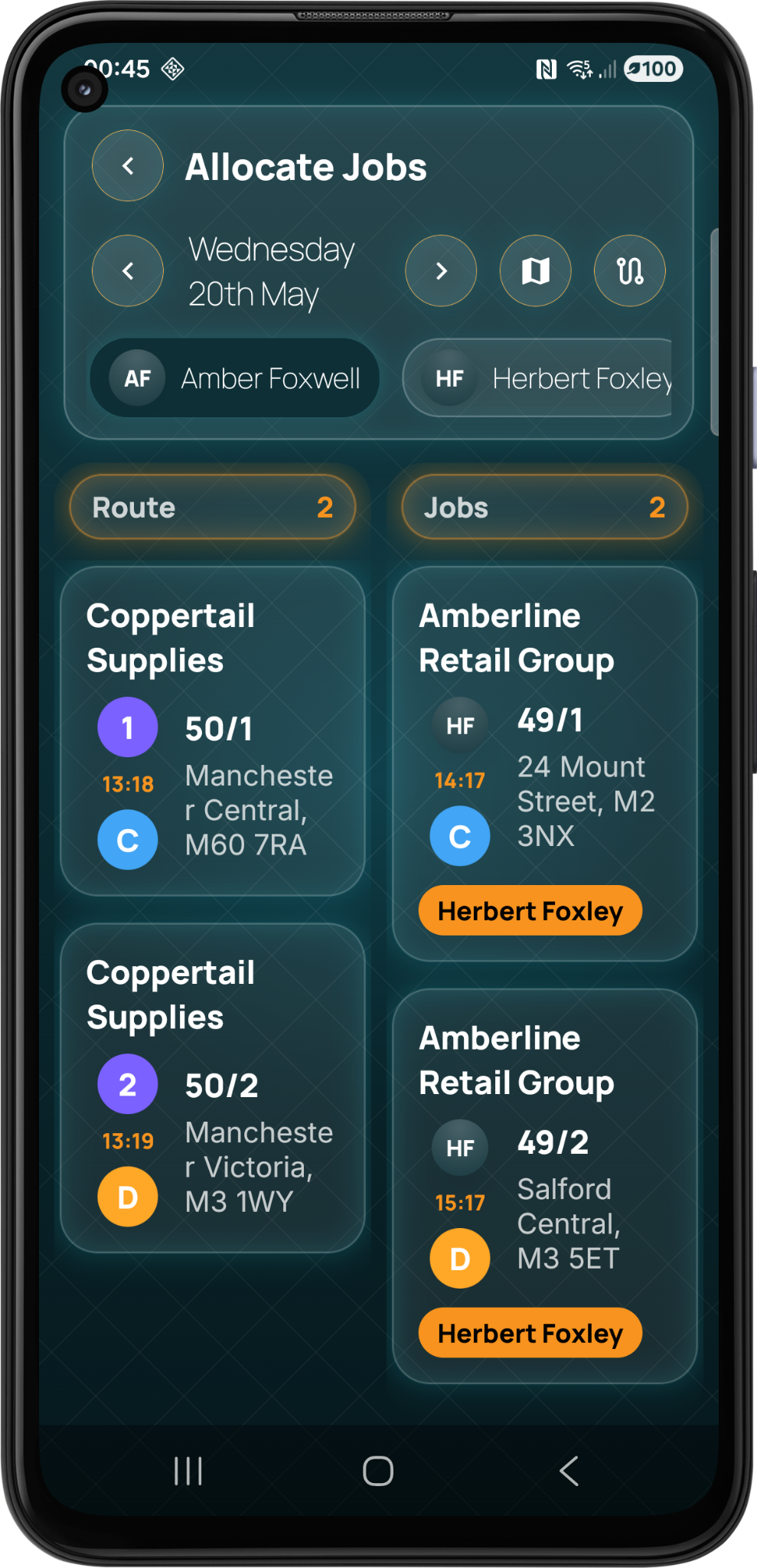
Allocate work
Allocate jobs visually between team members and routes. The planner keeps unallocated and assigned work clear so the team can organise the day quickly.
06
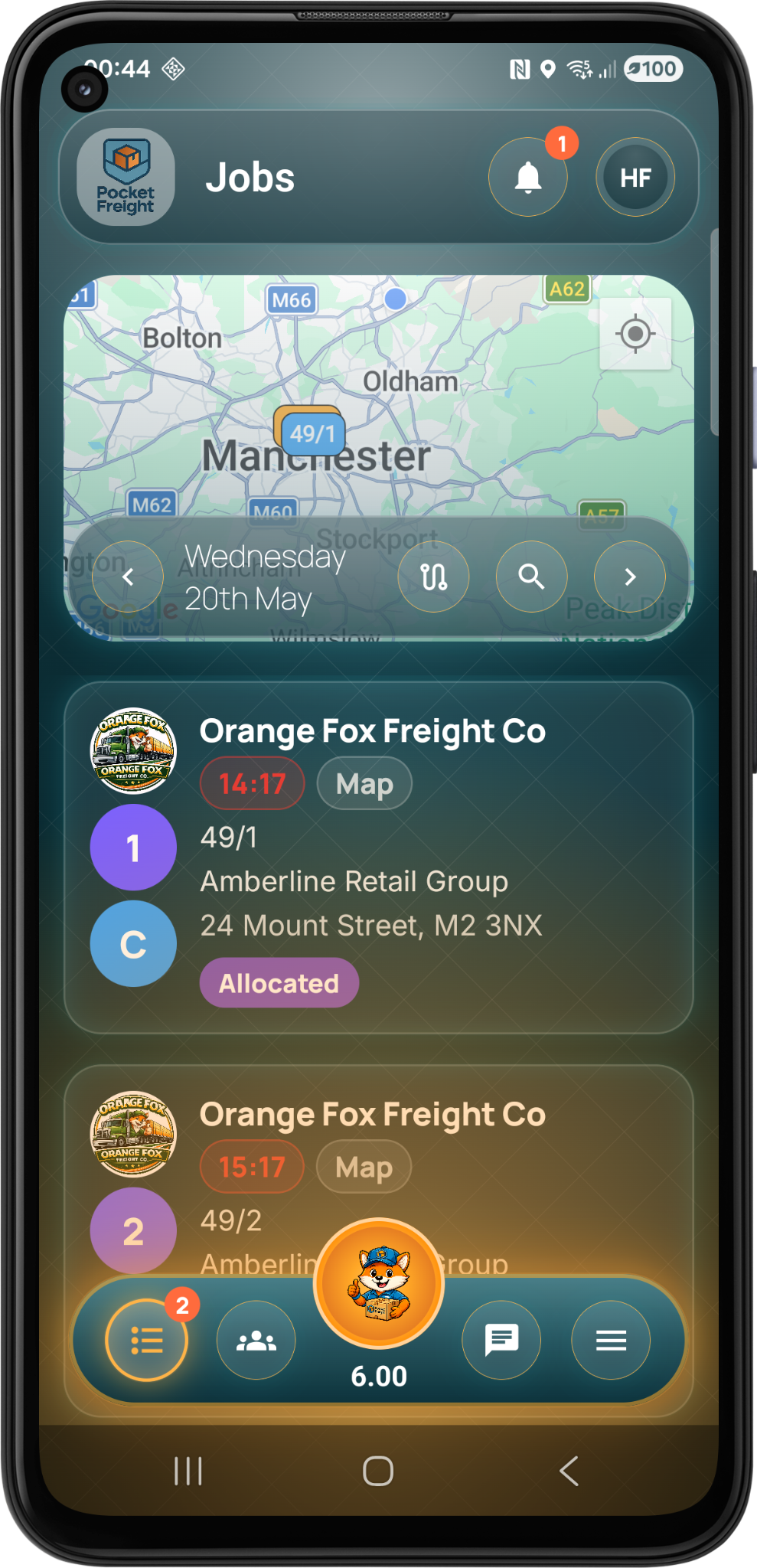
Run the job list
Team members can see allocated stages, service work, map context, timing information and job status from the mobile job list.
07
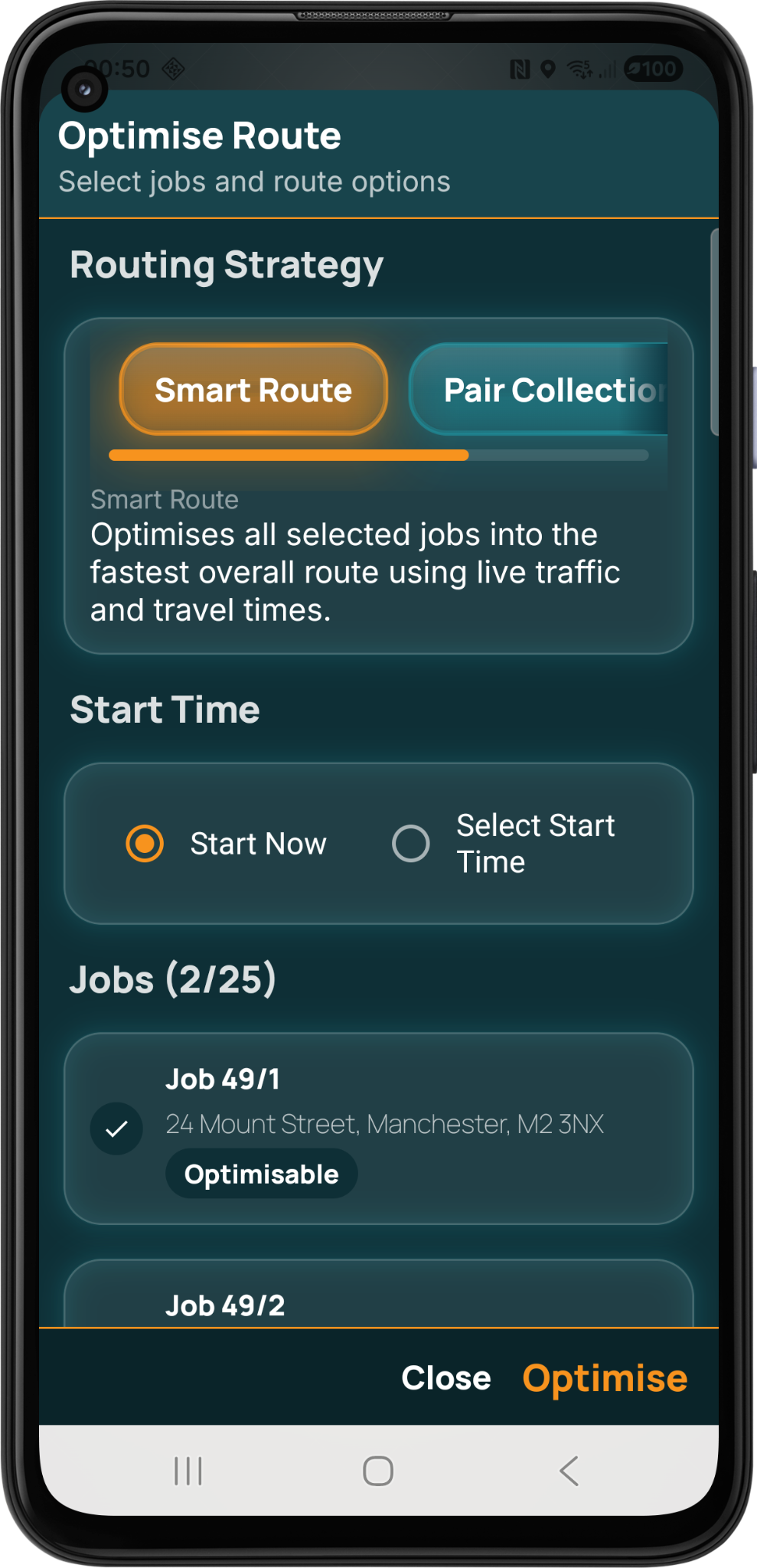
Optimise routes
Route optimisation helps reduce wasted travel time by arranging selected jobs into a smarter route using live traffic and travel time data.
Job Stages
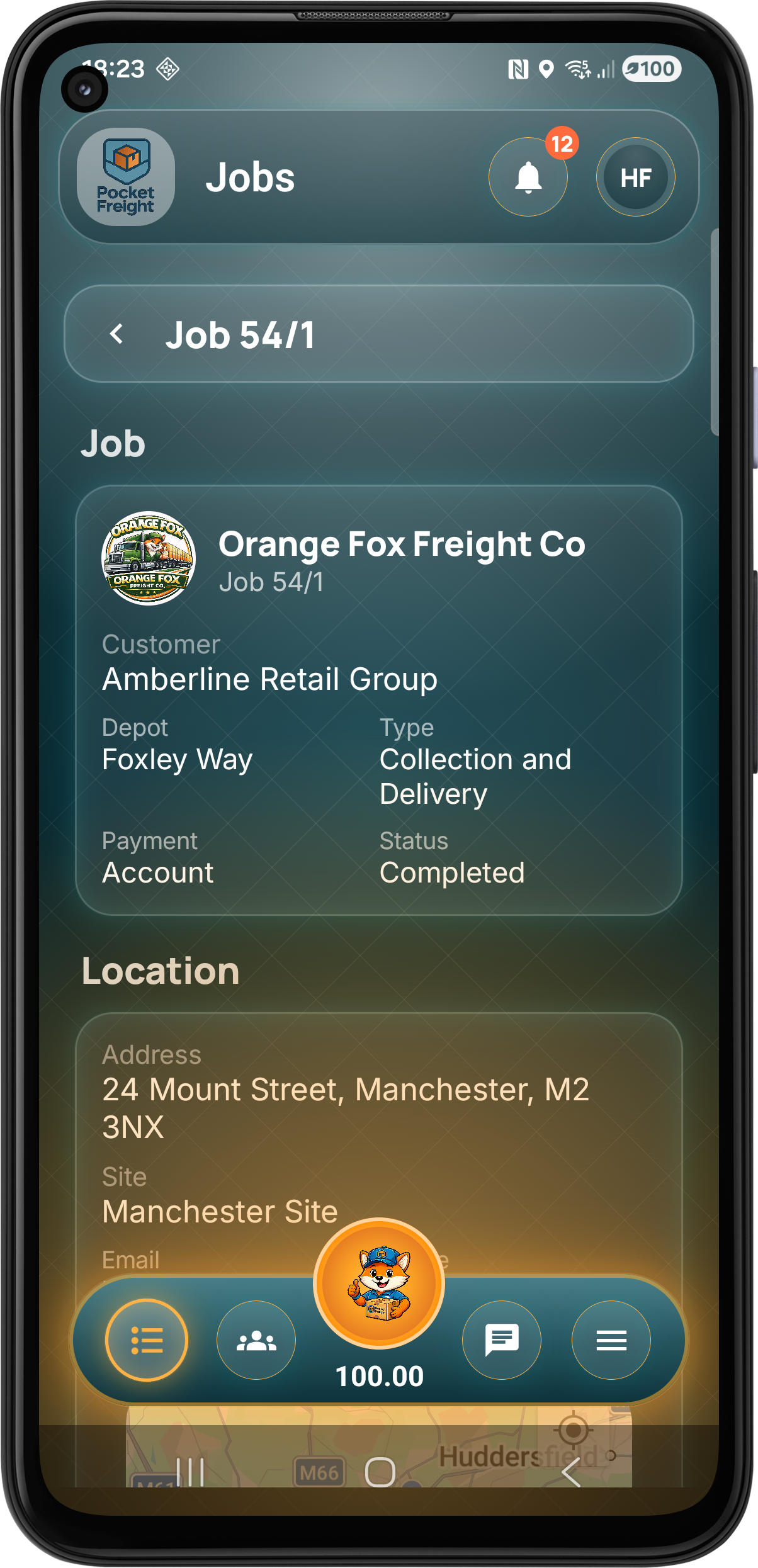
Detailed job stage handling from start to finish.
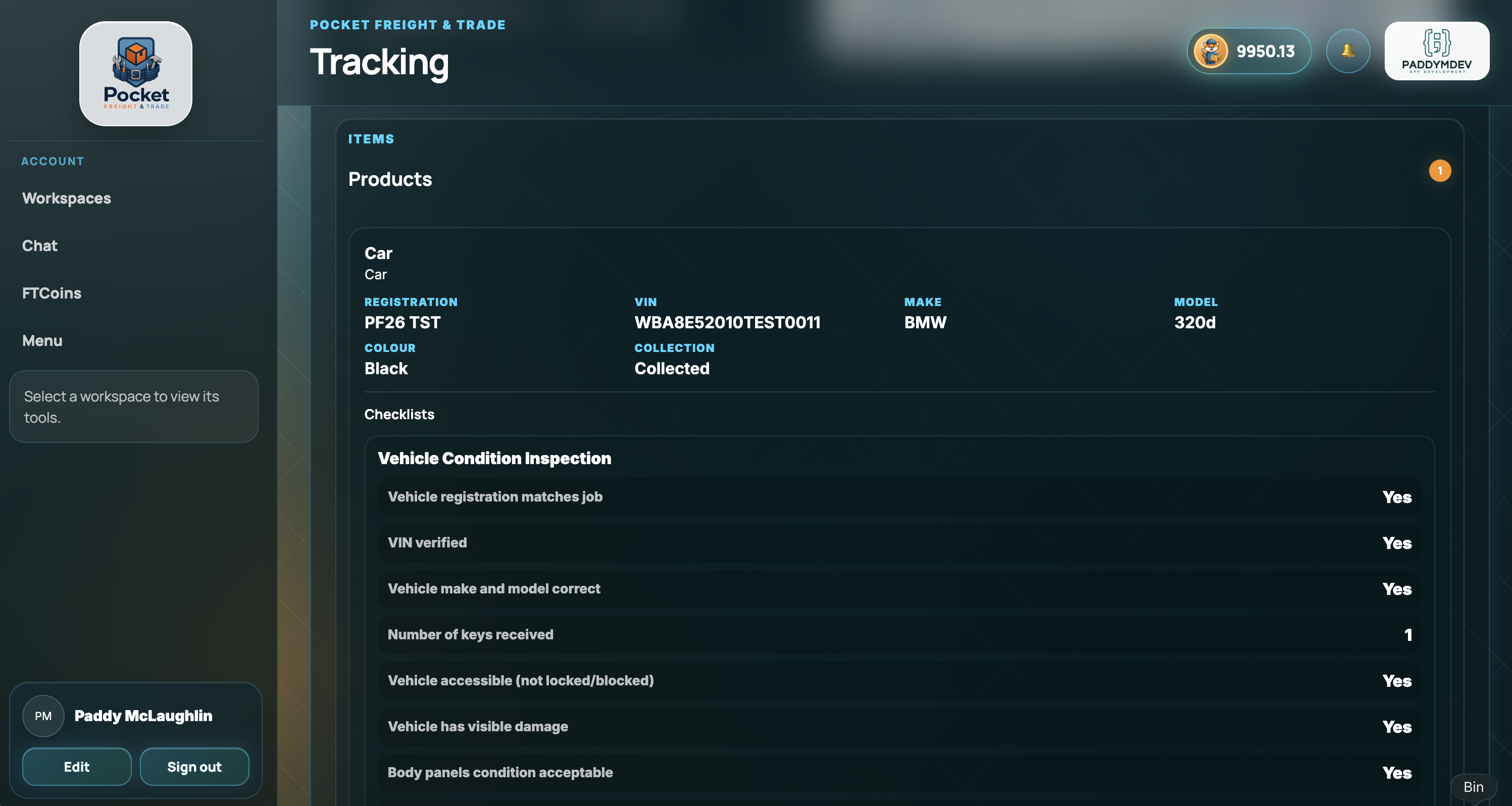
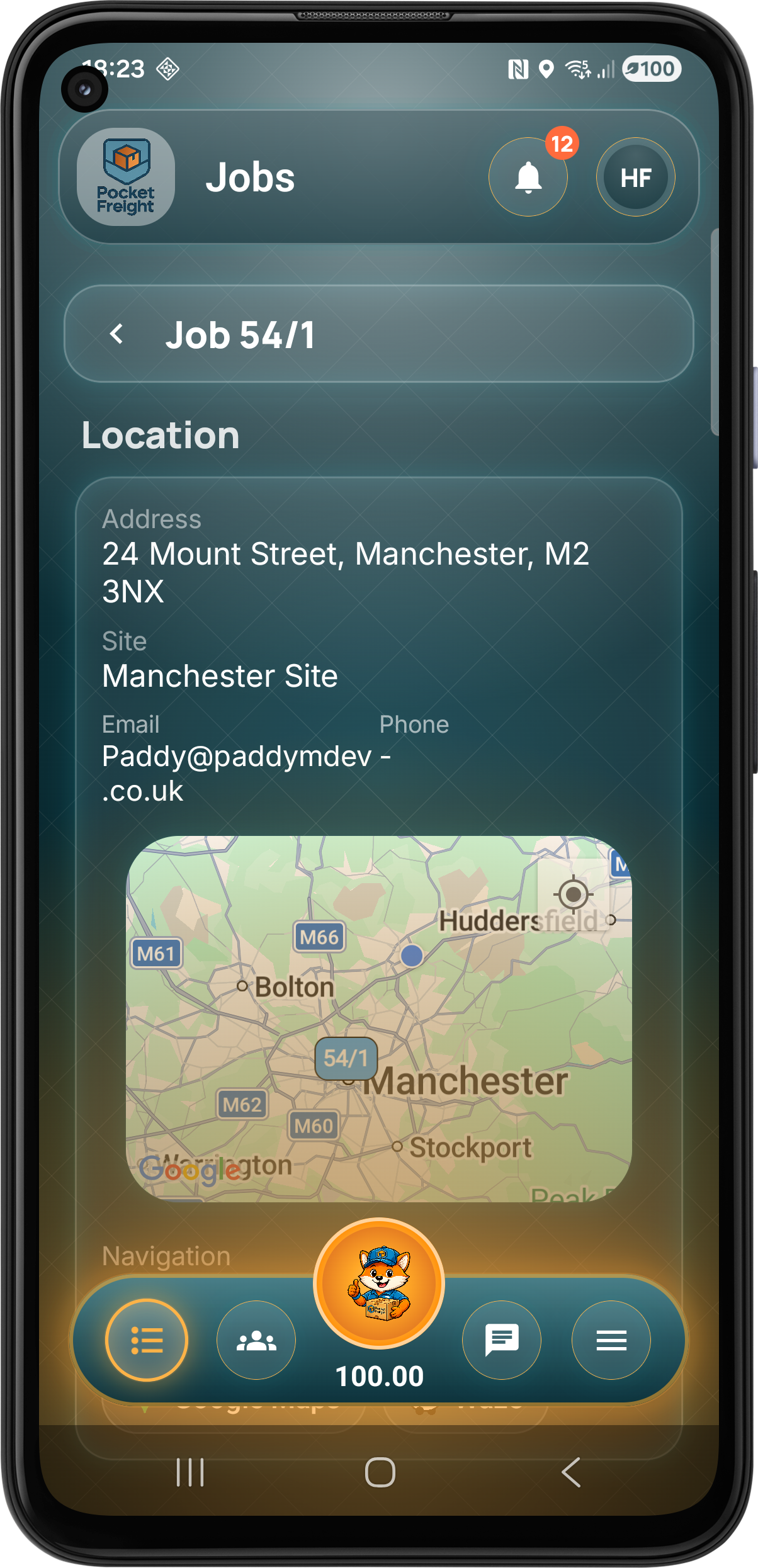
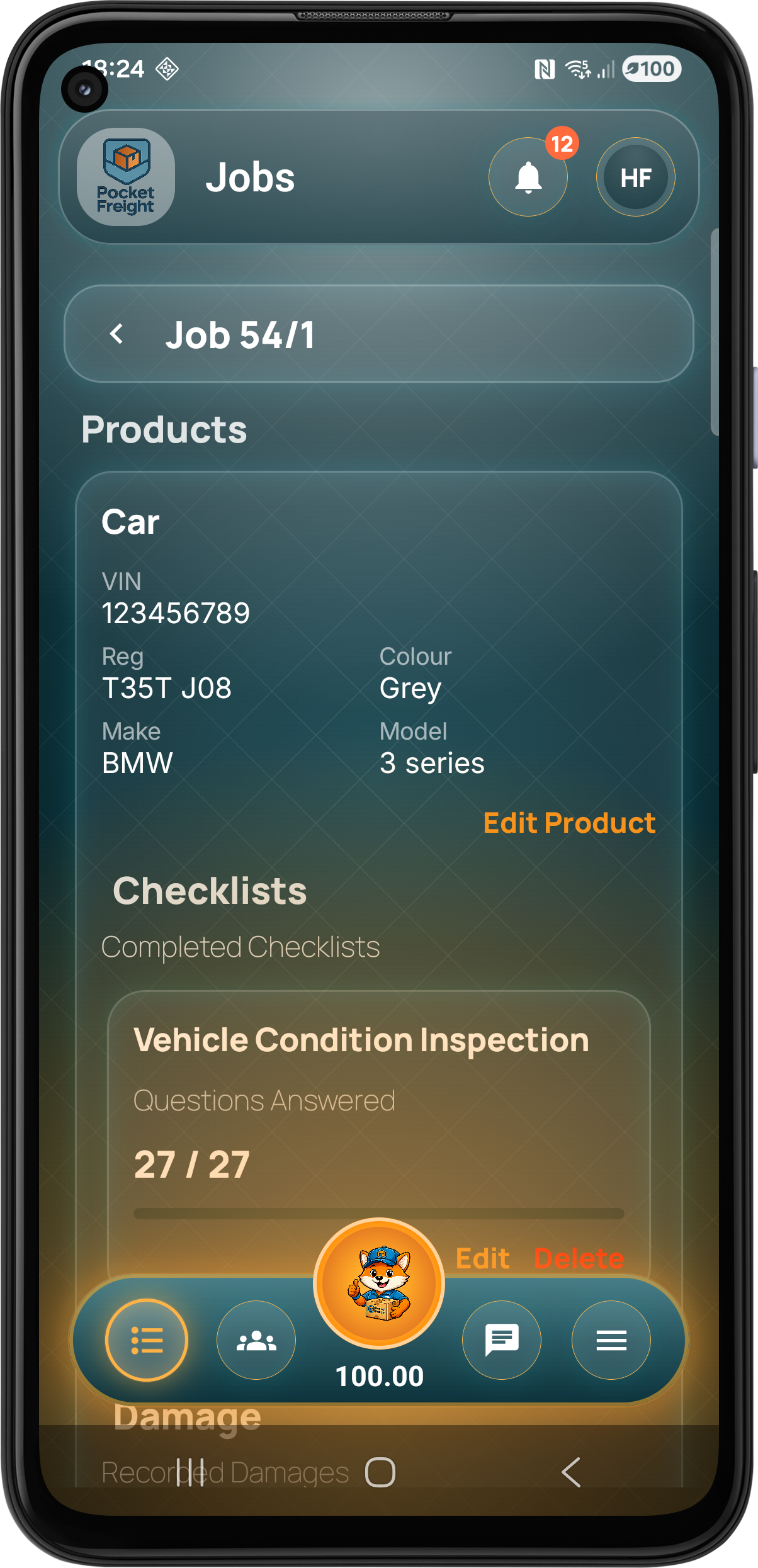
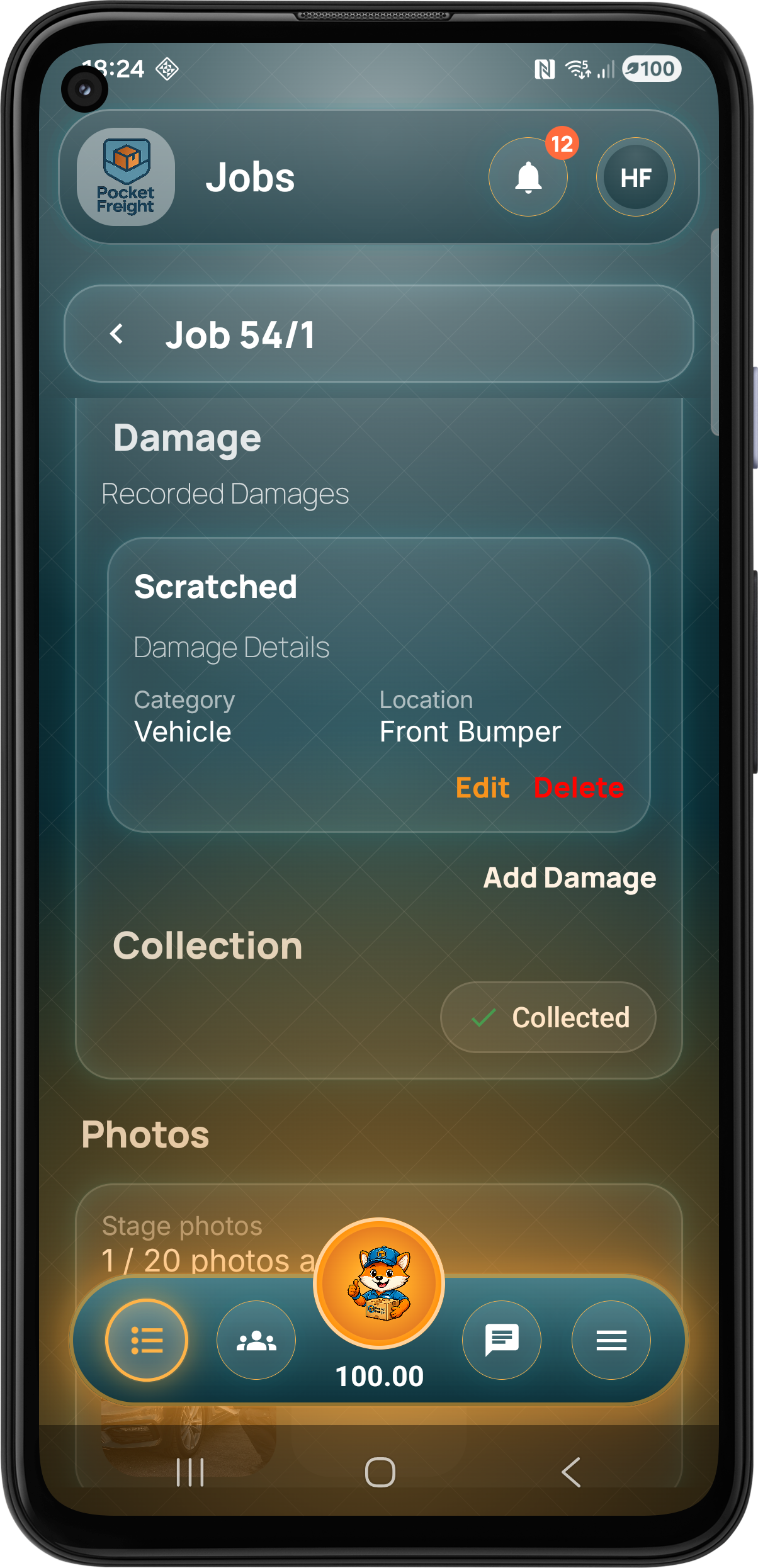
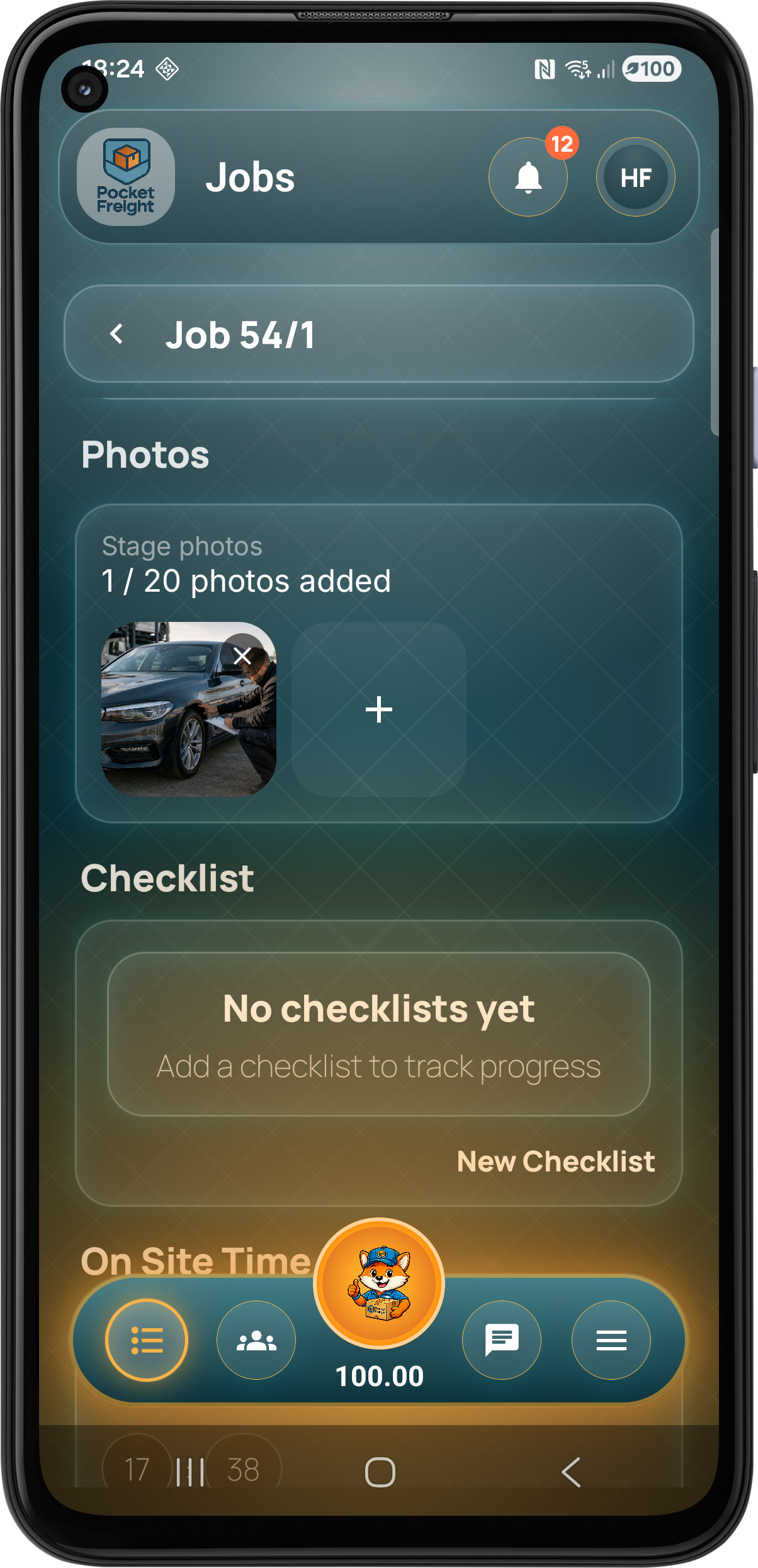
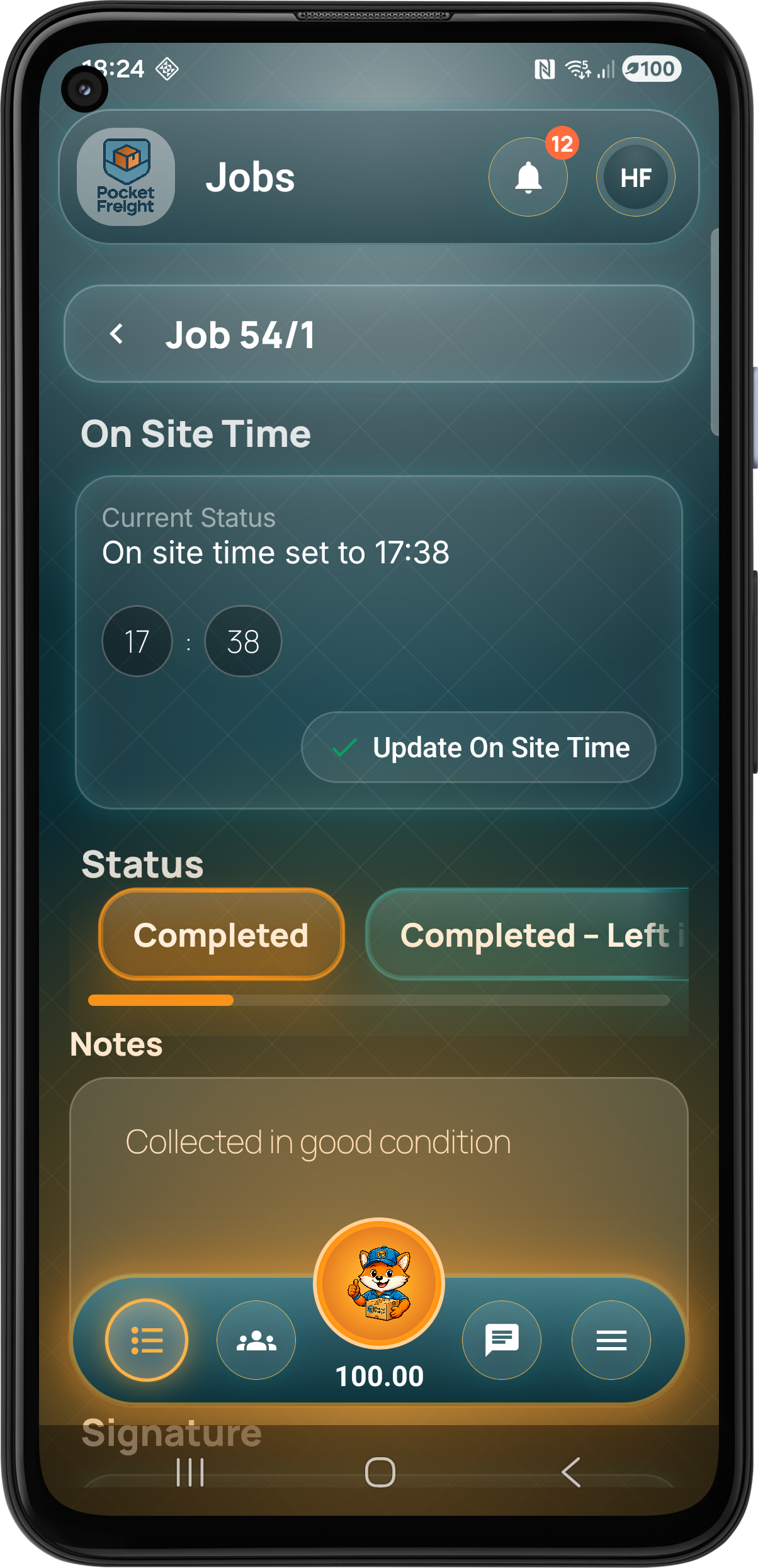
The job stage screen gives mobile teams the tools needed to move each collection, delivery or service visit through the workflow, including status, mapping, products, services, checks, notes and paperwork.
Paperwork & Proof
Keep proof of work, delivery and invoicing connected.
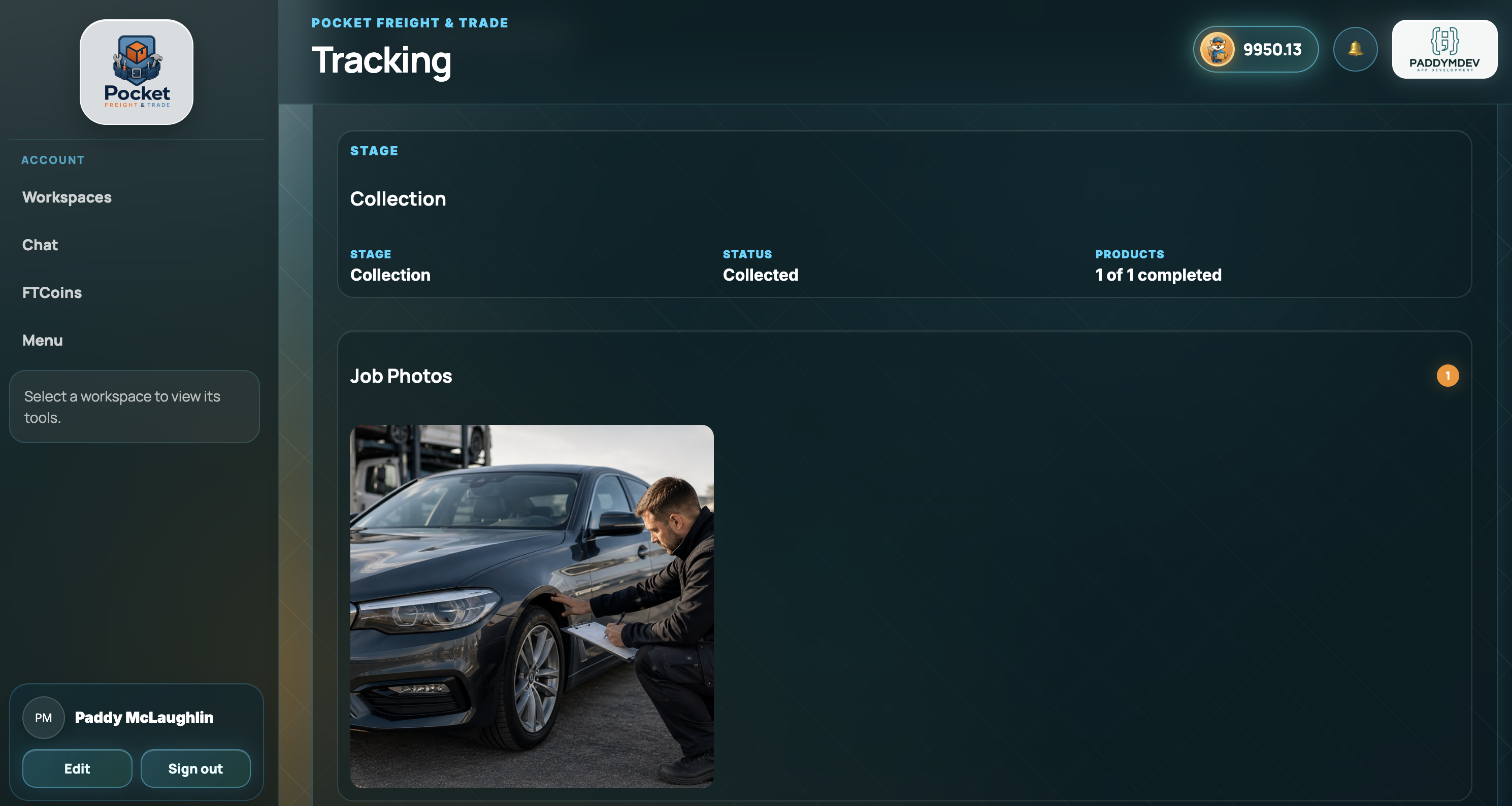
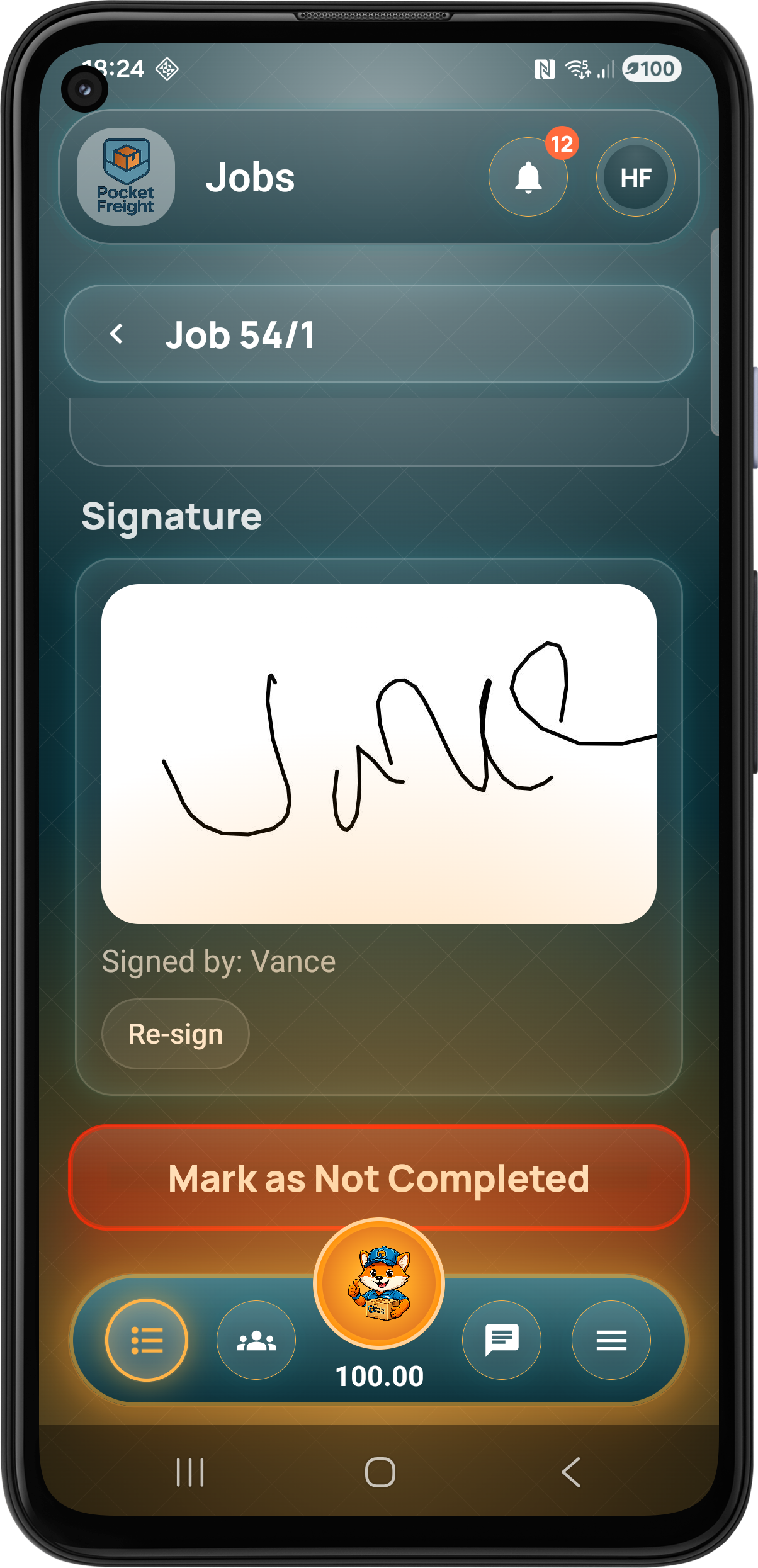
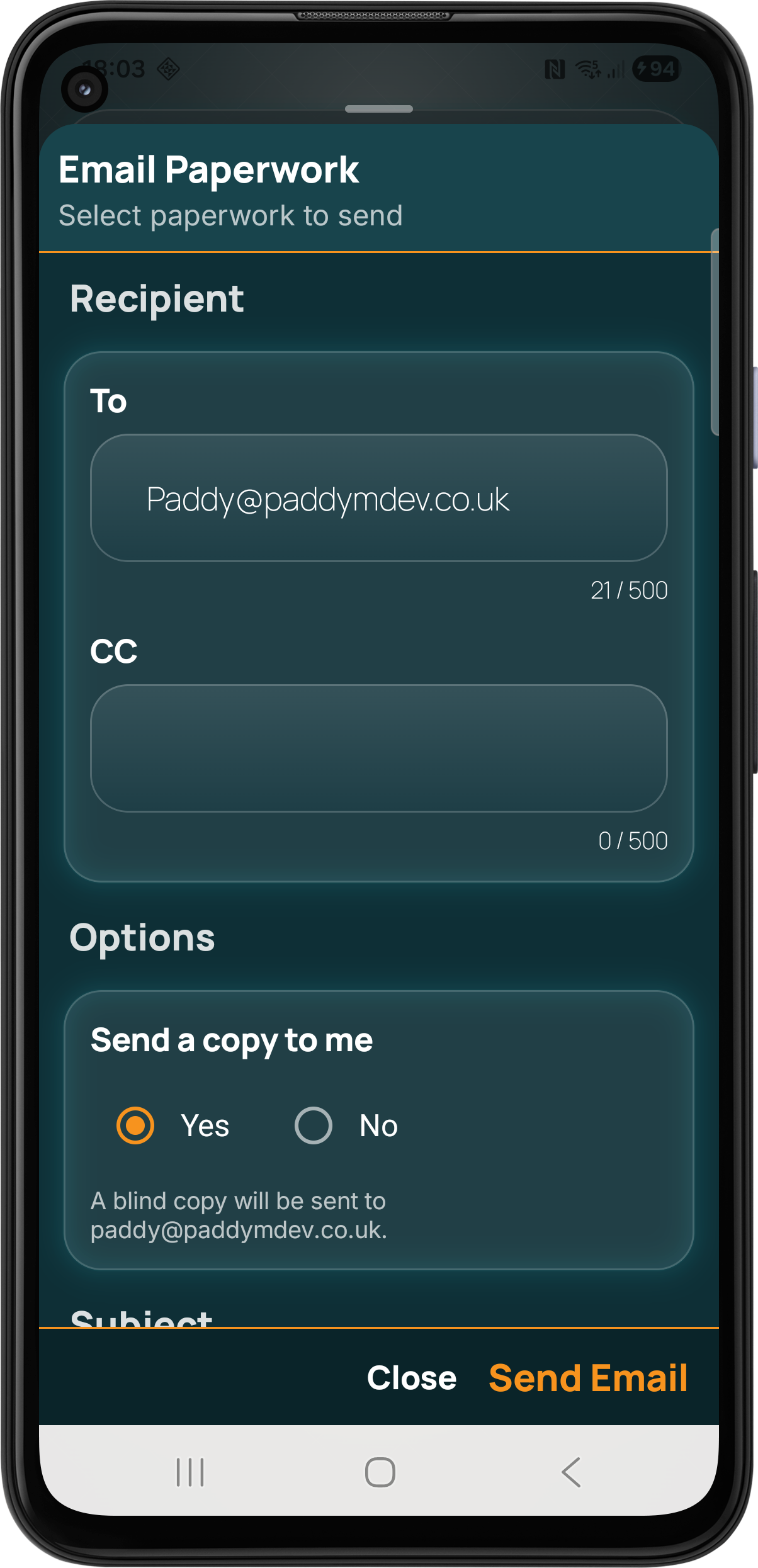
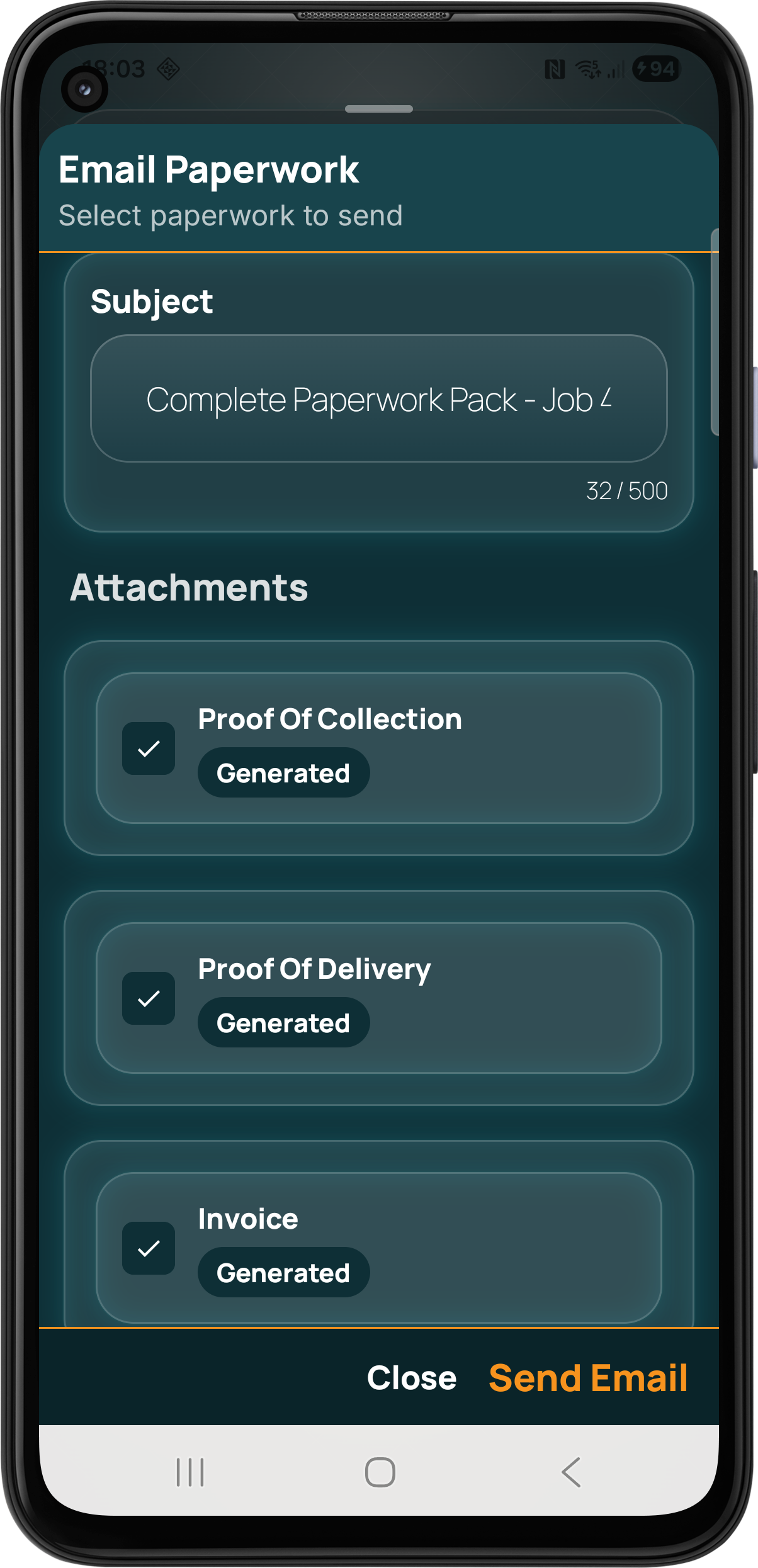
Pocket Freight & Trade keeps evidence and paperwork connected to the operational workflow. Teams can capture photos, signatures, notes and checklists, upload supporting files, generate collection, delivery and invoice documents, then email the relevant records directly to customers.
Documents
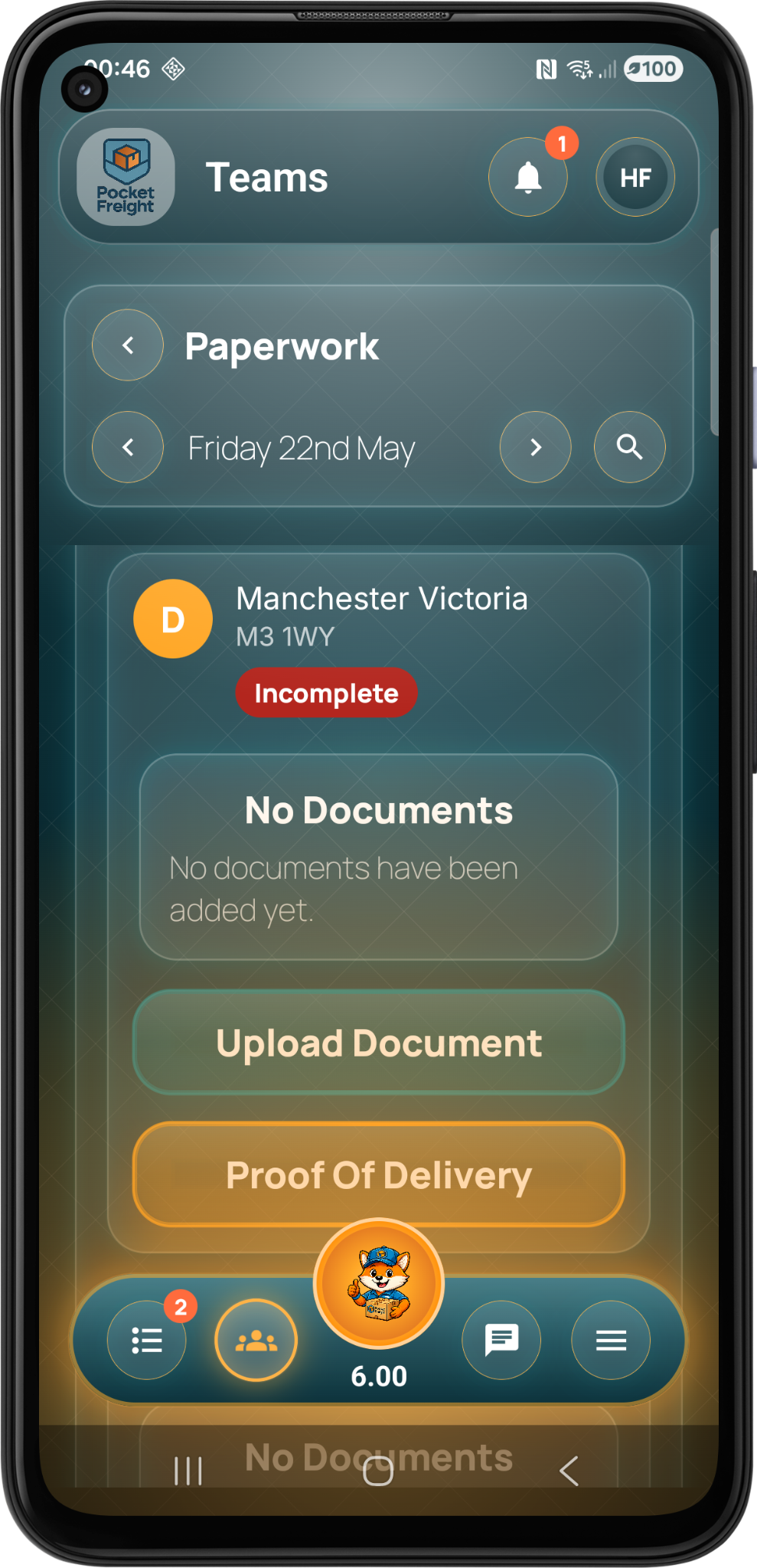
Keep paperwork with the job
Documents stay linked to the right stage so teams can find them later without searching through messages or folders.
Proof Of Collection
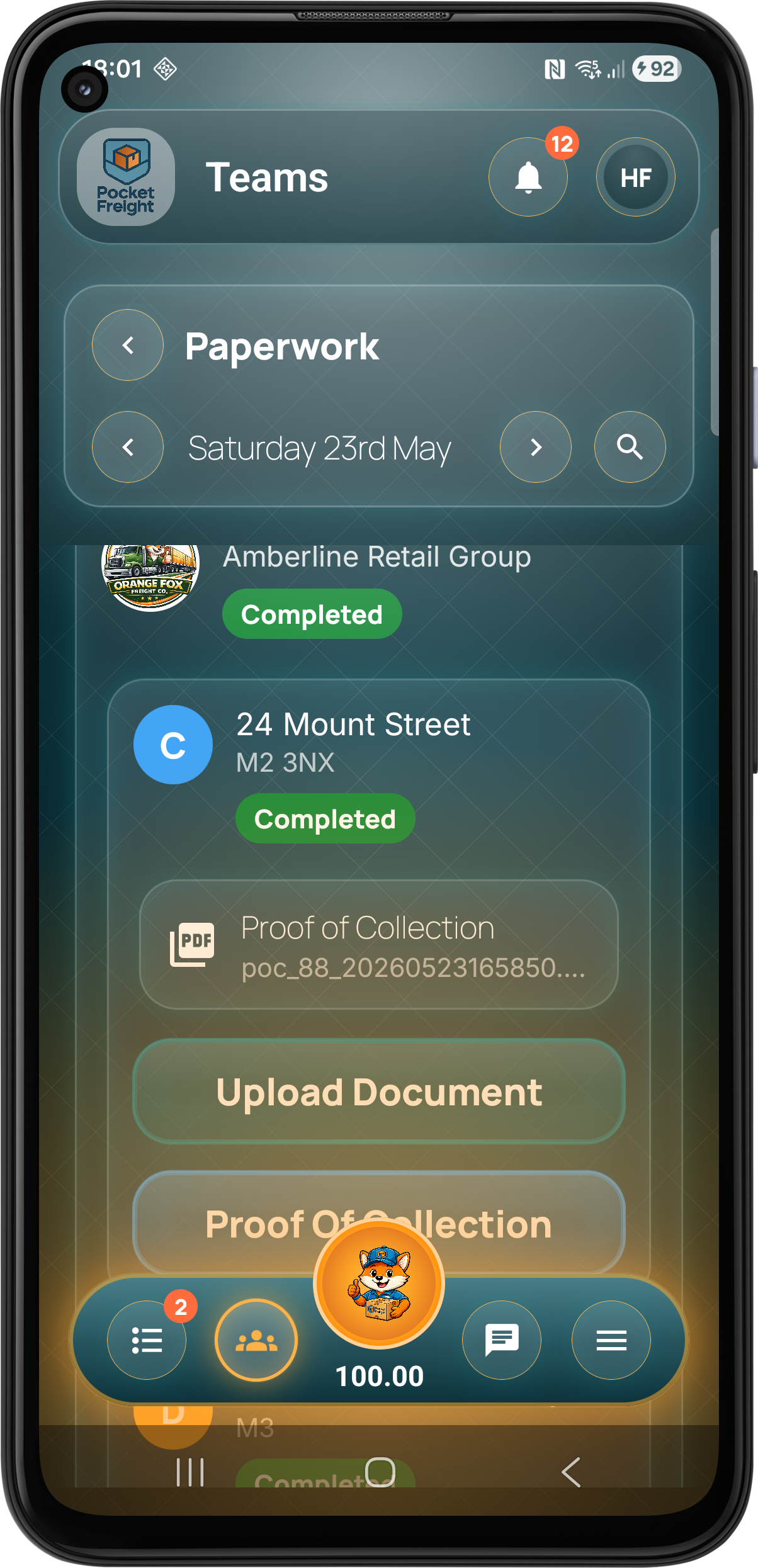
Capture collection evidence
Generate or upload proof of collection against the correct job stage.
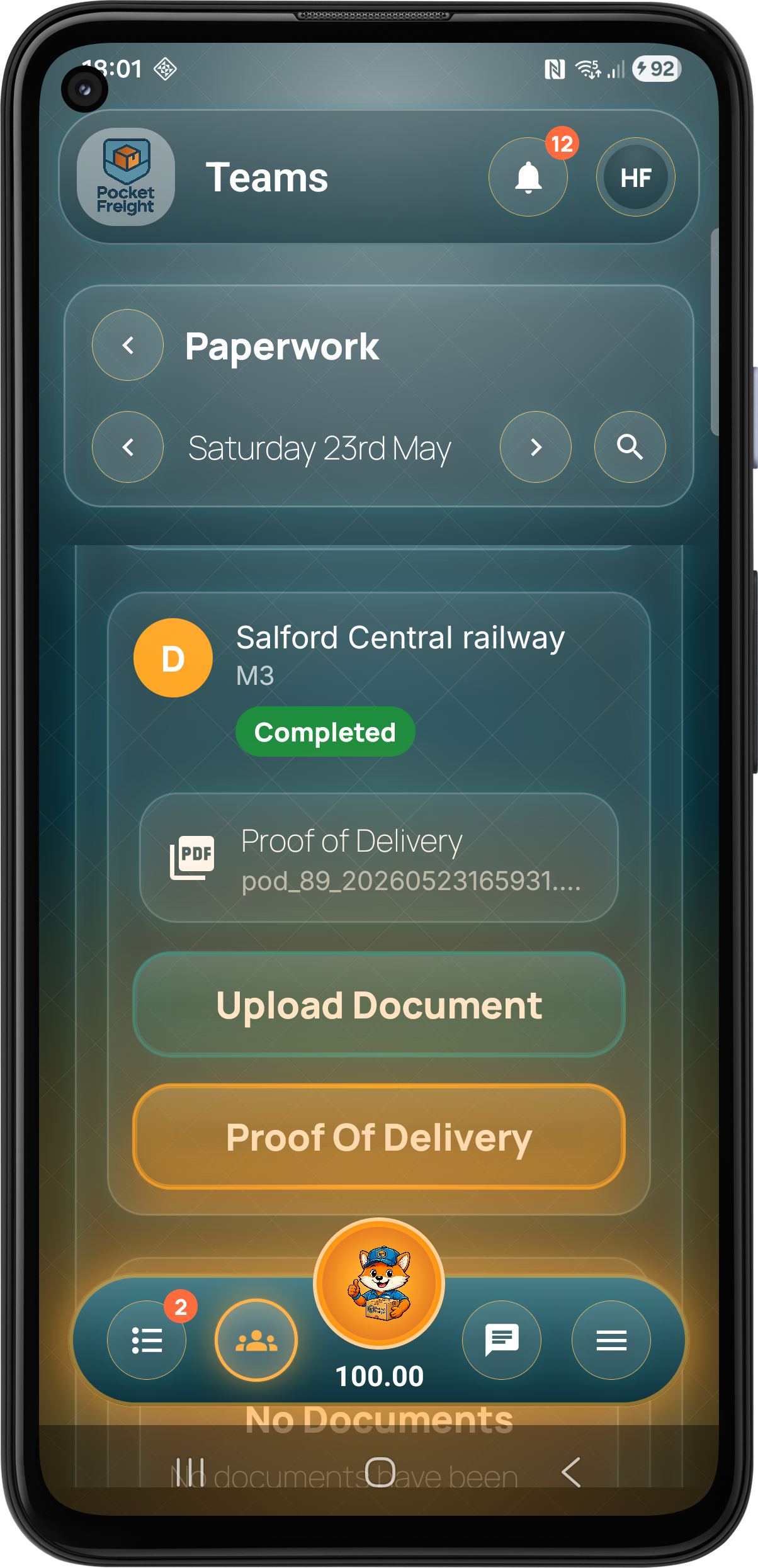
Proof Of Delivery
Complete delivery records
Manage proof of delivery records so completed jobs have the right supporting documents attached.
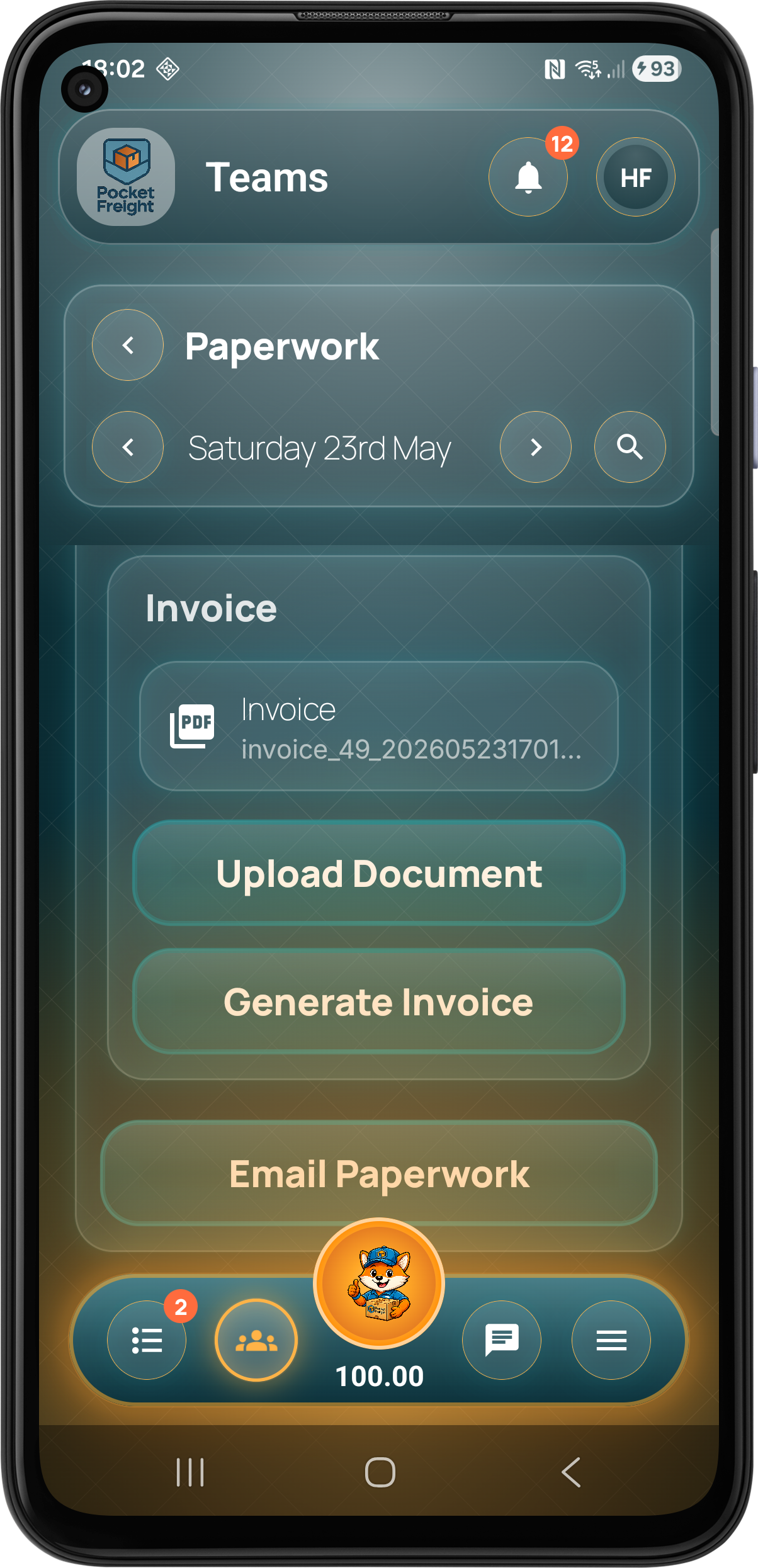
Invoices
Generate invoice paperwork
Create customer invoice paperwork from the job workflow and keep it connected to the delivery record.
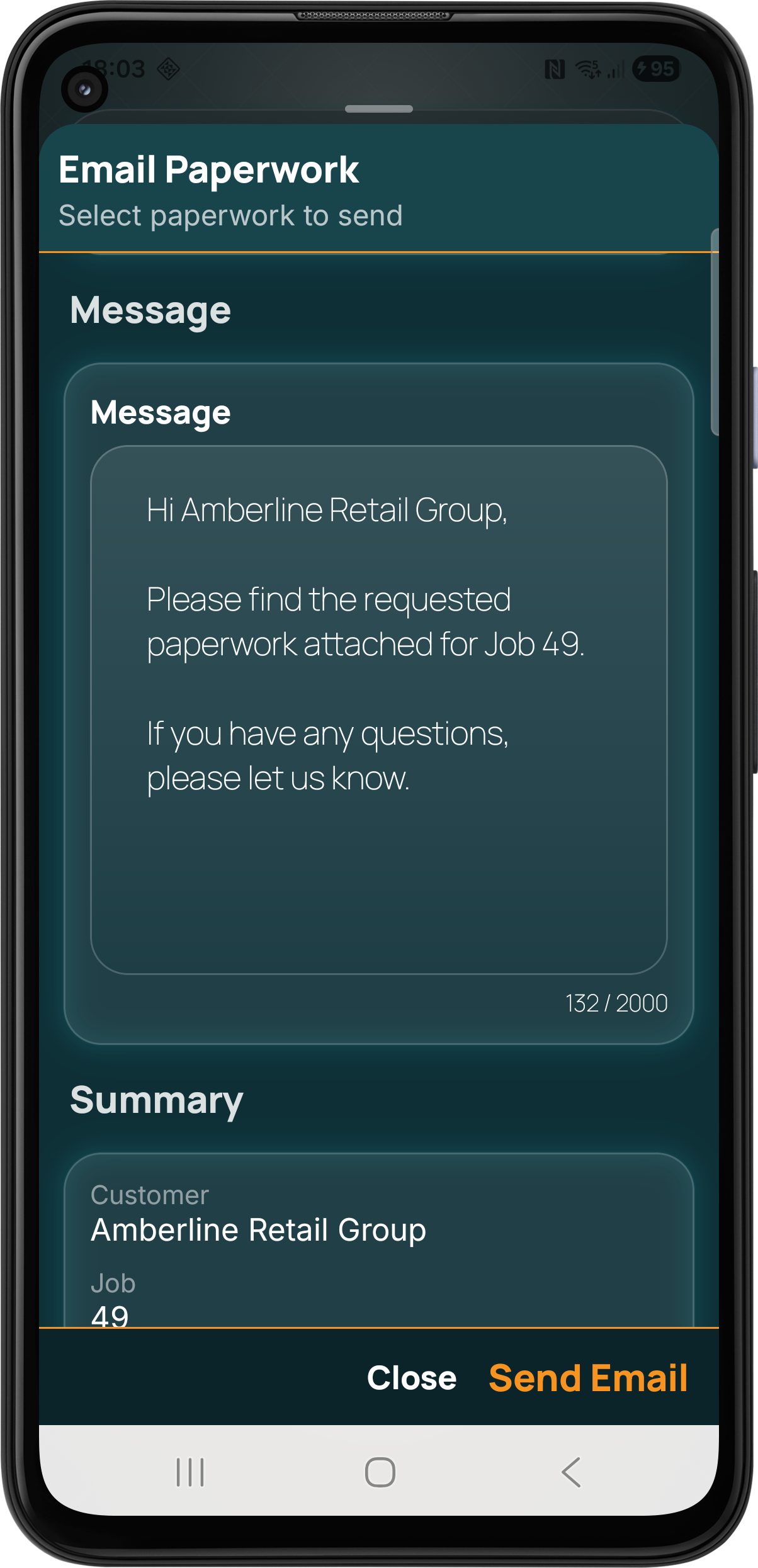
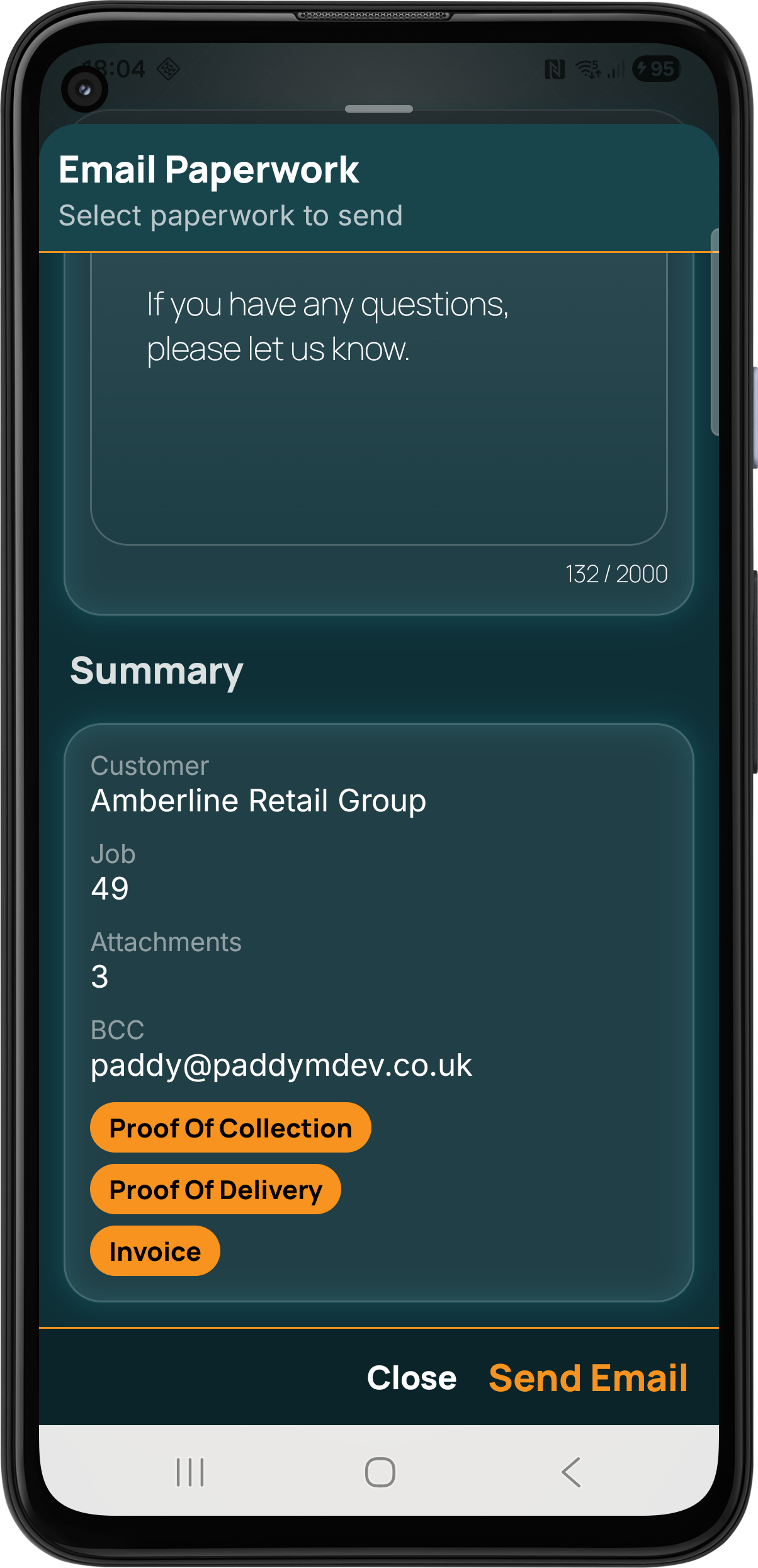
Customer Emails
Email documents straight to customers.
The app can generate customer ready emails containing the relevant documents, reducing manual admin after collections, deliveries and invoicing.
Email Templates
The email journey, in the same order as the work.
From the first enquiry notification to quote responses, job conversion, ETA tracking and final paperwork, every customer-ready email is generated from the live operational record.
New Enquiry Email
Open Email
Document Examples
Preview generated paperwork examples.
Select a proof of collection, proof of delivery or invoice example to preview the PDF directly inside the page.
Pallet paperwork
Vehicle paperwork
Proof Of Collection For Pallets
Open PDFFinance
Manage invoices and see the financial picture.
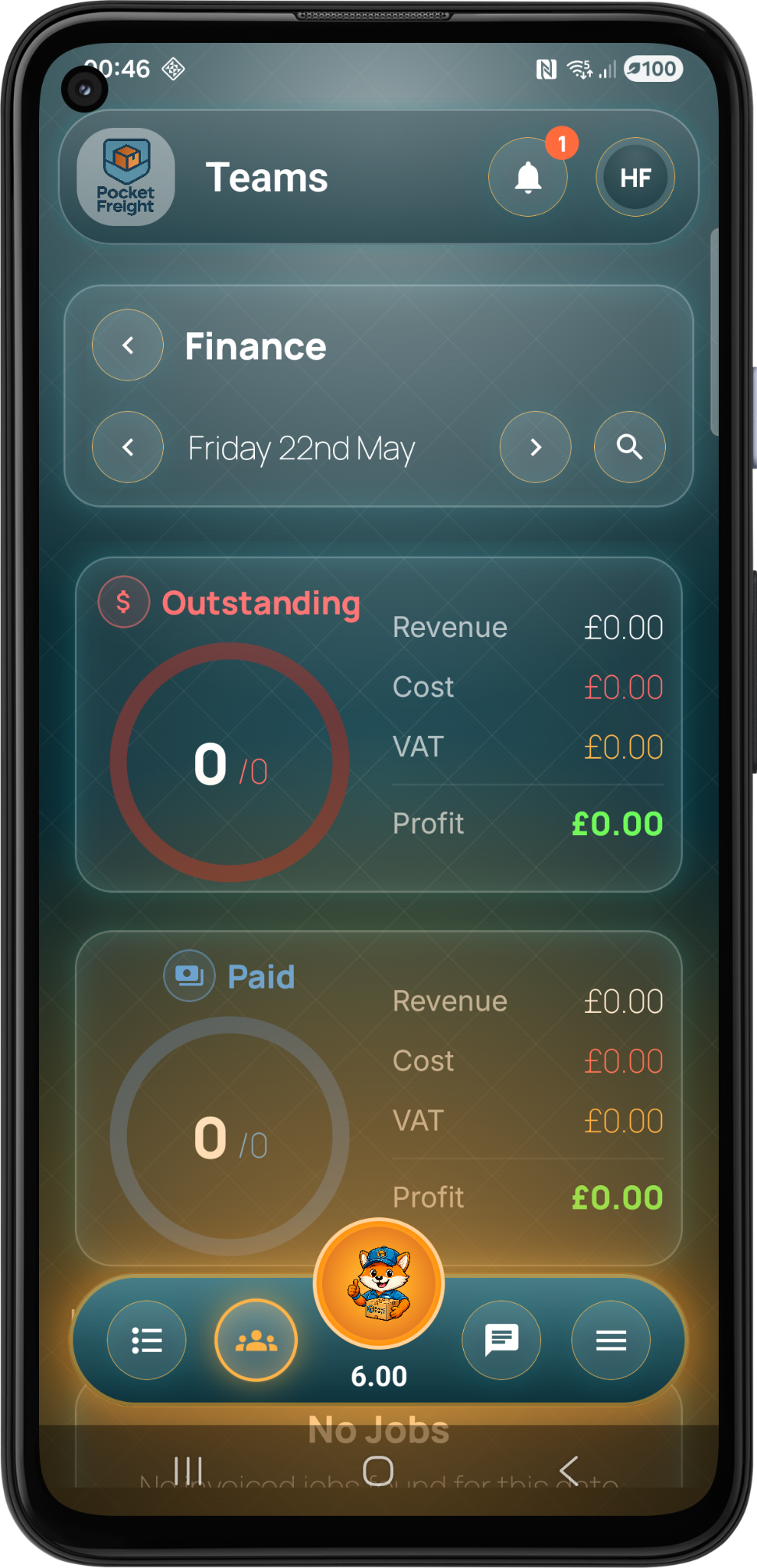
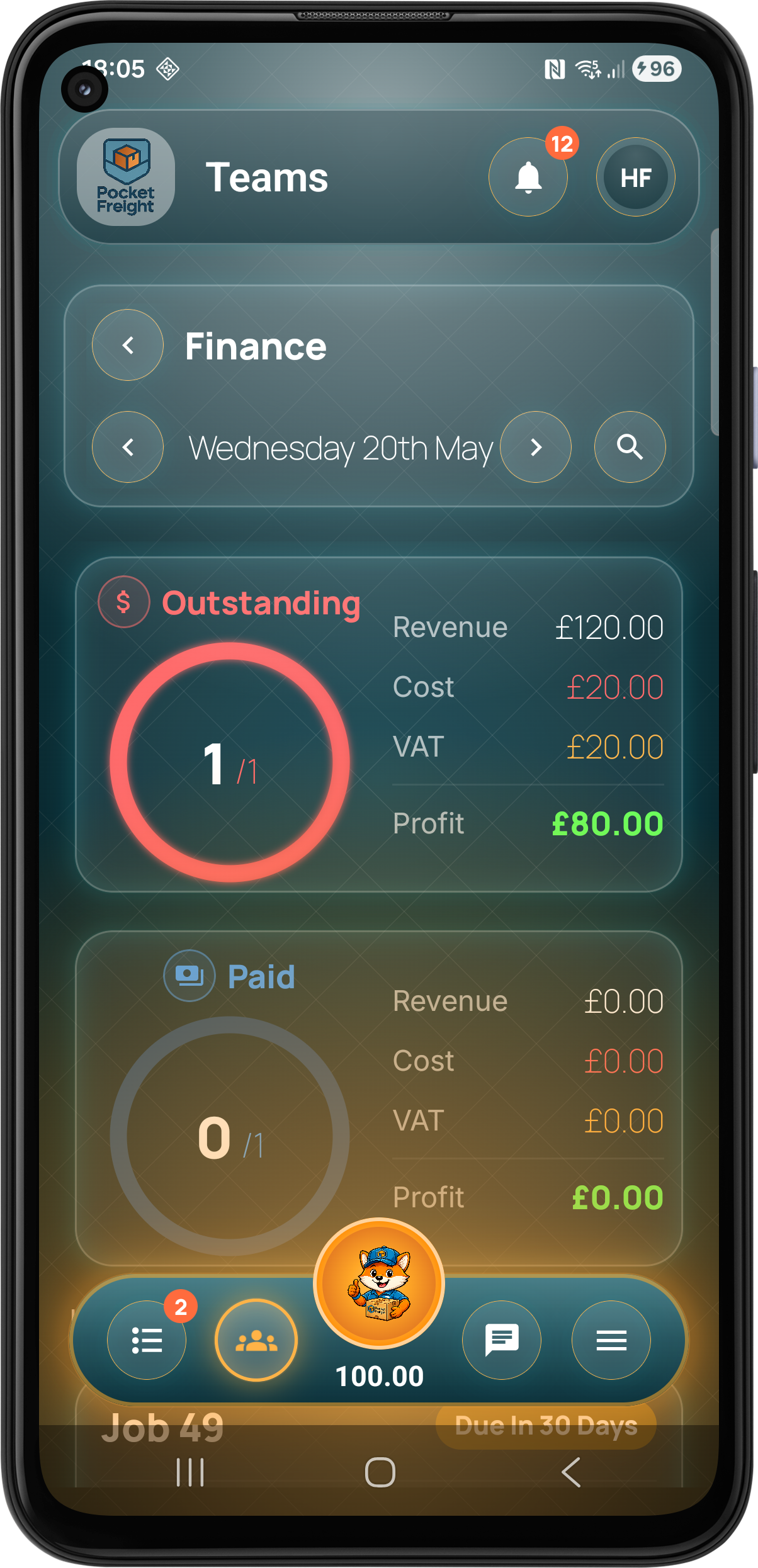
Finance screens help teams monitor outstanding invoices, paid work, revenue, costs, VAT and profit directly from the operational platform.
Overview
Finance dashboard
View key figures for outstanding and paid work with revenue, cost, VAT and profit summaries.
Invoices
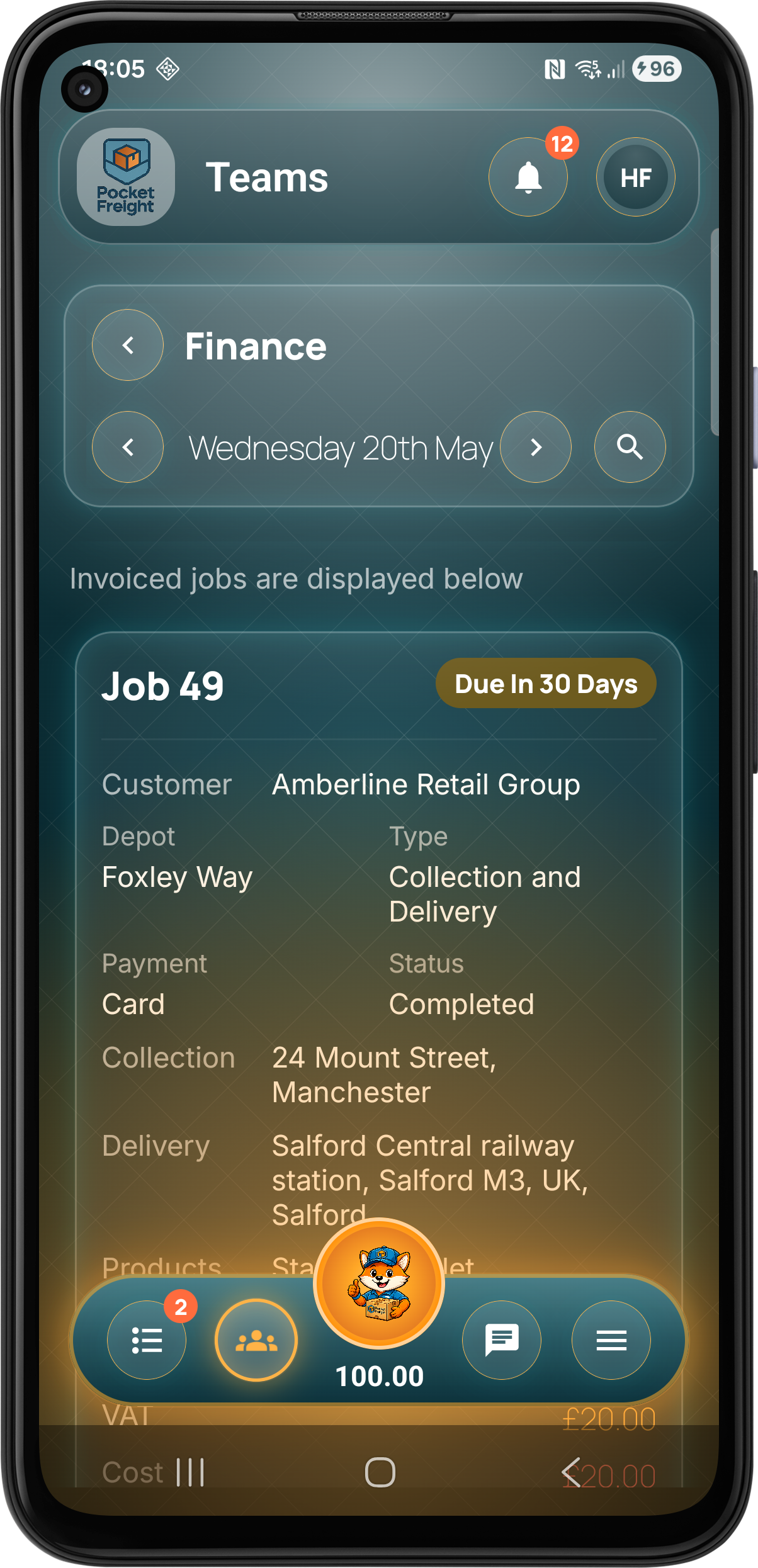
Outstanding work
Monitor jobs and invoices still awaiting payment and keep the team aware of what needs attention.
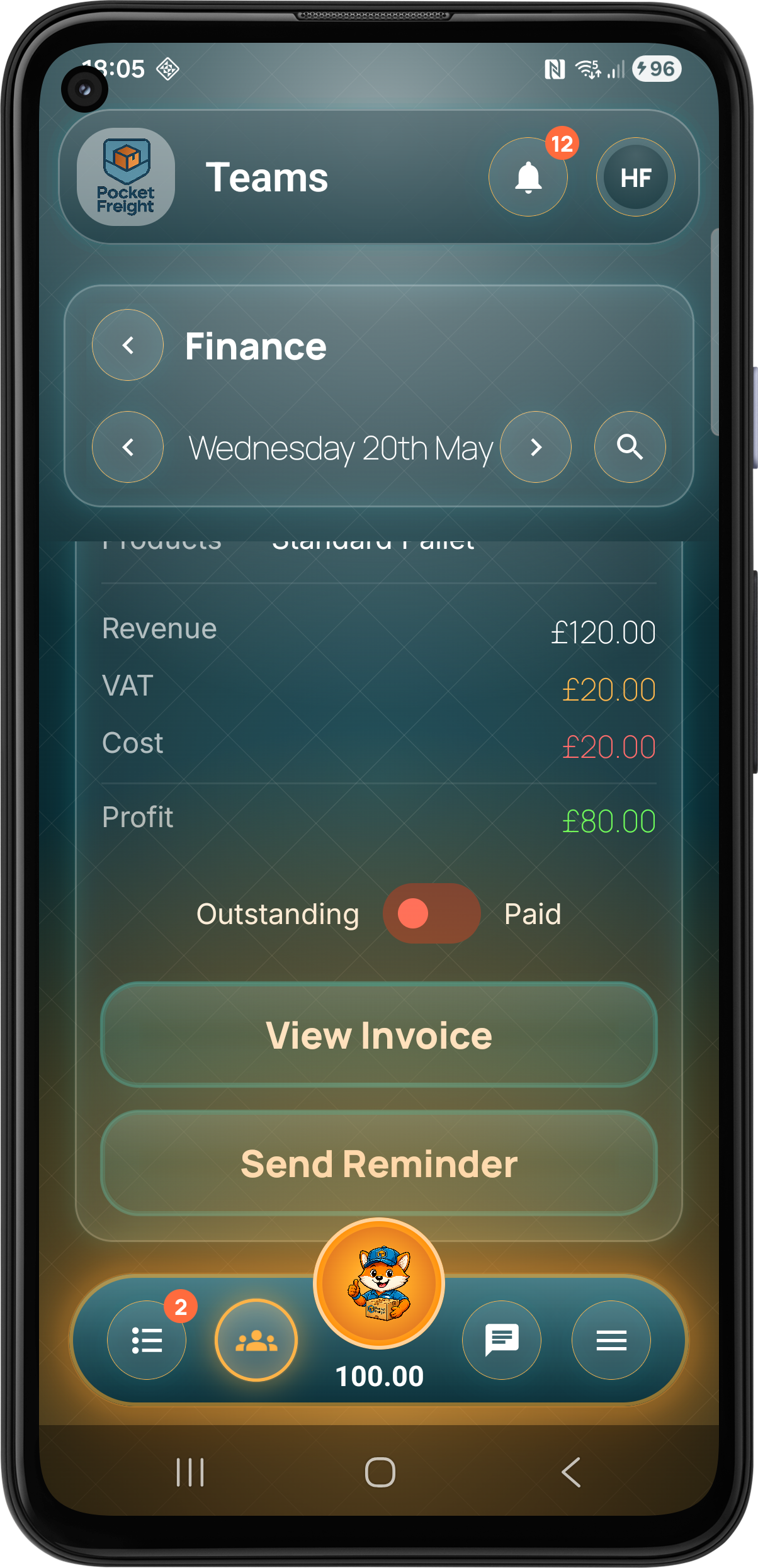
Payments
Paid work
Review paid jobs and completed invoice activity as part of the same operational workflow.
Performance
Profit visibility
Understand revenue, costs, VAT and profit without having to build separate reports manually.
Management
Dashboards, tracking and communication.
Pocket Freight & Trade gives team members, admins and managers visibility across the business with operational dashboards, live tracking and built-in chat.
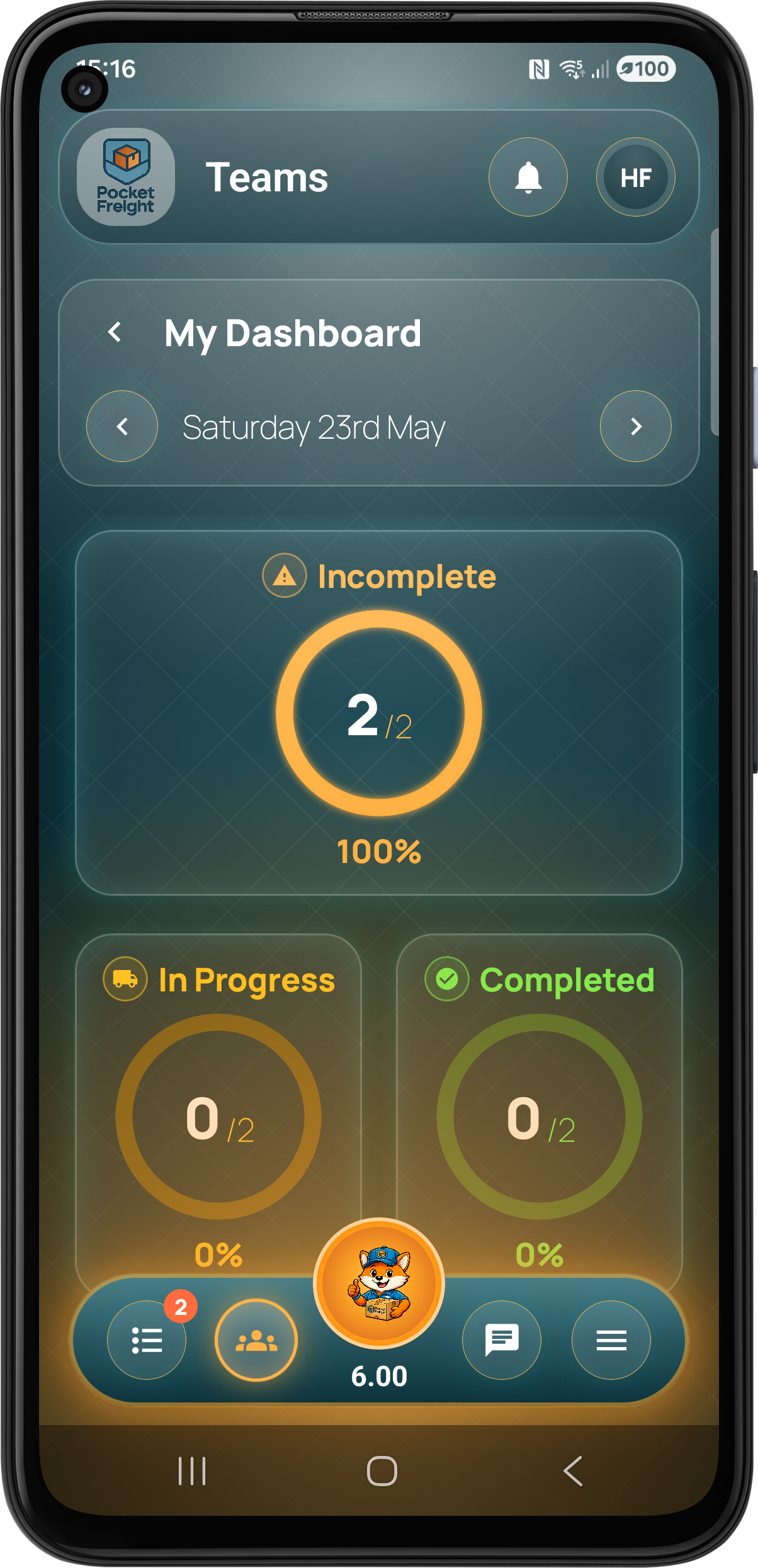
User Dashboard
Driver focused visibility
Users can view their own activity, progress and operational information from a dedicated dashboard.
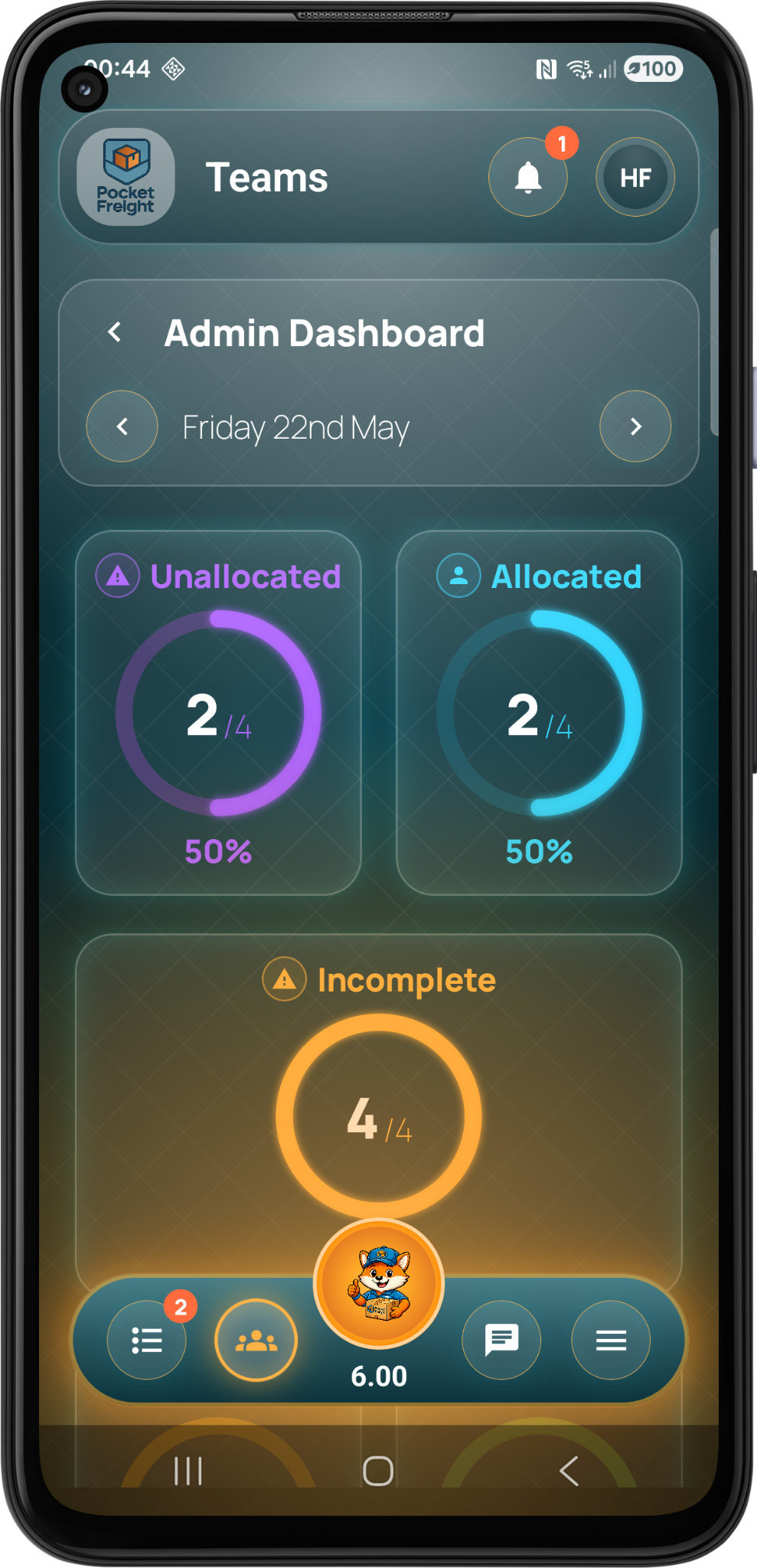
Admin Dashboard
Operational control
Admins can monitor allocated, unallocated and incomplete work at a glance.
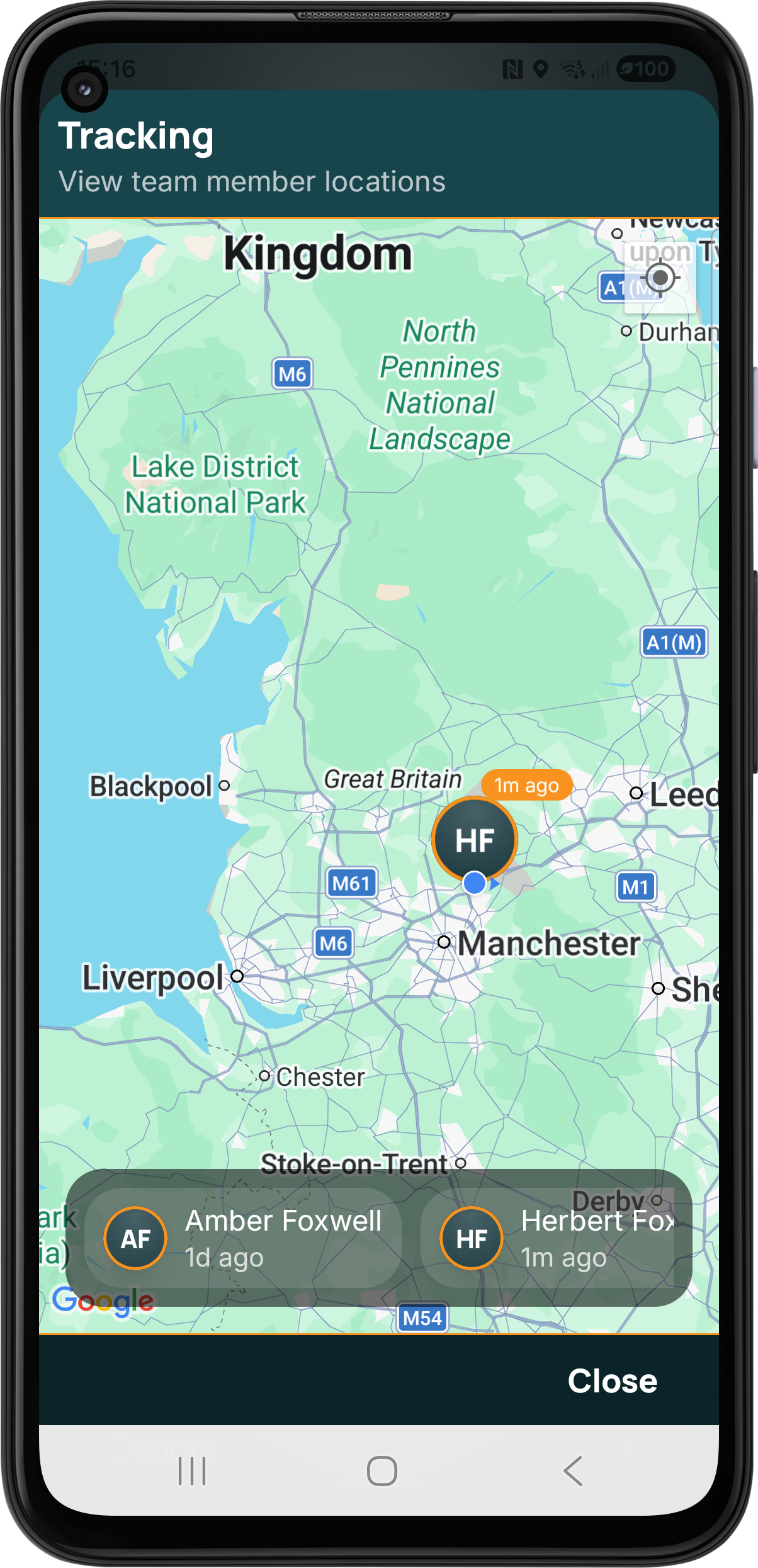
Live Tracking
See team locations
Track team members and operational activity with live map based visibility.
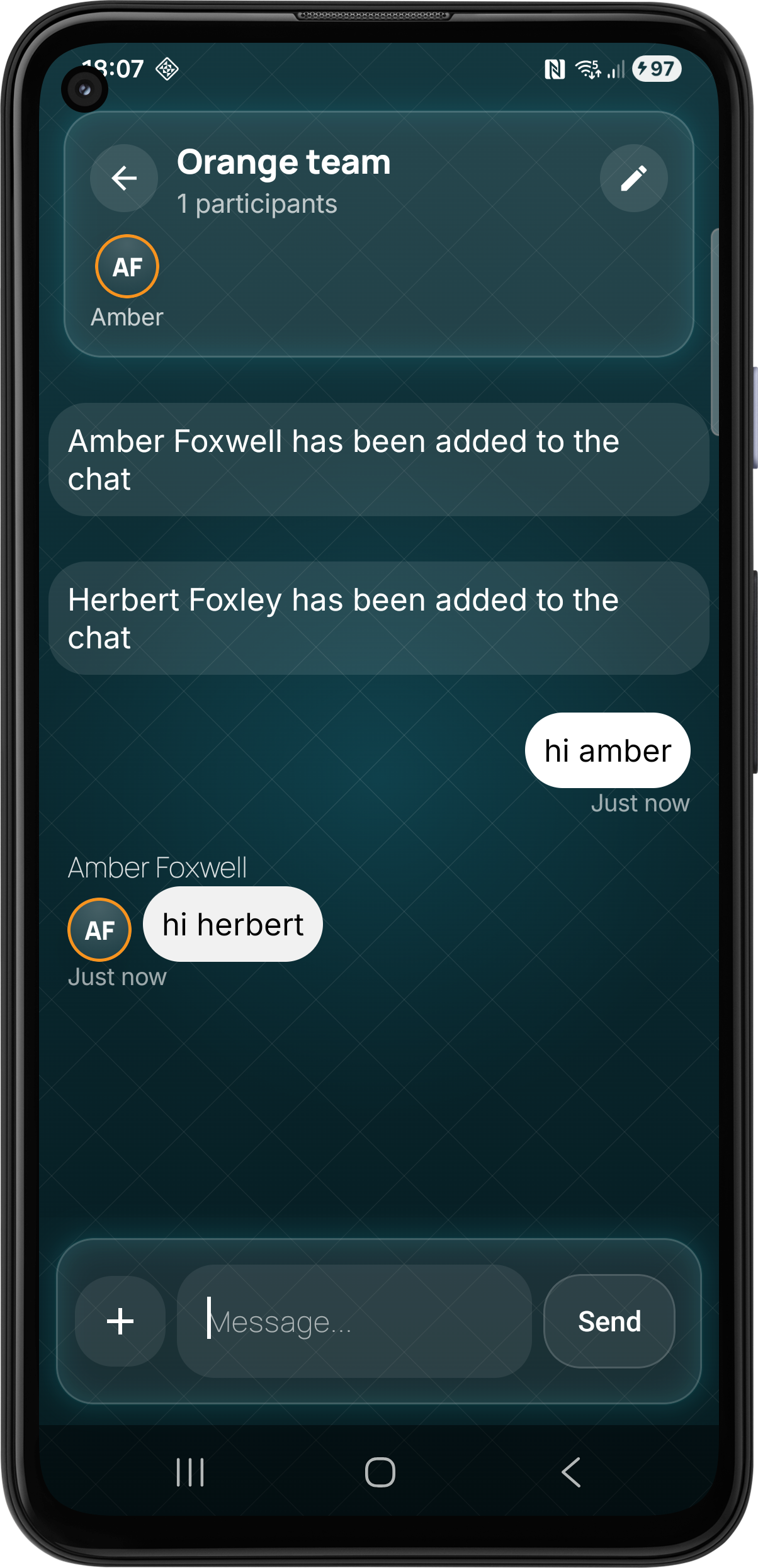
Chat
Keep communication inside the app
Use chat rooms to keep operational conversations connected to the team workspace.
Engagement
FTCoins, rewards, feature requests and support.
The platform includes features that help users earn coins, stay engaged, request improvements and contact support directly from the menu.
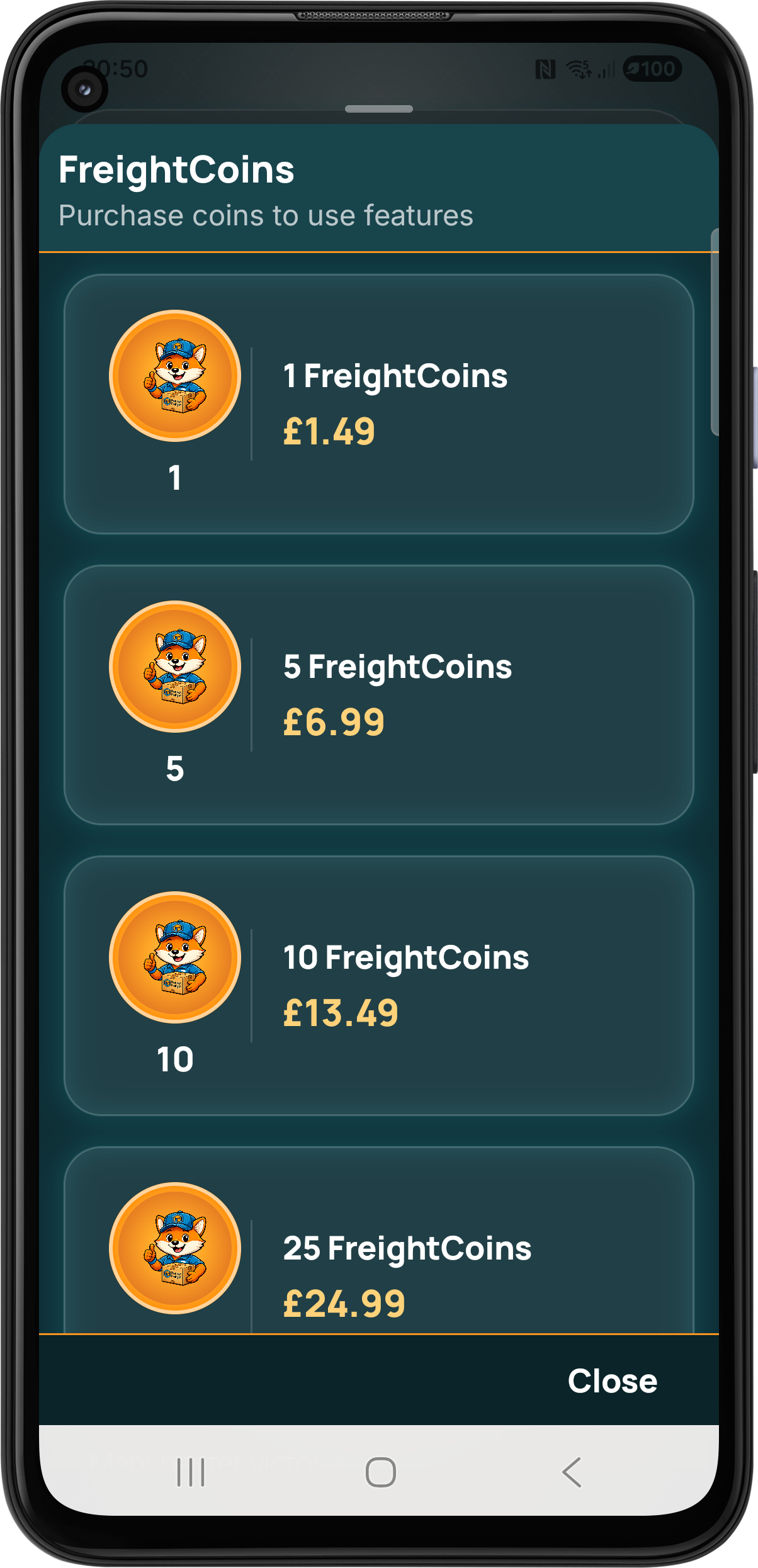
Buy FTCoins
Purchase FTCoins inside the app
Users can purchase FTCoins directly within the app to unlock features, actions and platform tools whenever needed.
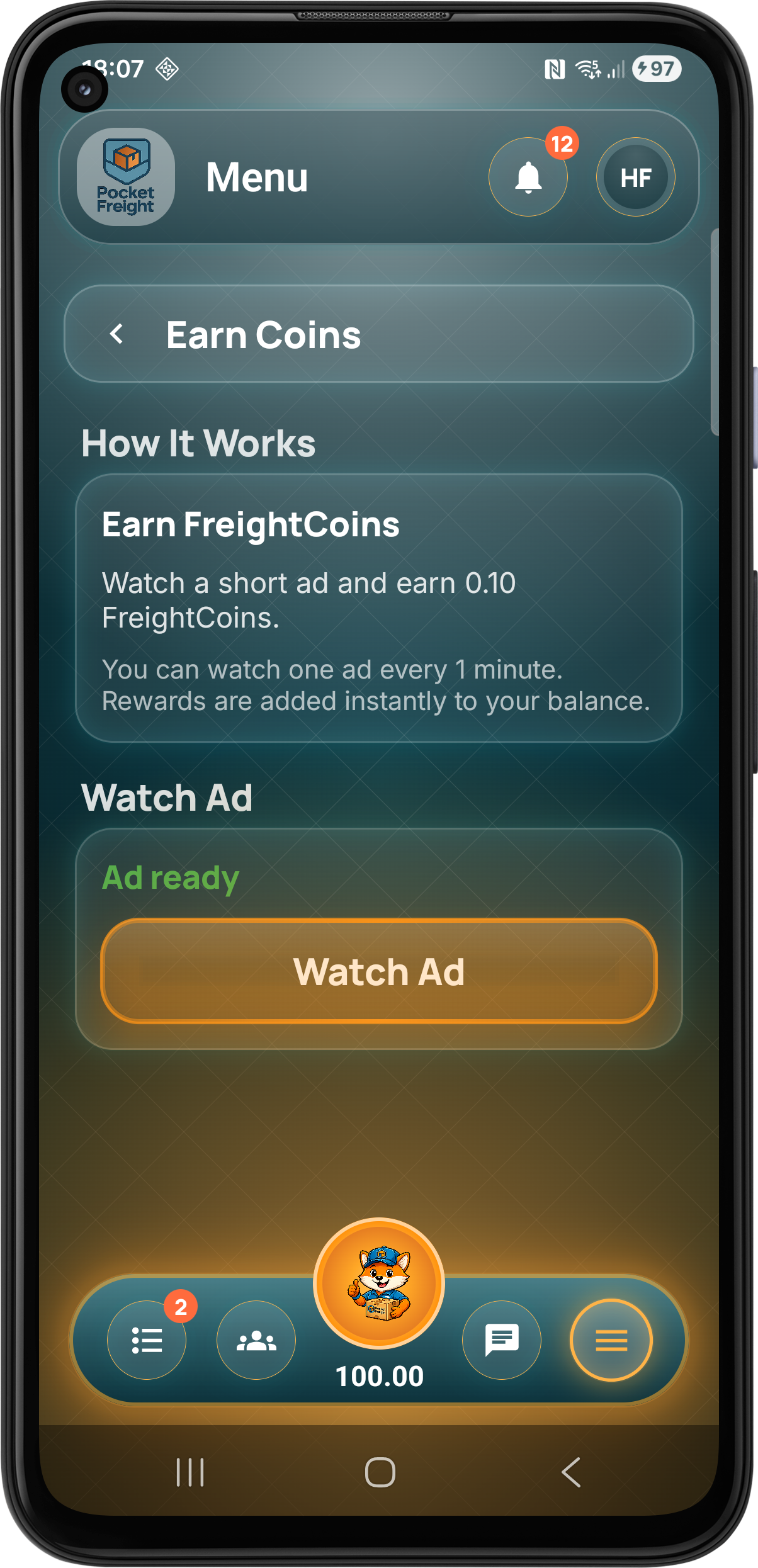
Earn FTCoins
Watch ads and earn coins
Users can earn FTCoins through rewarded ads to help unlock actions within the platform.
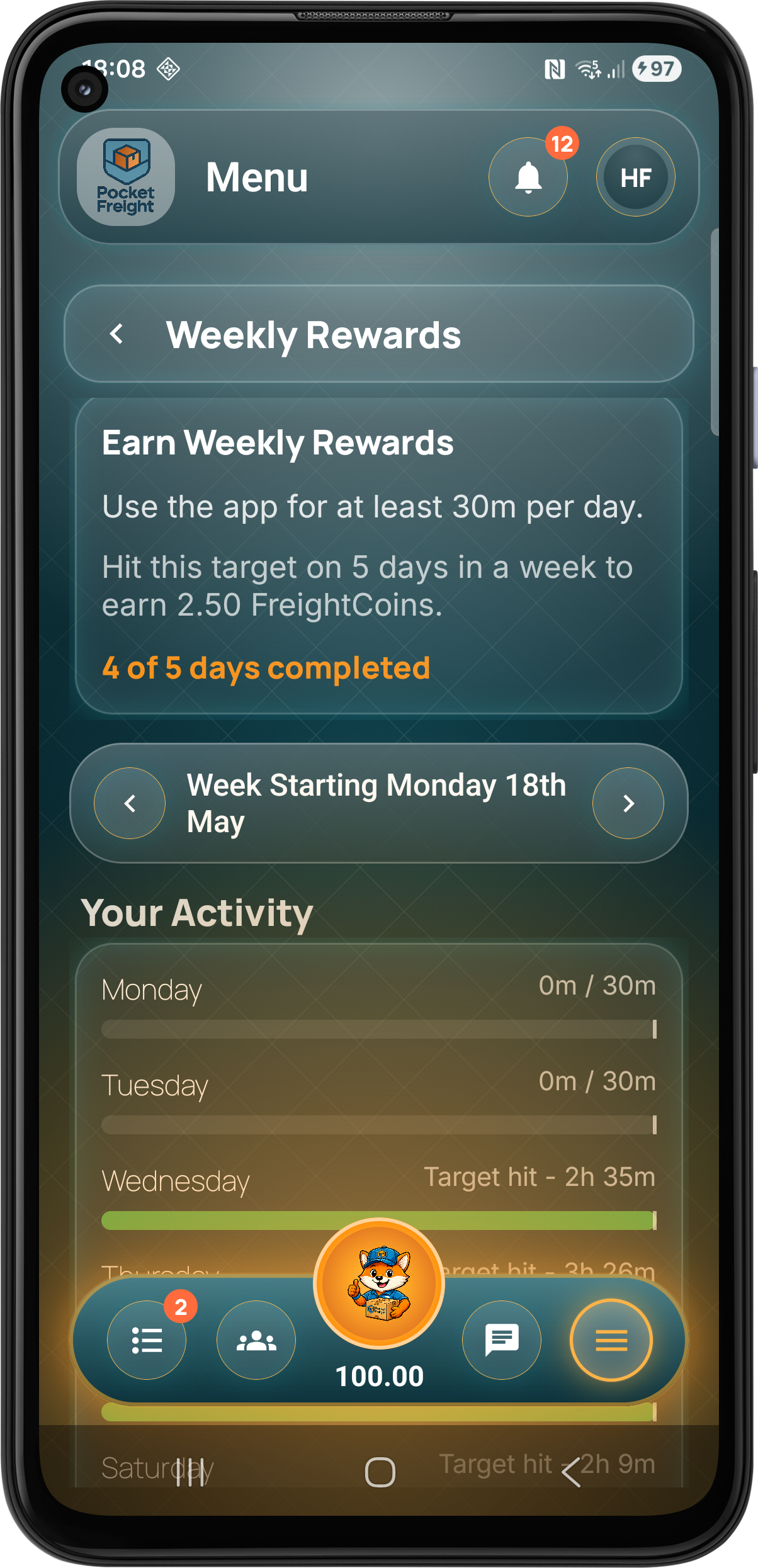
Weekly Rewards
Reward regular use
Weekly rewards encourage active usage and give users more ways to build their FTCoin balance.
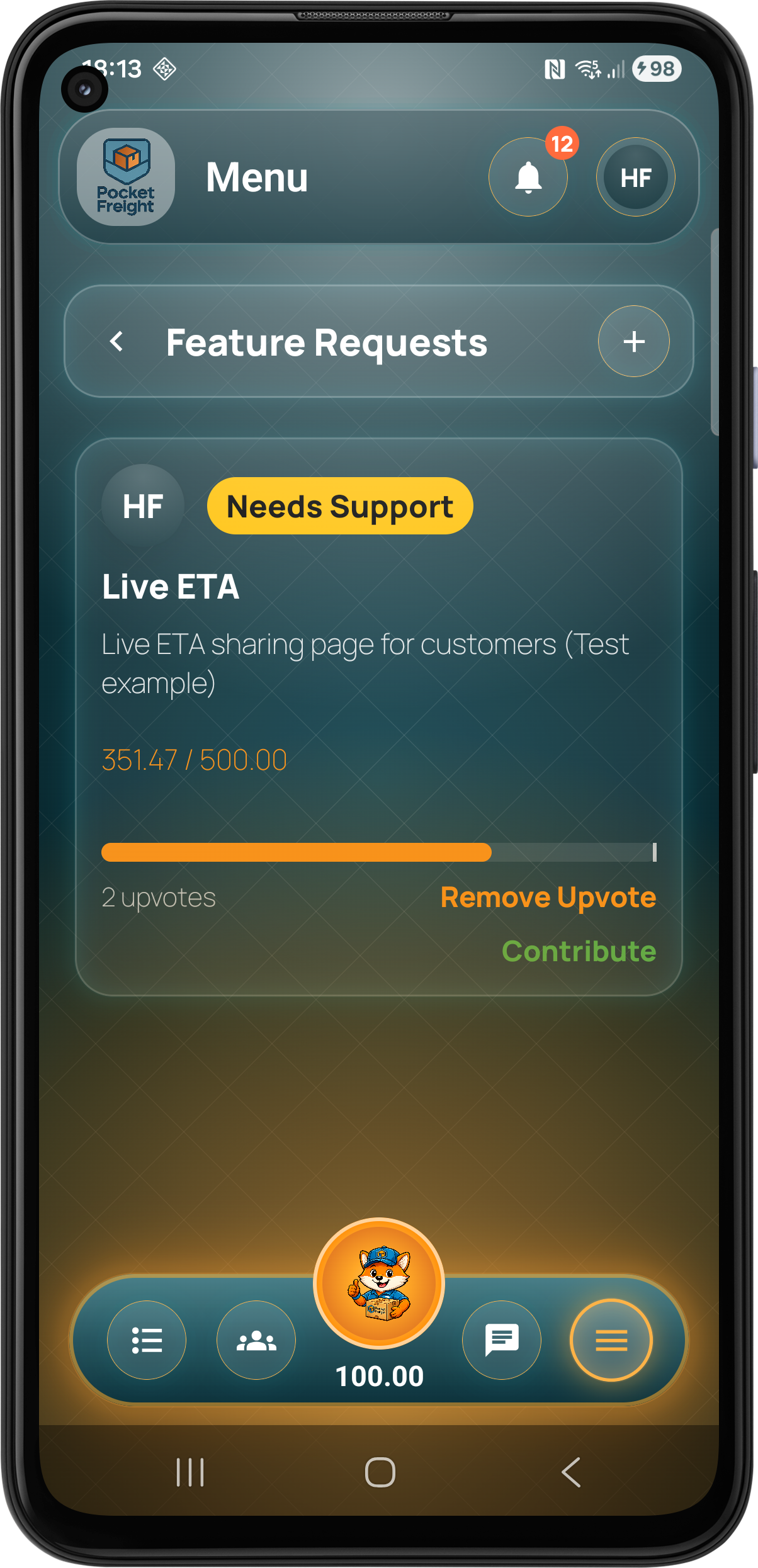
Feature Requests
Shape the future roadmap
Users can request features so real operational feedback helps guide the platform as it grows.
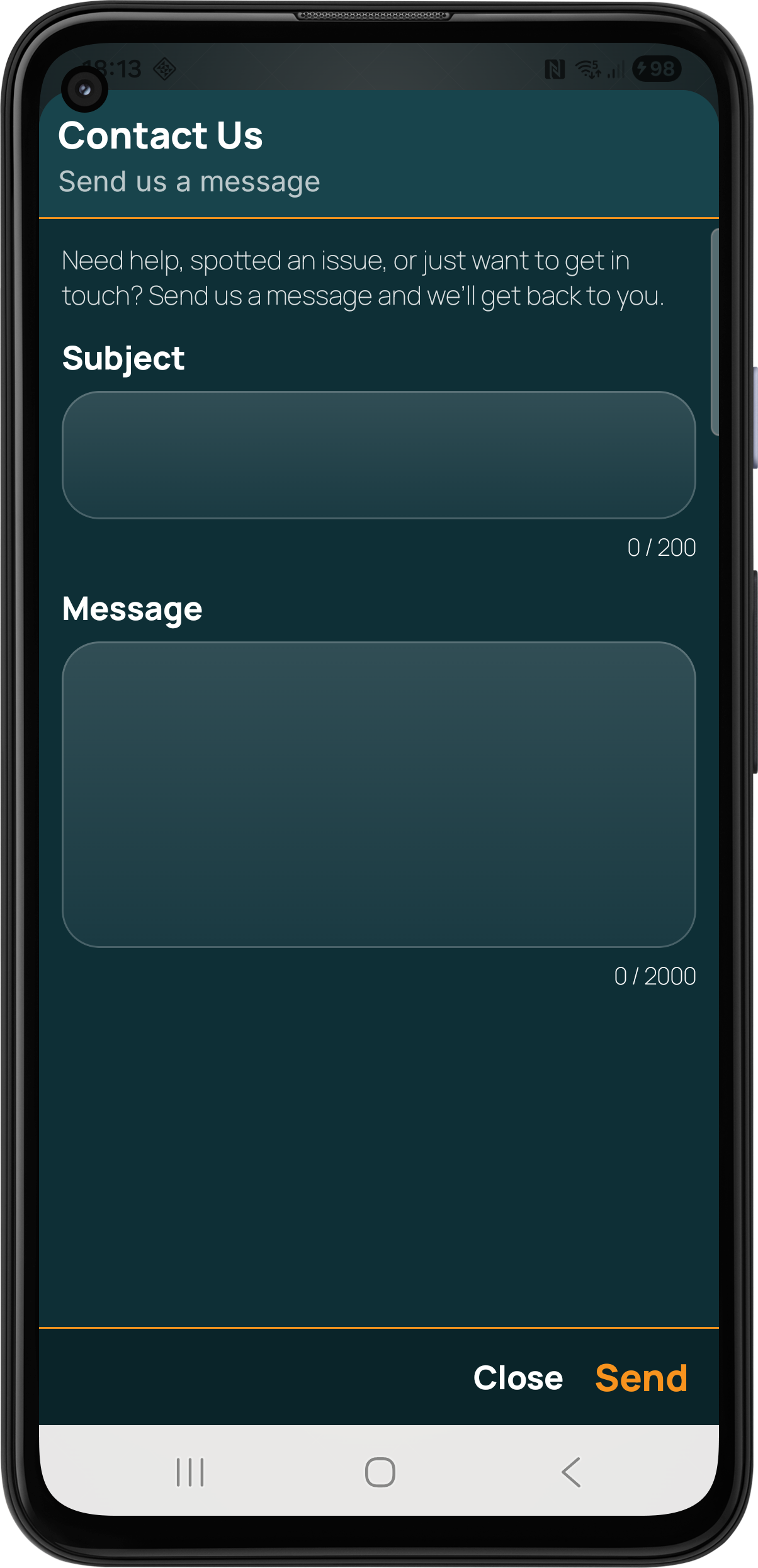
Contact Us
Support from inside the app
Users can report issues, send feedback and contact the team directly from the app menu.
Data Import
Bring your existing business data with you.
Getting started is easier when your data comes with you. Use our bulk import workbook to bring customers, addresses, depots, products and more into Pocket Freight & Trade.
Download the workbook
Get the Pocket Freight & Trade import workbook and fill in the sections that are relevant to your business.
Complete it your way
Use a laptop, desktop, tablet or phone. Complete the workbook wherever it is easiest to manage your existing data.
Send it to support
Email the completed workbook to Pocket Freight & Trade support with your Team Reference so we can identify the right account.
We review and import
Our team checks the workbook before importing your data and contacts you if anything needs confirming.
Pocket Freight & Trade
Built with real operators in mind.
Android and iOS are live, and the platform continues to improve through direct feedback from real transport, logistics and field service users.
Visit Pocket Freight & Trade